
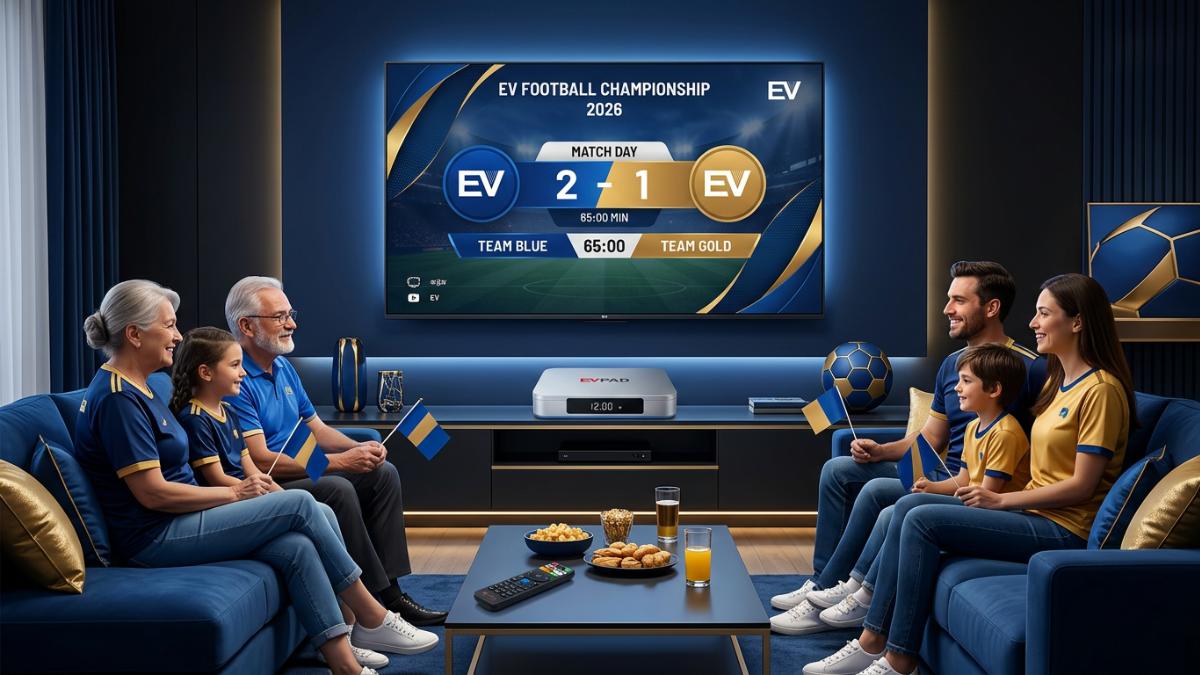
Quick summary: EVPAD users can follow World Cup 2026 more easily with the built-in Live app World Cup section and the Venus World Cup 2026 section. This guide explains where to find the World Cup entry, how to prepare your TV box for match day, how to reduce buffering, and how to enjoy live matches and related sports content on a big screen with the whole family.
World Cup 2026 is shaping up to be one of the biggest football events in years, and most families would rather enjoy the matches on a real big-screen TV than crowd around a phone. If you already own an EVPAD TV Box, the path to a comfortable big-screen TV experience is simple: open the sports area, find the World Cup section, check the schedule, and get your network ready before kickoff.
In the current EVPAD viewing experience, World Cup content lives in two key places: the built-in Live app and the Venus app. The Live app includes a World Cup section for live sports viewing, while Venus provides a World Cup 2026 area with groups, schedule information and match-related navigation. Used together, they make day-to-day football viewing during the tournament feel organized and easy to control from the sofa.
This guide is written for two kinds of readers: people who already use EVPAD and want a smoother match-day setup, and people choosing a new TV box for live sports and family entertainment. We will cover where to find World Cup content, how to build a quick match-day setup routine, how to cut down on buffering, the best TV settings for fast-moving football, and where to find setup and support resources after delivery.
If you are still shopping for the right device, you can review the current EVPAD 12P product page or compare options across the full EVPAD TV Box collection as you read along.
Why EVPAD Is Useful for World Cup 2026 Viewing
Football is simply better on a large screen. A dedicated TV box makes the match-day experience easier for families because everything is controlled from the sofa with one remote: live viewing, sports categories, schedule checking, app switching and replay-style content browsing. Instead of squinting at a phone or passing a tablet around the room, everyone watches the same big-screen TV together.
For World Cup 2026, EVPAD is useful because it brings together the four things that matter most during a football tournament:
There is also a practical convenience factor. During a busy tournament schedule, you want to move quickly between checking the schedule and actually watching a match. EVPAD keeps both within a few clicks, so a casual viewer and a serious football fan can each find what they need without a complicated menu.
If you are buying a new device specifically for sports and family entertainment, you can review the current EVPAD 12P product page or compare models in the EVPAD TV Box collection before match day.
World Cup Section in the Built-In Live App
The built-in Live app is the fastest place for most users to start. From the sports category, you can enter the World Cup section and browse match-related live channels. This is especially handy when you want to find a match quickly in the minutes before kickoff and get straight to the big-screen TV experience.
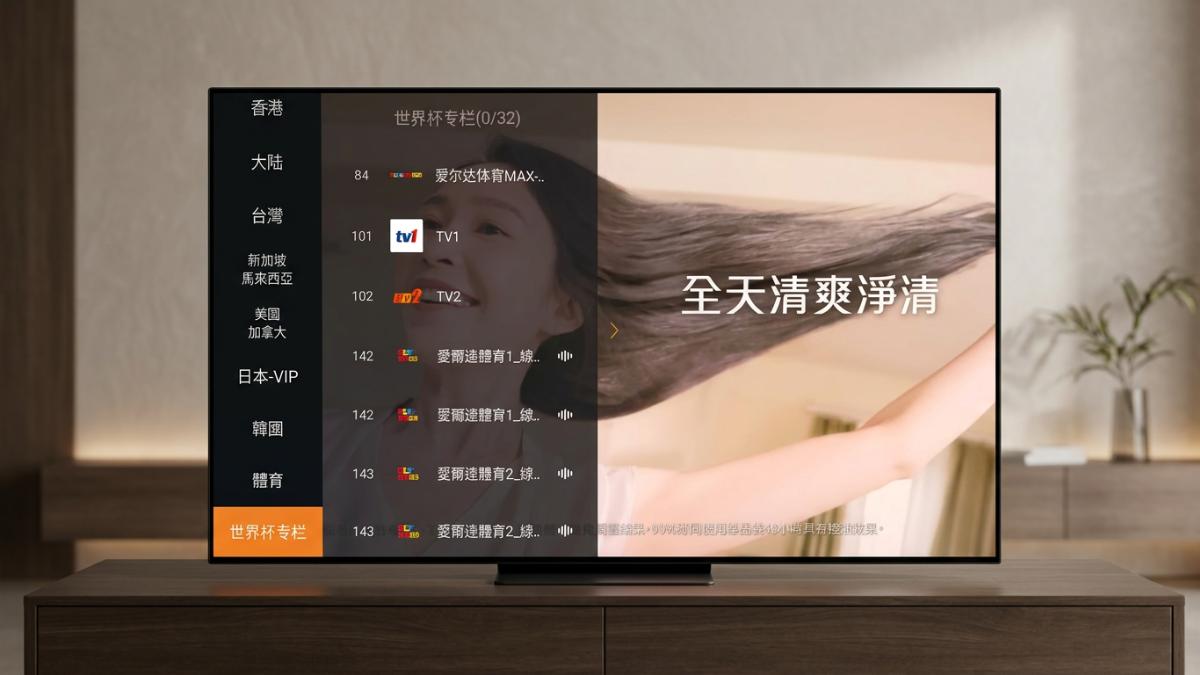
How to Find the World Cup Section in the Live App
- Turn on your EVPAD TV Box and connect it to the internet.
- Open the built-in Live app from the home screen.
- Go to the sports category or sports channel area.
- Look for the World Cup section or football-related category.
- Select the match or sports channel you want to watch.
- If the stream does not load right away, wait a few seconds or try another related entry.
For the smoothest match-day setup, open the app about 10–15 minutes before kickoff. That gives you time to test the stream, adjust the TV volume, and switch to Ethernet if your Wi-Fi feels unstable. A few minutes of preparation usually prevents the small problems that always seem to appear right as the match begins.
World Cup 2026 Section in Venus
Venus is the other useful app for World Cup 2026. In the Venus interface, you will find a World Cup 2026 section with group information, match schedule cards and tournament navigation. This is the place to check who is playing, when the next match starts, and how the groups are organized, all in one clear view.
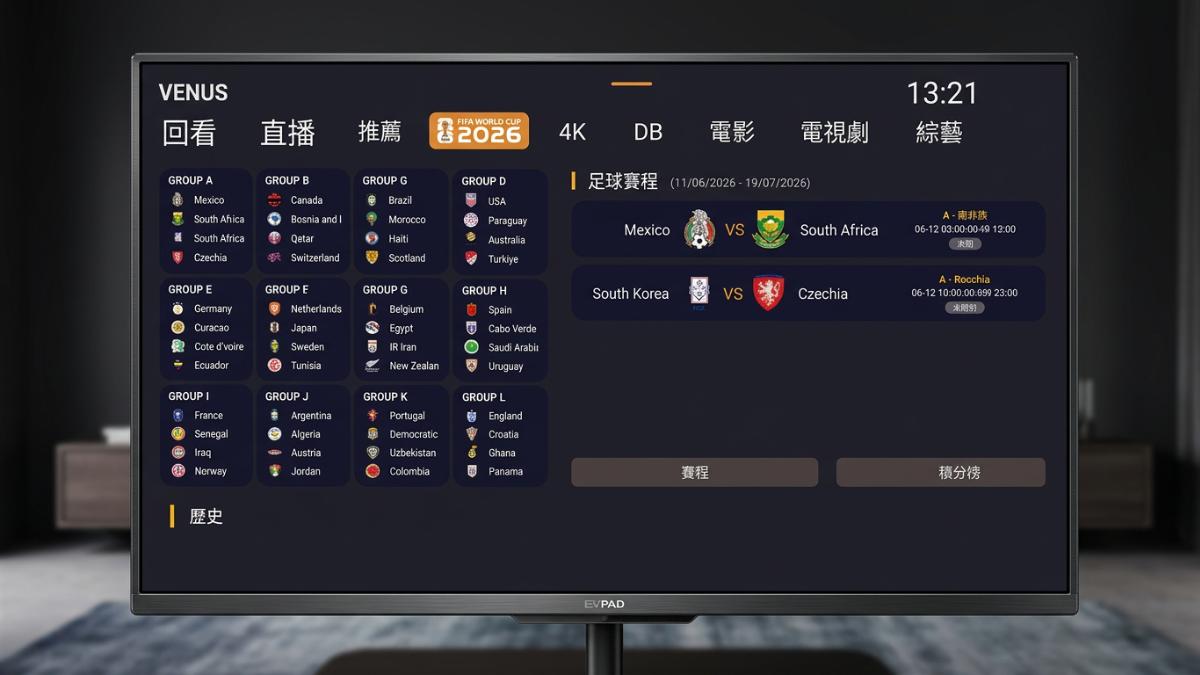
What You Can Use Venus For
- Check World Cup 2026 group information at a glance.
- Review upcoming match schedules and plan your viewing.
- Find tournament-related entries collected in one clear section.
- Use it together with the Live app for a smoother sports viewing routine.
For most households, the easiest routine is simple: use Venus to check the schedule and decide what to watch, then open the Live app to enter the World Cup viewing section before the match starts. Treat Venus as your planning screen and the Live app as your watching screen, and the whole tournament becomes easier to keep up with.
Match-Day Setup Checklist for EVPAD Users
Before an important match, do not wait until kickoff to test everything. Live sports do not give you a second chance at a missed goal, so a five-minute setup check beforehand prevents most of the common problems. Run through the checklist below the first time, and after a match or two it will become second nature.
| Checklist Item | What to Do | Why It Helps |
|---|---|---|
| Internet | Use Ethernet if possible, or move the router closer to the TV box. | A stable connection helps reduce buffering during live matches. |
| HDMI | Check that the HDMI cable is firmly connected and the TV is set to the correct input. | This avoids black-screen or no-signal problems just before kickoff. |
| Live app | Open the Live app and locate the World Cup section before the match starts. | You can switch channels faster the moment the match begins. |
| Venus | Open the Venus World Cup 2026 area to confirm schedule and group information. | This helps you confirm match timing and tournament navigation in advance. |
| Remote control | Check the batteries and make sure the remote responds normally. | A working remote makes channel switching easy during live sports. |
| Sound | Test the TV volume, soundbar or speaker output before kickoff. | Football atmosphere depends heavily on clear commentary and crowd sound. |
| Screen position | Make sure everyone has a clear view and the room is not too bright. | Comfortable seating keeps the whole family engaged for the full match. |
Plan Your Match Day a Little Earlier
If you are hosting friends or family for a big match, add a few extra steps the day before. Decide which matches you want to watch using Venus, charge or replace the remote batteries, and confirm your seating and snacks so nobody is rushing around once the match starts. A relaxed match-day setup is part of what makes the big-screen TV experience feel special compared with watching alone on a phone.
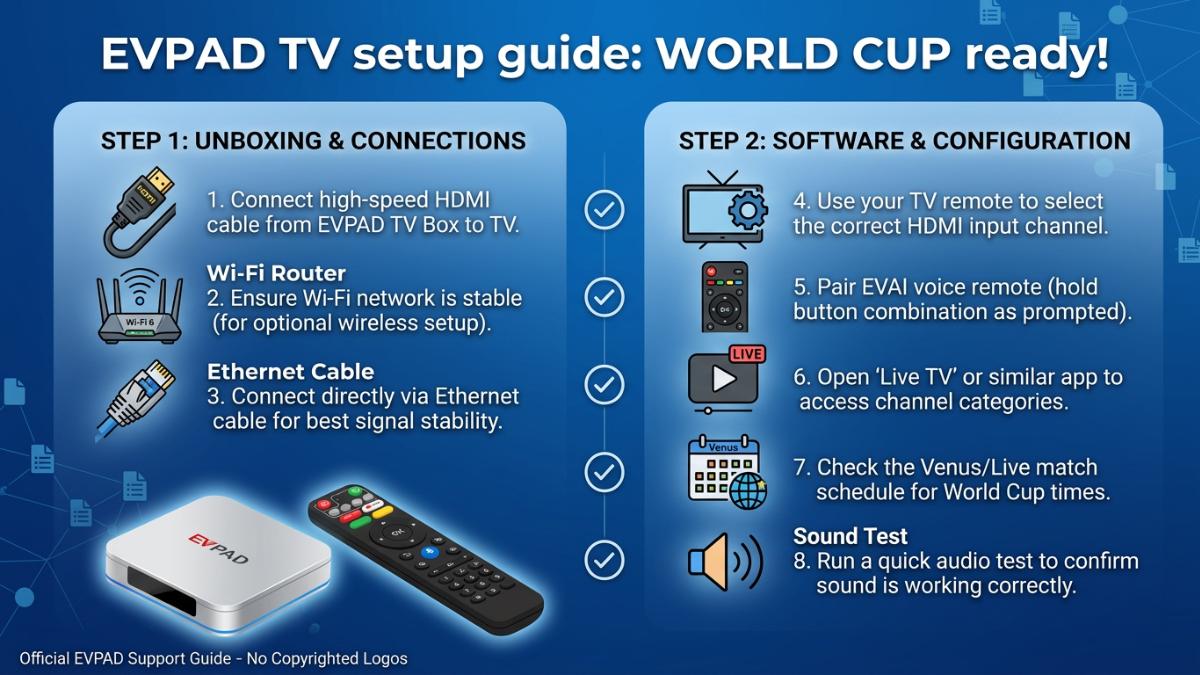
How to Reduce Buffering During World Cup Matches
Live sports are more sensitive to network quality than ordinary video browsing. If the connection drops or becomes unstable during a match, even a few seconds of buffering can feel frustrating, especially during a goal or a penalty. The good news is that most buffering comes down to a few simple causes you can check and fix yourself.
Use Ethernet When Possible
If your router is near the TV, connect your EVPAD device with an Ethernet cable. A wired connection is usually more stable than Wi-Fi, particularly during live matches when many homes in the neighborhood are online at the same time. For an important match, Ethernet is often the single biggest improvement you can make.
Improve Your Wi-Fi Signal
If a wired connection is not practical, a few small adjustments can make Wi-Fi noticeably more reliable:
- Place the router closer to the TV box, with as few obstacles as possible.
- Avoid putting the router behind thick walls, metal cabinets or large appliances.
- Restart the router before an important match to clear up minor slowdowns.
- Disconnect or pause devices that are downloading large files or updates.
- Open the match stream early so you can test stability before kickoff.
- Keep heavy gaming or video calls off the same network during the match.
Is It a Network Issue or an App Issue?
A quick test tells you where the problem is. If only one channel or one app is slow, switch to another entry and try again, since the issue is likely with that single source. If every app and the browser feel slow, the problem is more likely your home network, so start with the router and connection steps above. You can also review the EVPAD FAQ page or contact support if the problem continues after these checks.
Best TV Settings for Football Matches
Football moves quickly, so the right TV settings can make a real difference to the picture. You do not need complicated adjustments — a few simple changes are usually enough to keep fast action looking clear and smooth on the big screen.
- Use a picture mode such as Standard, Sports or Vivid, depending on your TV.
- Turn off overly strong motion smoothing if the picture starts to look unnatural.
- Increase brightness slightly if your living room gets a lot of daylight.
- Use a soundbar or external speaker if the built-in TV audio feels weak.
- Set the TV box output resolution to match what your TV supports.
If you use the EVPAD 12P, its Wi-Fi 6, Gigabit LAN and voice remote are well suited to a living-room sports setup, making it easy to search, switch and settle in for the match. The core principle stays the same on any model: use a stable network and open the match app early, and the picture and sound will usually take care of themselves.
Live Viewing, Schedule Checking and Replay-Style Browsing
Over a long tournament, most people do not just watch a single match. They also want to track group progress, find the next game, switch between sports entries, and revisit match-related content after the final whistle. A clear routine keeps all of that manageable instead of overwhelming.
This is exactly where the combination of the Live app and Venus pays off:
If you need app setup resources, visit the EVPAD Download Center. It is the best starting point for model-related setup guidance and support links, so you can sort out any questions well before match day rather than during it.
Who Is This EVPAD World Cup Setup Best For?
This EVPAD World Cup setup is especially suitable for:
- Families who want to watch football together on a large TV.
- Viewers who prefer a remote-control experience over casting from a phone.
- Fans who want to check the schedule and groups easily throughout the tournament.
- Households that want live sports, movies, dramas and TV apps in one TV box.
- Parents or older users who prefer a simple home screen with clear categories.
If you are comparing different models, start from the EVPAD TV Box collection to match the right device to your home and budget. If you already own the EVPAD 12P, keep your World Cup setup simple and focus your attention on network stability — that is what most affects the final viewing experience.
FAQ: Watching World Cup 2026 on EVPAD
Does EVPAD have a World Cup section?
Yes. EVPAD users can find World Cup-related sports content through the built-in Live app section, and Venus also includes a World Cup 2026 area for schedule and tournament navigation. Together they cover both watching and planning during the tournament.
Where should I check the World Cup schedule on EVPAD?
Venus is the convenient place to review World Cup 2026 group and schedule information. Use Venus to see what is coming next, then open the Live app to enter the sports viewing section when you are ready to watch.
Is Wi-Fi enough for watching live football on EVPAD?
Wi-Fi can work well when the signal is strong and stable. For important matches, Ethernet is often the better choice if your router is close to the TV box, because a wired connection helps reduce buffering during live sports.
What should I do if the match keeps buffering?
Restart the router, move it closer, close unused apps, switch to Ethernet, or test another sports entry. If only one app is slow, the issue is likely that source; if every app is slow, check your home internet connection first.
Can I use EVPAD 12P for World Cup viewing?
Yes. EVPAD 12P is well suited to home entertainment and live sports viewing, with Wi-Fi 6, Gigabit LAN, 4GB RAM, 64GB storage and a voice remote. Network quality and app status still affect the final experience, so a stable connection matters most on match day.
What if I cannot find the World Cup section?
Check that your device is connected to the internet, restart the app, and look under the sports or live categories. If the section still does not appear, review the Download Center or contact EVPAD support with your model and order information.
Should I update or reinstall apps during the tournament?
If everything is working normally, avoid unnecessary changes right before a match. If an app has repeated problems, check the Download Center, restart the device, clear the cache, or contact support before reinstalling anything.
How early should I set up EVPAD before kickoff?
Around 10–15 minutes is usually enough. That gives you time to open the Live app, find the World Cup section, confirm the schedule in Venus, test the sound, and switch to Ethernet if your Wi-Fi feels unstable.
Can the whole family watch together on one EVPAD box?
Yes. EVPAD is designed for big-screen, living-room viewing, so the whole family can watch the same match together on one TV using a single remote, which is part of what makes it a comfortable family entertainment setup.
Which EVPAD model is best for live sports?
For a current sports and family entertainment setup, many buyers look at the EVPAD 12P for its Wi-Fi 6, Gigabit LAN and voice remote. If you want to compare options, browse the EVPAD TV Box collection to find the right fit for your home.
Final Thoughts
World Cup 2026 is the perfect reason to enjoy football on a large TV screen. With the built-in Live app World Cup section and the Venus World Cup 2026 area, EVPAD gives you a clear way to follow matches, check schedules, and enjoy live sports with the whole family at home.
For the best match-day experience, prepare early: connect to a stable network, test the Live app, open Venus to confirm the schedule, adjust your TV settings, and keep the remote ready before kickoff. A little setup goes a long way toward a smooth, enjoyable tournament.
Prepare your EVPAD for World Cup 2026
Review EVPAD 12P, compare TV box models, or open support resources before match day.
View EVPAD 12P Compare EVPAD Models Download Center Contact Support