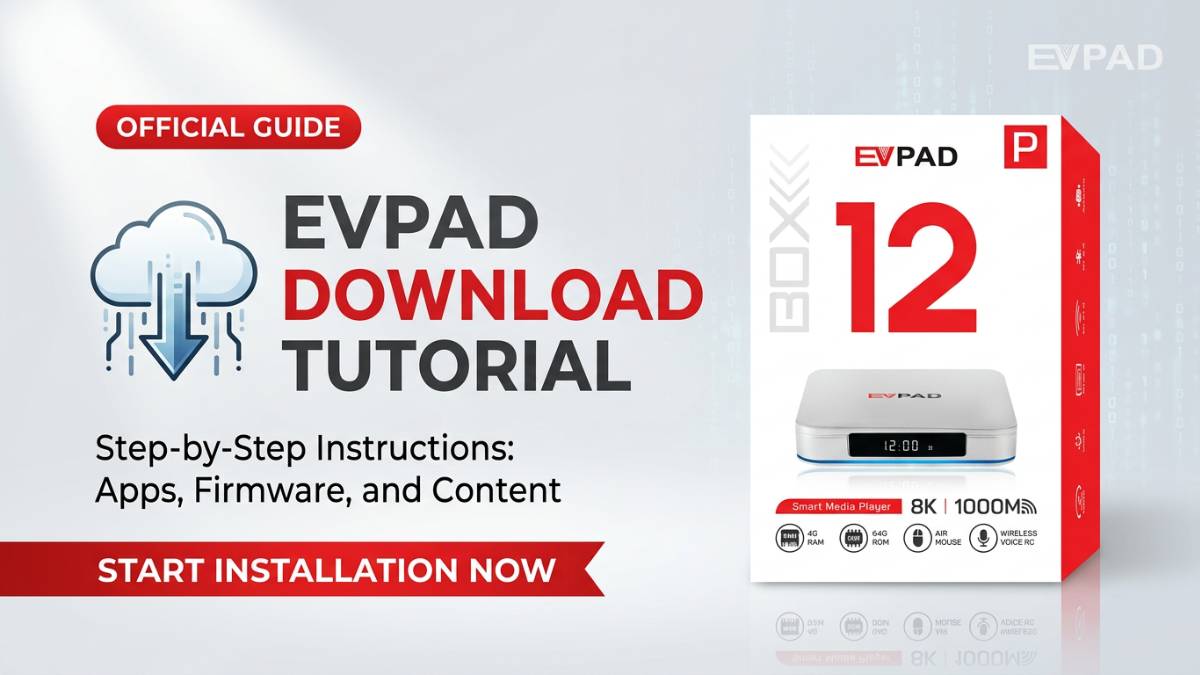
古いまたは新しいEVPADデバイスを使用している場合、初めてアプリをインストールする際に混乱することがあります。異なるEVPAD世代はわずかに異なるインストール方法を使用しているため、特定のモデルに適した手順に従うことが重要です。
このガイドでは、APKアプリをインストールする方法を説明します。EVPAD Pro、EVPAD 3S、EVPAD 5P/5S、EVPAD 6P/6S、EVPAD 10P/10S、 そして EVPAD 11P/11S基本的な設定のヒント、トラブルシューティング、よりスムーズな体験を求めるユーザーのためのアップグレードオプションについても説明します。
EVPADにおけるAPKのインストールとは何ですか?
EVPADデバイスはAndroidシステムに基づいているため、多くのアプリはAPKファイルを使用してインストールされます。デバイスの世代によって、ブラウザ、内蔵アプリストア、またはその両方を通じてアプリをインストールすることができます。
正しいインストール方法を理解することで、エラーを避けることができ、特に初心者や家庭ユーザーにとって、全体のセットアッププロセスが容易になります。
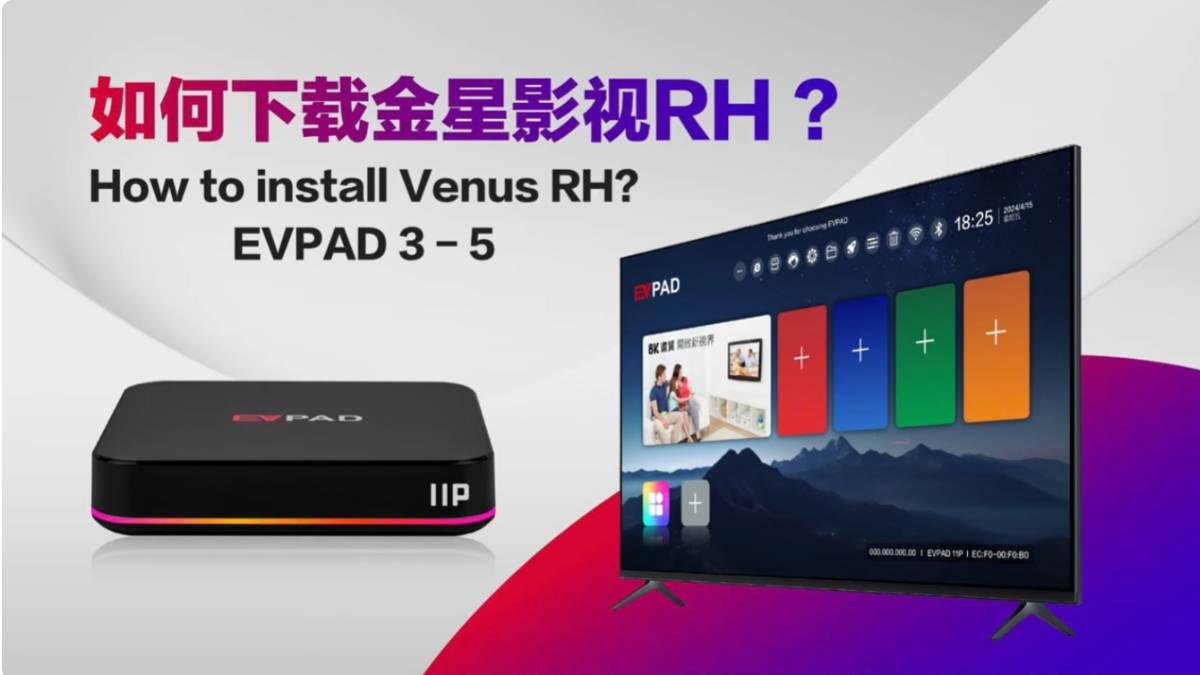
EVPAD Pro、3S、5P/5S APKのインストール
以前のEVPADモデルの場合EVPAD Pro、EVPAD 3S、 そして EVPAD 5P/5S、アプリのインストールは通常、ブラウザまたは内蔵ストアを通じて行われます。
方法1:ブラウザ経由でインストールする
- 開くブラウザお使いのEVPADデバイスで。
- リモコンを使用して、設定ソースに表示されているダウンロードアドレスに入ります。
- 必要に応じて、リモコンを切り替えてくださいマウスモードナビゲーションを容易にするため。
- インストールしたいアプリを選択してください。
- クリック ダウンロード。
- 警告が表示された場合は、ダウンロードを続行するオプションを選択してください。
- クリック わかりましたアプリをインストールするには。
- インストールが完了するまでお待ちください。
方法2:内蔵ストア経由でインストールする
デバイスにすでに内蔵アプリストアが含まれている場合、インストールはさらに簡単になります。
- 内蔵アプリストアを開きます。
- 必要なアプリを検索してください。
- アプリを選択して押すわかりました。
- アプリをインストールしてクリック仕上げる完了したら。

EVPAD 6Pおよび6S APKのインストール
EVPAD 6P そして EVPAD 6S古いEVPAD世代と新しいEVPAD世代の間の移行モデルです。多くの場合、以前のデバイスと同様のインストールロジックに従いますが、システム体験はより最適化されています。
これらのモデルでは、ユーザーは通常、以下のことが可能です。
- ブラウザを開いてアプリのダウンロードページにアクセスしてください。
- デバイスの世代に適したバージョンをインストールしてください。
- システムにすでに利用可能な場合は、アプリストアを使用してください。
インストール後は、ホーム画面に戻り、アプリアイコンが正しく表示されていることを確認するのが良いアイデアです。
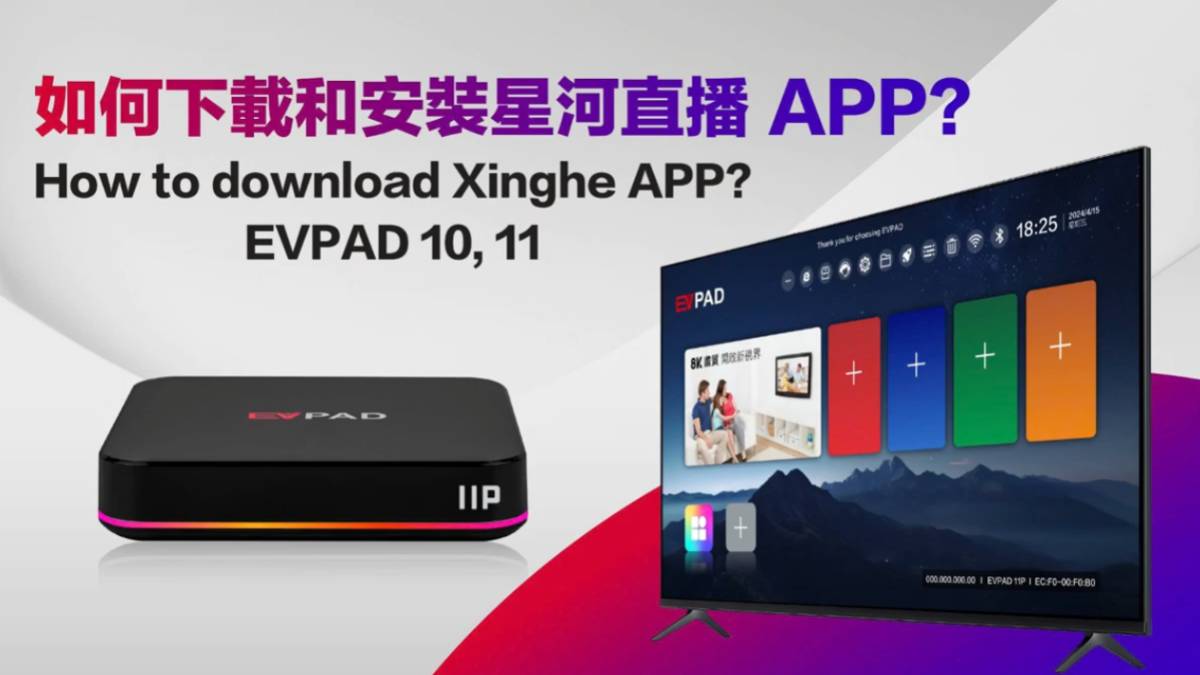
EVPAD 10P/10Sおよび11P/11S APKのインストール
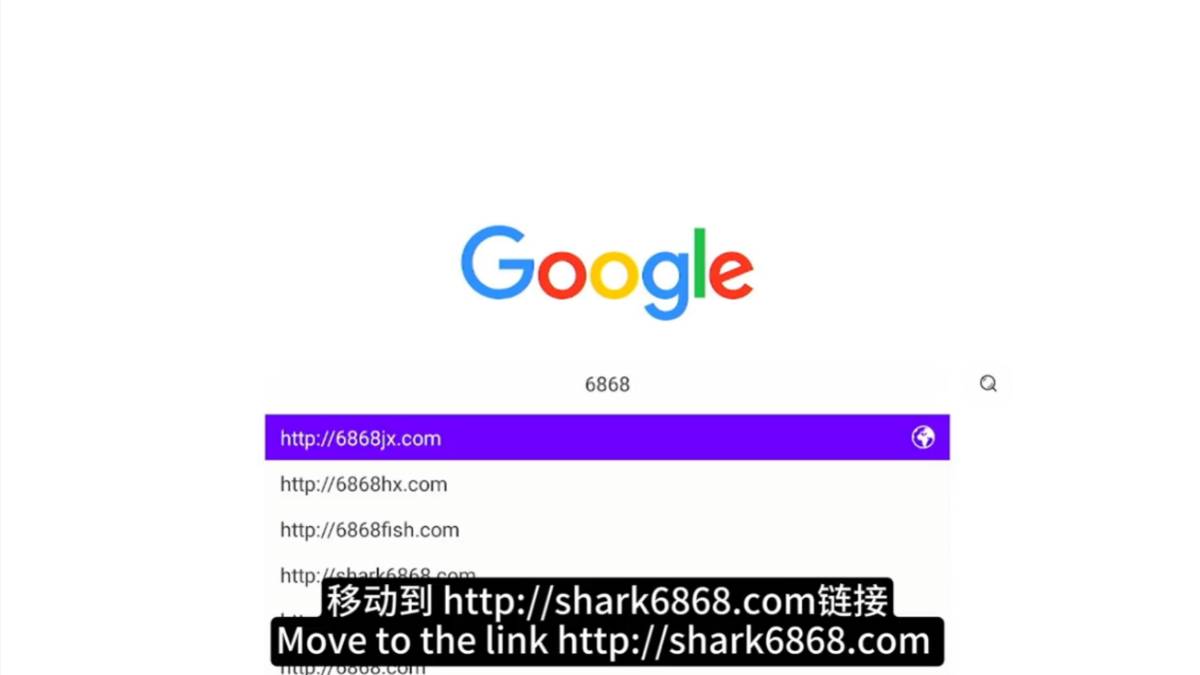
新型モデルの場合、EVPAD 10P、EVPAD 10S、EVPAD 11P、 そして EVPAD 11Sインストールは通常、より構造化されています。ユーザーはデバイスの世代に基づいて正しいアプリのバージョンを選択する必要があります。
方法1:ブラウザ経由でインストールする
- 開くブラウザ。
- インストール元が提供するインストールページに移動してください。
- デバイスモデルに適したアプリのバージョンを選択してください。
- 11Pまたは11Sの場合は、11世代用に設計されたバージョンをインストールしてください。
- 10Pまたは10Sの場合は、10世代用に設計されたバージョンをインストールしてください。
- インストールしたいアプリをクリックし、画面の指示に従ってください。
- アプリがインストールされたことがシステムに表示されると、セットアップは完了です。
方法2:App Store経由でインストールする
- デバイスのアプリストアを開きます。
- 必要なアプリを選択してください。
- プレス わかりました。
- インストールが自動的に完了するのを待ってください。
この方法は通常、手動のステップを減らすため、初心者にとって最も簡単です。

ホーム画面にカスタムアプリを追加する方法
いくつかのEVPADモデルでは、インストールされたアプリを直接ホーム画面に追加することができ、日常の使用がはるかに簡単になります。
- ホーム画面に戻る。
- クリック カスタムアプリを追加する。
- 追加したいインストール済みのアプリを選択してください。
- 選択内容を確認してください。
これは、メニューを探さずに迅速にアクセスしたい家族や高齢者に特に便利です。
よくあるインストール時の問題とその解決策
アプリがインストールされない
- インターネット接続を確認してください。
- デバイスを再起動して、もう一度お試しください。
- モデルに適したバージョンを選択したことを確認してください。
インストール後、アプリが表示されない
- ホーム画面に戻る。
- アプリ一覧はこちらをご覧ください。
- 必要に応じてデバイスを再起動してください。
インストール処理が中断されました
- もう一度インストールを試してください。
- デバイスに十分なストレージ容量があることを確認してください。
- 内蔵ストアが利用可能な場合は、それを使用してください。
一部のユーザーが新しいEVPADモデルにアップグレードする理由
以前のEVPADデバイスは引き続き使用できますが、古いモデルはインストールや設定の際により多くの手動ステップが必要になる場合があります。より迅速で簡単な体験を求めるユーザーは、しばしば新しいモデルにアップグレードすることを選択します。
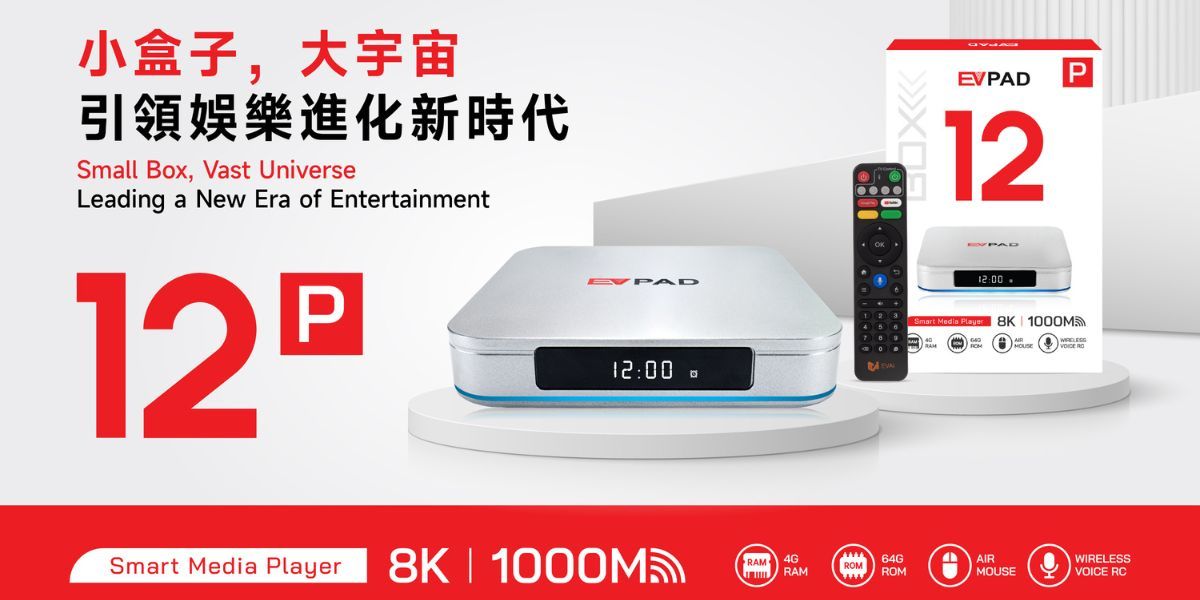
よりスムーズなパフォーマンス、簡単なアプリのインストール、そしてよりユーザーフレンドリーなシステムを望む場合は、確認できます。EVPAD 12Pより新しい選択肢として。
最新のEVPAD 12Pにアップグレードする利点は次のとおりです:
- より速い応答とナビゲーション
- よりシンプルなセットアップ体験
- システム全体の安定性が向上しました
- 家族の娯楽のためのより便利な日常使用
EVPAD APKのインストールに関するよくある質問
EVPADにおけるAPKとは何ですか?
APKは、EVPADなどのAndroidベースのデバイスで使用されるインストールファイル形式です。これにより、ユーザーは必要に応じてアプリを手動でインストールできます。
なぜ異なるEVPADモデルには異なるアプリバージョンが必要なのですか?
異なる世代は異なるシステムバージョンを使用するため、ユーザーは自分のデバイスモデルに合ったバージョンをインストールする必要があります。
このガイドでは、どのEVPADモデルが対象となっていますか?
このガイドでは、EVPAD Pro、EVPAD 3S、EVPAD 5P/5S、EVPAD 6P/6S、EVPAD 10P/10S、およびEVPAD 11P/11Sについて説明します。
より新しいEVPADモデルはありますか?
はい。より最新の体験を求めているユーザーは、訪問することができます。EVPAD公式サイトまたはチェック最新のEVPAD 12Pより新しいオプションについては。
それでもまだ助けが必要な場合はどうすればいいですか?
注文やアップグレードの前にさらにサポートが必要な場合は、あなたはお問い合わせサポートありがとうございます。
結論
EVPADデバイスにアプリをインストールするのは、あなたの世代に合った正しいプロセスに従うと、はるかに簡単になります。EVPAD Pro、3S、5P/5Sのような古いモデルは、より多くの手動ステップが必要な場合がありますが、10P/10Sや11P/11Sのような新しいモデルは、よりスムーズなセットアップ体験を提供します。
より速く、シンプルで、より現代的なシステムを好む場合は、次のような新しいデバイスに移行してください。EVPAD 12P実用的なアップグレードの選択肢となり得る。