


**EVPAD 12P Complete Setup Guide | Unboxing to Streaming in 10 Minutes**
If you just bought the EVPAD 12P, congratulations! This powerful streaming box opens up a world of entertainment, but before you can dive in, you’ll need to set it up correctly. Whether you’re a tech beginner or simply looking for a fast start, this step-by-step EVPAD 12P setup guide covers everything—from unboxing all the way to enjoying your favorite shows in under 10 minutes. Get ready to transform your TV experience!
---
Introduction
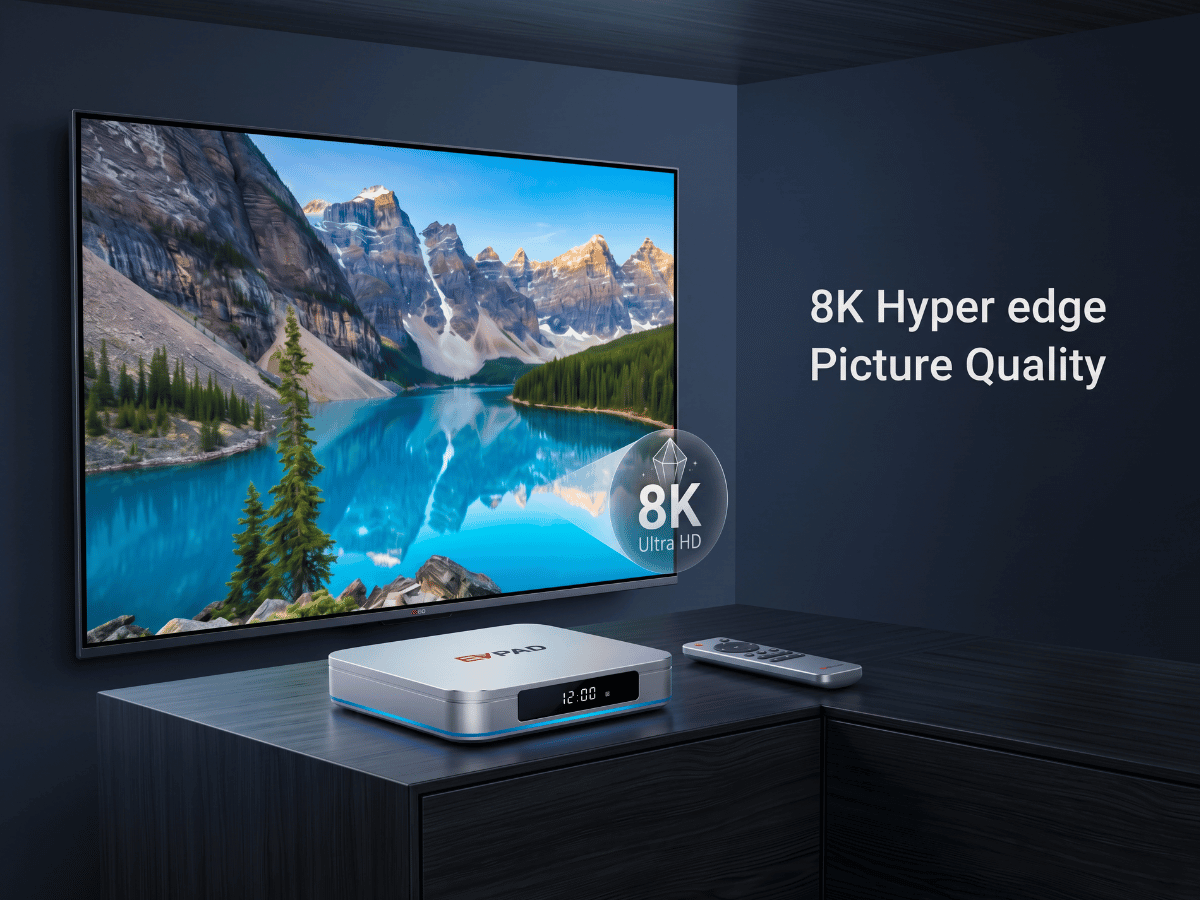
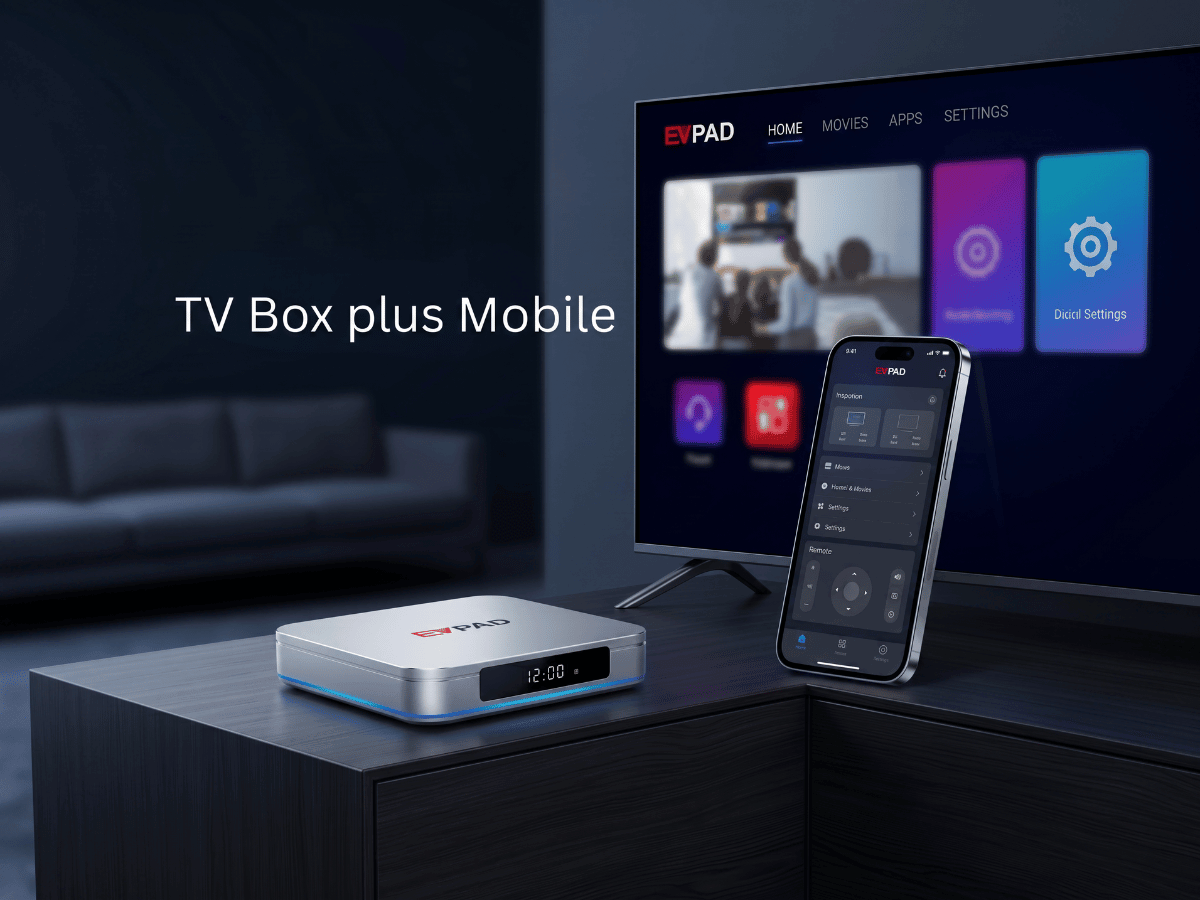
The EVPAD 12P is a feature-packed streaming TV box that brings thousands of channels, movies, and apps right to your living room. Its compact design belies its functionality, making it the perfect companion for modern entertainment enthusiasts. Proper setup is essential for the best experience, and this guide will ensure you go from unboxing to streaming with zero hassle. Let’s get started!
---
What’s in the Box? Unboxing Your EVPAD 12P
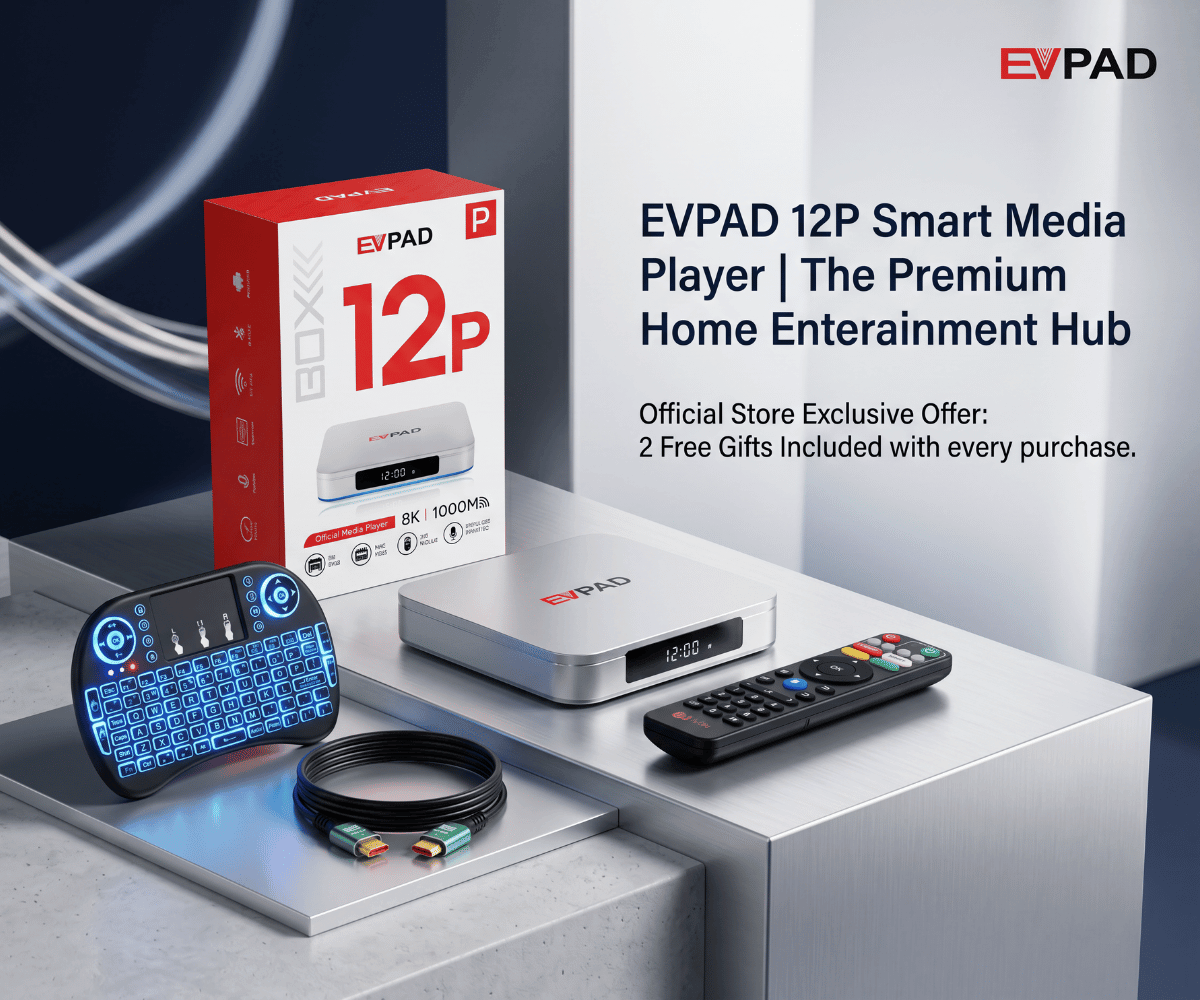
When your EVPAD 12P arrives, the first step is to open the box and make sure everything is as it should be.
**Contents should include:**
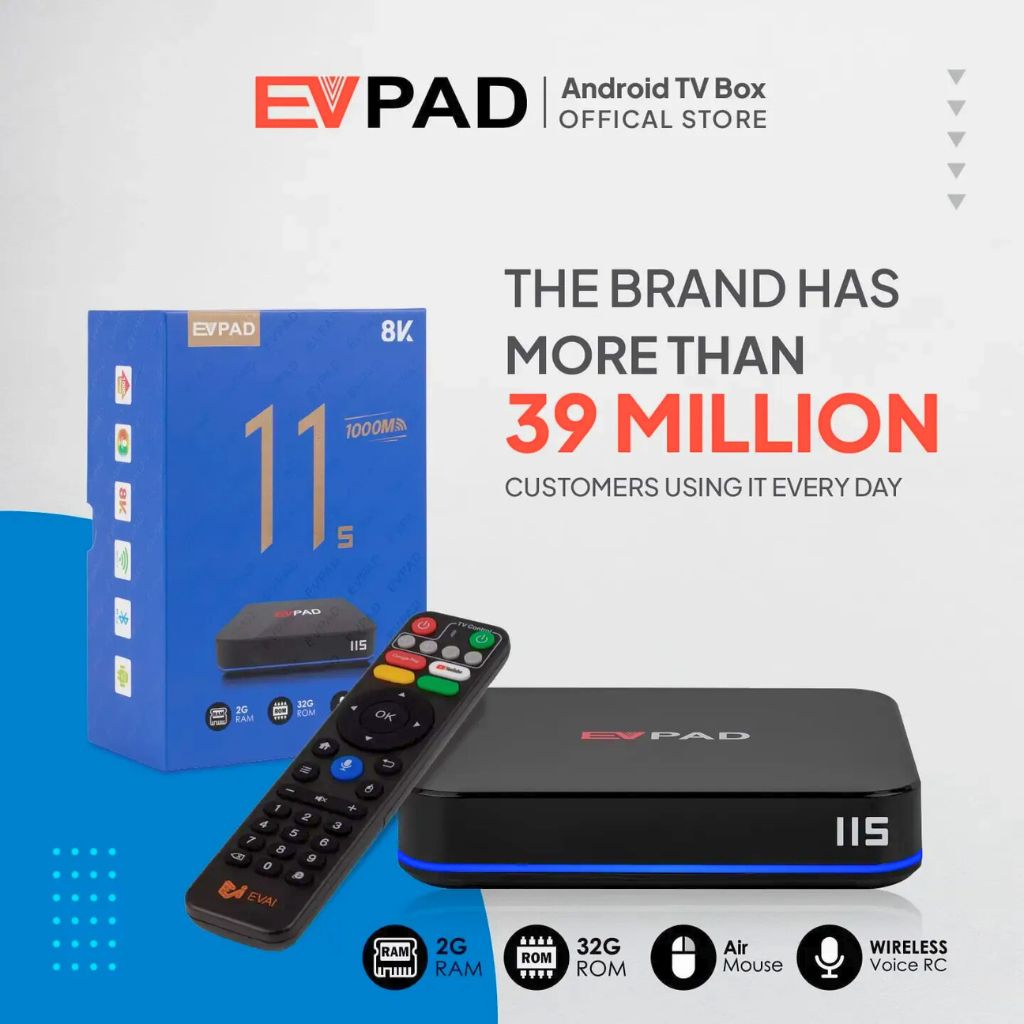
- EVPAD 12P TV box
- HDMI cable
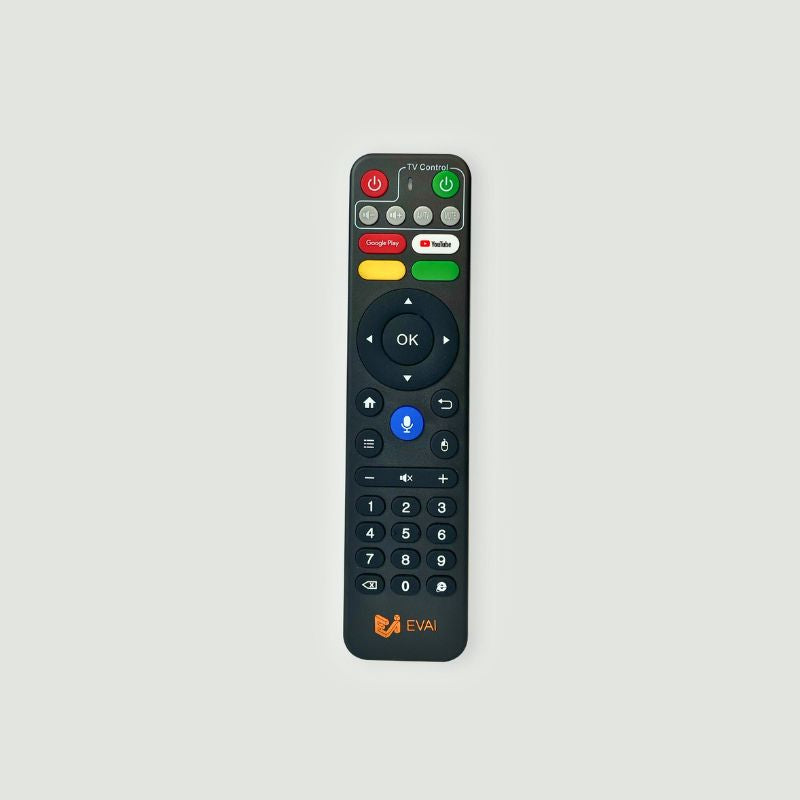
- Remote control
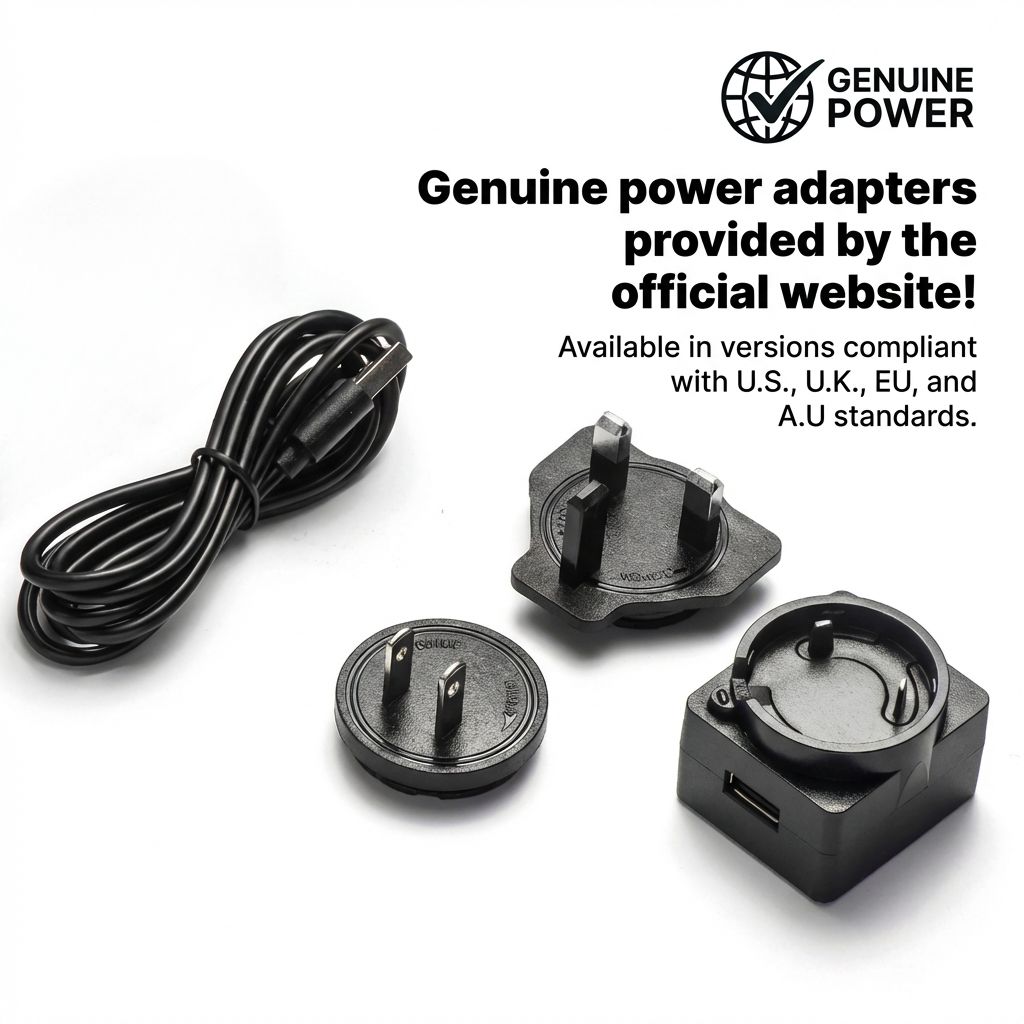
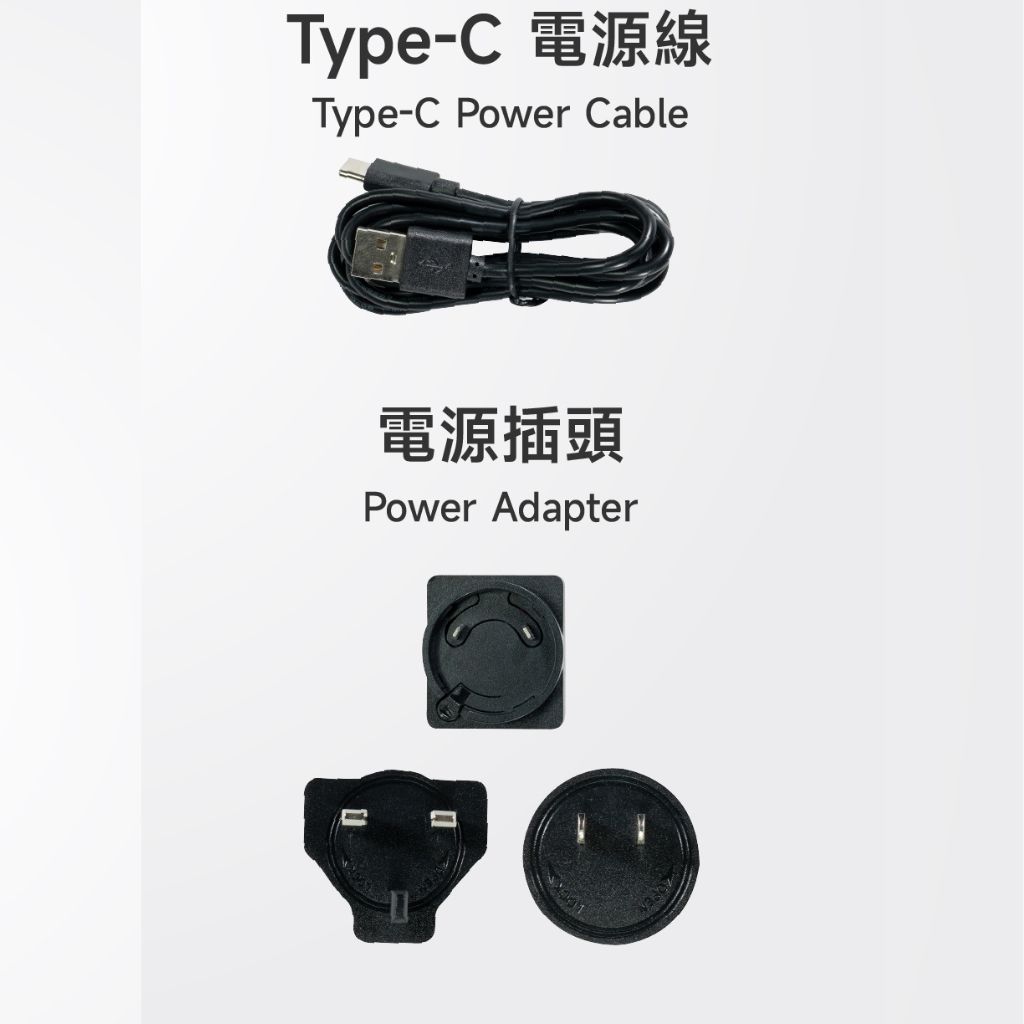
- Power adapter
- User manual
Carefully inspect each item for any signs of damage. Confirm that the HDMI cable and power adapter are the correct type for your TV and power source. Choose a clear, convenient space near your TV for setup, ensuring easy access to your TV’s ports and a nearby power outlet.
---
Step 1: HDMI Connection Made Easy

Connecting the EVPAD 12P to your TV is a breeze. Here’s how:
1. **Locate the HDMI Port:**
Find the HDMI port on the back of your TV. It’s usually labeled “HDMI” and might be numbered if you have multiple ports.
2. **Plug In the HDMI Cable:**
Insert one end of the HDMI cable into the EVPAD 12P and the other end into your TV’s HDMI port.
3. **Connect the Power Adapter:**
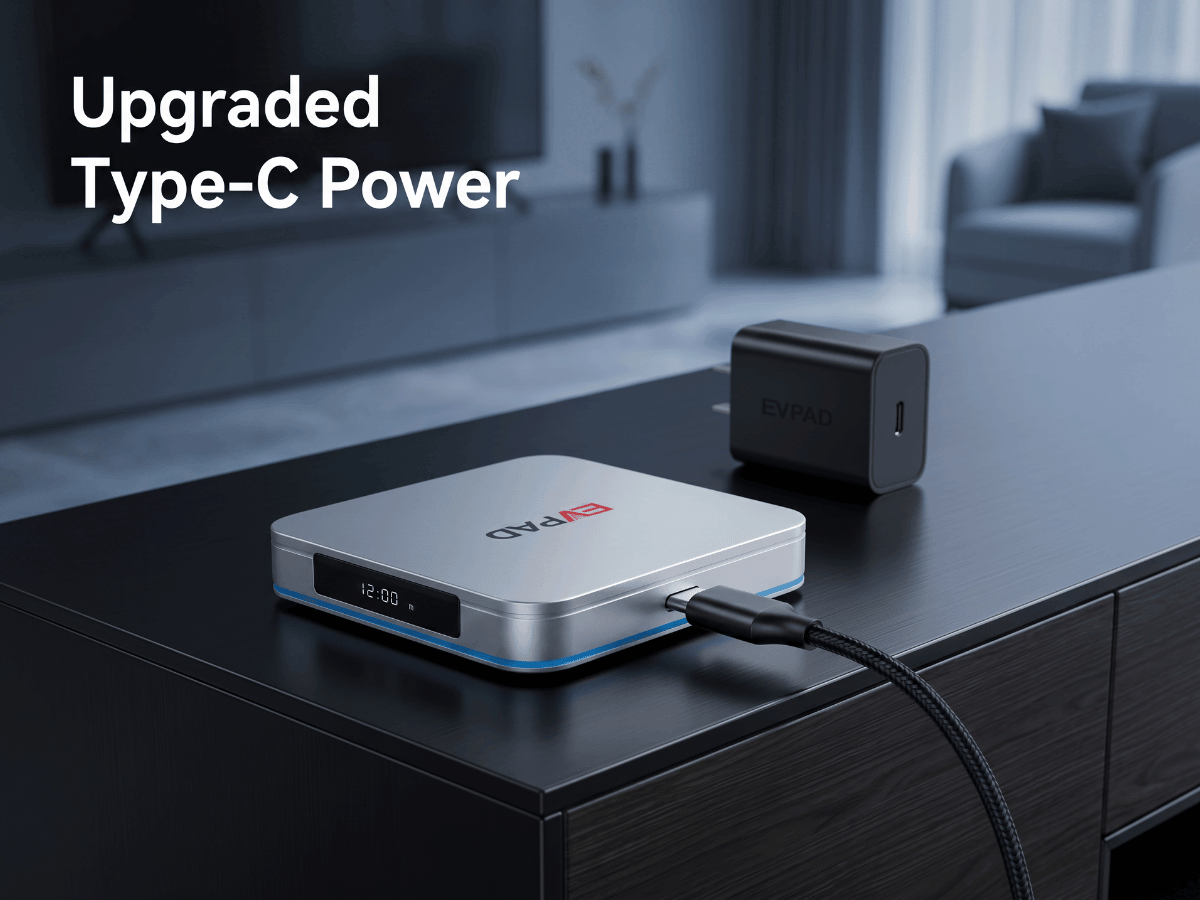
Plug the power adapter into the EVPAD 12P and then into a wall socket.
4. **Turn On Your TV:**
Use your TV’s remote to power on the TV and set it to the correct HDMI input (often HDMI 1, HDMI 2, etc.).
If the EVPAD 12P is powered correctly, you’ll see its home screen appear on your TV.
---
Step 2: Pairing and Setting Up the Remote Control

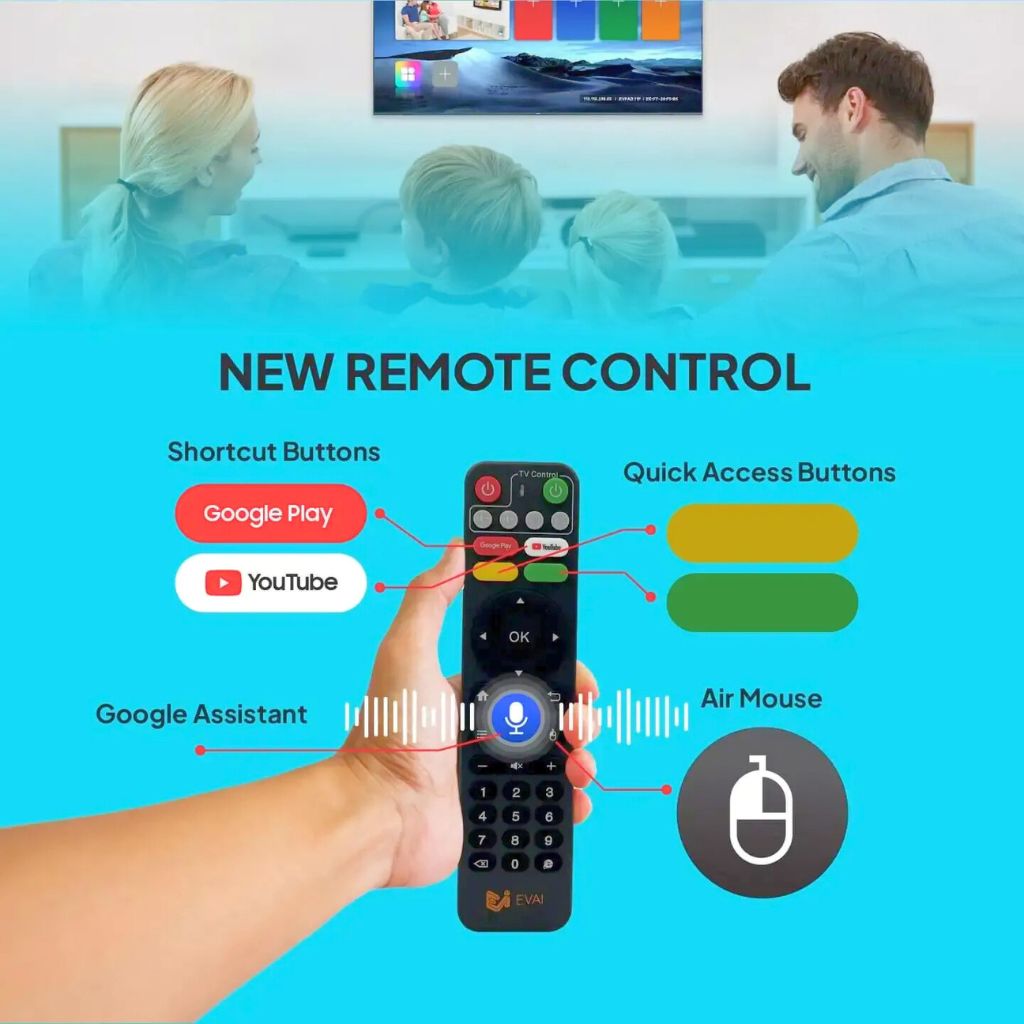
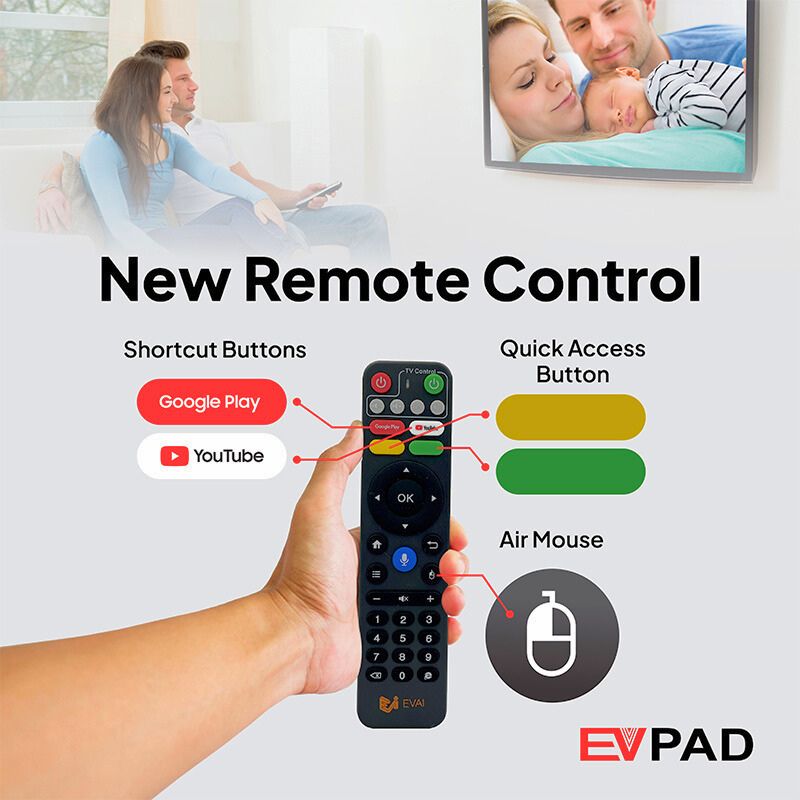
The EVPAD 12P comes with a Bluetooth remote, allowing you to control the device without pointing directly at the TV box.
1.Insert the Batteries
Open the battery compartment on the back of the remote and insert the batteries included in the package.
2.Enter Bluetooth Pairing Mode
Press and hold the Left and Right buttons on the remote simultaneously for about 5 seconds. The remote will automatically enter Bluetooth pairing mode.
3.Automatic Connection
Once the pairing mode is activated, the EVPAD 12P will detect and connect to the remote automatically. Follow the on-screen instructions if prompted.
After Successful Pairing
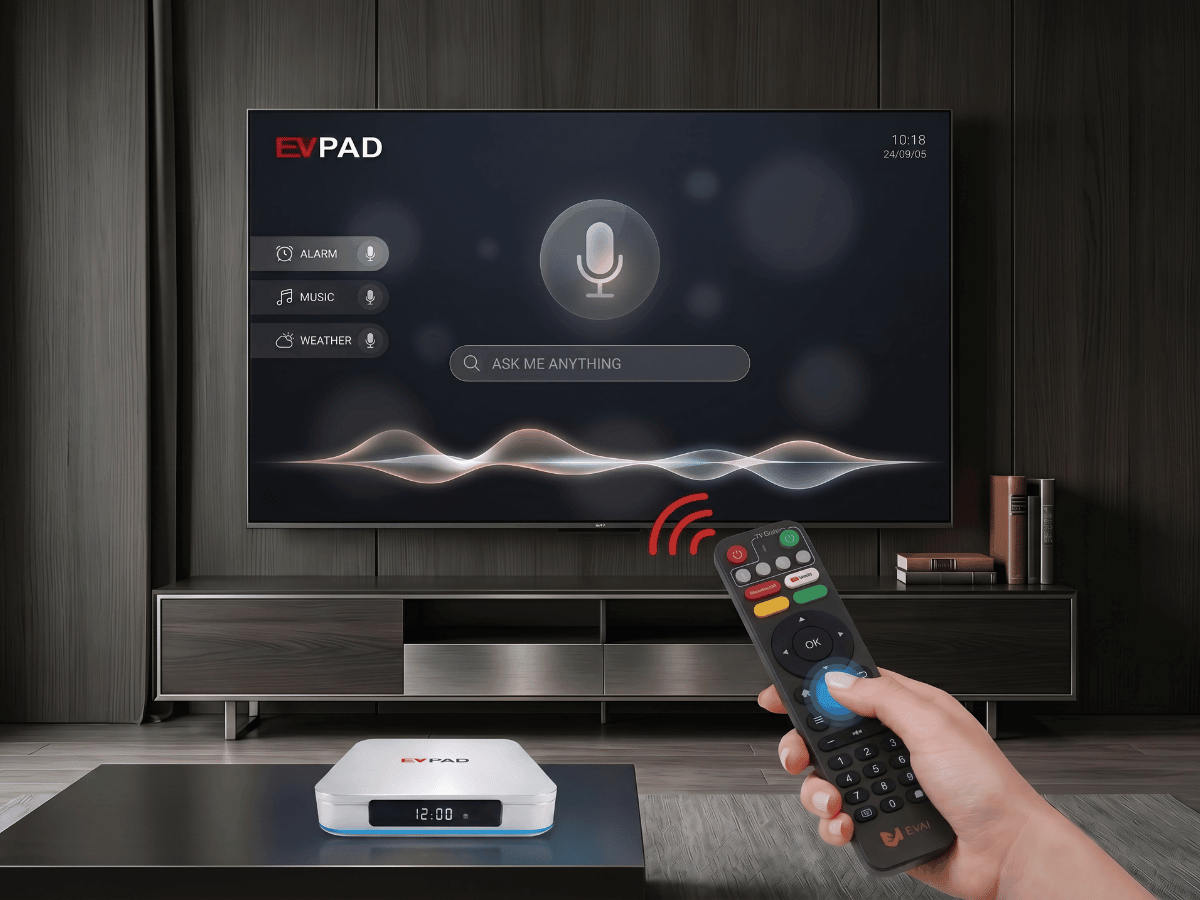
After the Bluetooth connection is completed, you can control the EVPAD 12P without pointing the remote directly at the box. You can also use the voice command button for voice search and faster navigation, making the user experience much more convenient.
---
Step 3: Connecting to Wi-Fi for Instant Access

Connecting your EVPAD 12P to Wi-Fi unlocks all its streaming capabilities:
1. **Navigate to Settings:**
Use the remote to open the Settings menu on the home screen.
2. **Select Wi-Fi:**
Choose “Wi-Fi” from the list.
3. **Choose Your Network:**
Select your home Wi-Fi network from the search results.
4. **Enter Your Password:**
Use the on-screen keyboard to type in your Wi-Fi password, then confirm.
5. **Verify Connection:**
Once connected, the EVPAD 12P will display a check mark next to your network. Test the connection by opening a streaming app.
**Tips:**
- Place the EVPAD 12P close to your router for the strongest signal.
- Avoid physical barriers that may disrupt wireless connectivity.
---
Step 4: Installing and Updating Apps

Once you reach the EVPAD 12P home screen, you can install streaming apps to start watching live TV and on-demand content.
1.Open the Built-in Browser
From the home screen, open the Browser located at the top of the interface.
2.Enter the Access Code
Use the remote control to enter 6868 in the URL field to quickly open the download page.
3.Visit the Download Website
Select the link 6868jx.com to enter the download page.
If the main website cannot be accessed due to network restrictions, you can use the backup links:
- 6868jx.net
- 6868jx.org
4.Download the Recommended Apps
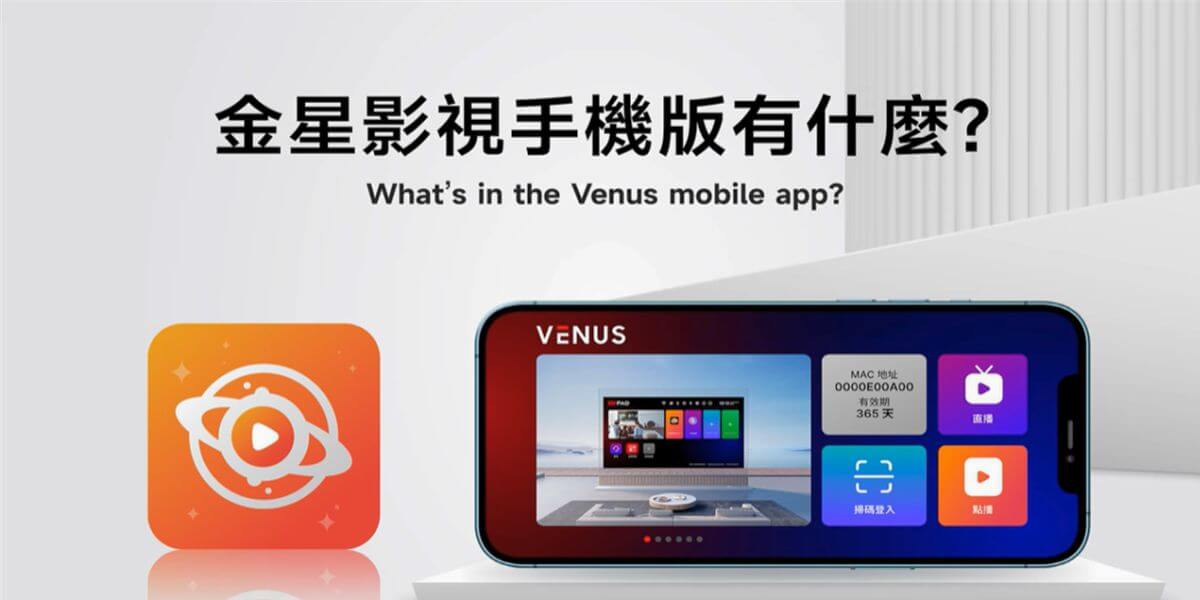
On the download page, install Venus V12 (金星影视 V12). This app includes live TV channels, video-on-demand, and playback features.
You can also download Xinghe Live(星河直播), which provides access to global live TV channels.
5.Launch the Apps
After the installation is completed, return to the home screen and open the installed apps to start watching.
---
Quick Troubleshooting Tips
If you encounter issues while using the EVPAD 12P, try the following solutions:
1. Wi-Fi Cannot Connect
- Restart the EVPAD TV box.
- If the problem continues, temporarily set your router security to Open (no encryption) and try connecting again. If it works, you can reset the router password and reconnect the box.
- You can also create a mobile hotspot using your smartphone and test whether the box can connect. If it connects successfully, the router may be the issue.
- For a more stable connection, EVPAD recommends using a wired Ethernet connection. The EVPAD 12P supports Gigabit LAN for faster and more reliable internet.
2. No Sound During Video Playback
- If all videos have no sound, unplug the HDMI cable and power adapter, then restart the EVPAD TV box.
- Make sure the TV volume is turned on and not muted.
3. Remote Control Not Responding
- The power button uses infrared, so point the remote directly at the TV box when turning it on or off.
- Check whether the batteries need to be replaced.
- If using a Bluetooth remote, go to the Bluetooth settings on the home screen, remove the remote pairing, and pair it again.
- If the problem persists, the remote may need to be replaced.
4. Voice Button Not Working
- Remove and reinstall the remote batteries or replace them with new ones.
- Unpair the remote and pair it again.
- If the issue continues, restart both the EVPAD box and the TV.
---
Friendly Notice and Important Reminders
To keep your EVPAD 12P running smoothly and securely, remember these tips:
- **Safety First:**
Keep the box ventilated and avoid excessive heat or moisture.
- **Software Updates:**
Regularly check for system updates in Settings to enhance functionality and security.
- **Responsible Streaming:**
Use legal and ethical streaming sources, respecting copyrights.
- **Support & Resources:**
If you need further assistance, visit the official EVPAD website or contact customer service. User forums and online guides can also be helpful.
---
Conclusion: Start Streaming in Under 10 Minutes
With your EVPAD 12P set up, the world of entertainment is just a click away. We hope this clear and comprehensive guide helps you transition from unboxing to streaming in less than 10 minutes—no headaches, no confusion.
Enjoy your favorite shows, movies, and channels. If you found this guide helpful, share your experience in the comments or explore other EVPAD tips and tricks on our blog. Happy streaming!
---
**Tags:** EVPAD, EVPAD 12P, Streaming TV Box, Setup Guide, HDMI, Wi-Fi, Remote Control, Troubleshooting, App Installation, User Guide