🎉 限時優惠!購買 EVPAD12P,5% 折扣碼:EVPAD95,獲得 2 件免費贈品!

購物車

您的購物車目前是空的。

前往選購

How to Fix EVPAD Boot Problems with Firmware Flashing

2026年4月14日
EVPAD flashing tutorial cover showing firmware repair for boot failure issues

If your EVPAD TV Box will not start, stays on the logo screen, or keeps showing an error message, flashing the firmware may help bring it back to normal. This process works a bit like reinstalling the system, and it is often used when a factory reset is not enough to fix the problem. In this guide, we will walk through when flashing is needed, what you need to prepare, and how to complete the process step by step.

What Is Flashing?

Flashing means reinstalling the system firmware on the device. In simple terms, it is similar to reinstalling the operating system on a TV box. Unlike a factory reset, which only clears user data and restores basic settings, flashing replaces the system files completely and can fix more serious software issues.

If a factory reset does not solve the problem, flashing is often the next step.

When Do You Need to Flash an EVPAD?

You may need to flash your EVPAD if you run into problems such as the device getting stuck on the EVPAD logo, showing an “Error!” message, or failing to load the system properly. In some cases, users may also see an Android robot icon, a green screen, screen flickering, or a red power light that stays on while the box does not boot.

These symptoms usually point to a deeper system problem, and flashing may help restore normal operation.

Important note: If your EVPAD is still under warranty or was purchased recently, it is best to contact the seller first. In many cases, the seller or official support team can provide the correct firmware and after-sales guidance. If needed, EVPAD hardware support can also be reached through WhatsApp: +852 5779 6914.

What You Need Before Flashing

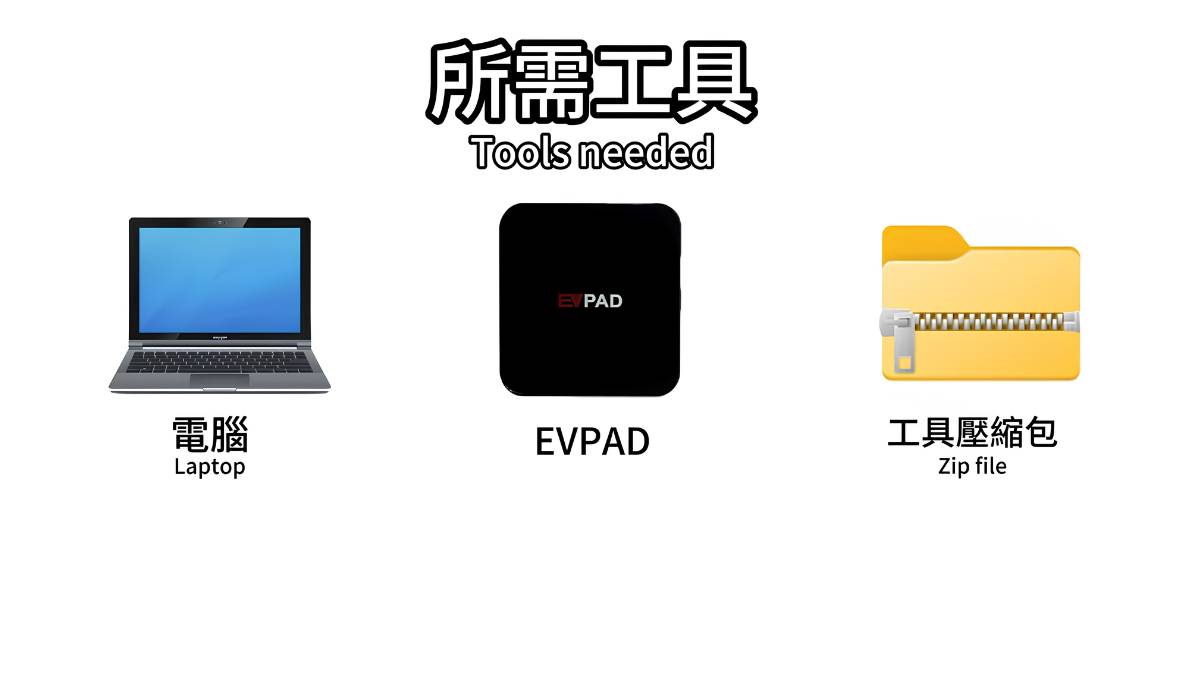
Tools needed for EVPAD flashing including a Windows PC, USB cable, and reset pin

Before you begin, prepare the following items:

Hardware

A Windows PC running Windows 7, 8, 10, or 11
A USB data cable
A SIM card ejector pin or similar thin tool
The EVPAD TV box that needs to be flashed

Software

PhoenixUSBPro flashing tool
The correct firmware file for your EVPAD model, such as EVPAD 11P firmware or EVPAD 10S firmware

Always make sure the firmware matches your exact device model. Using the wrong file may cause the flashing process to fail.

How to Flash EVPAD Firmware

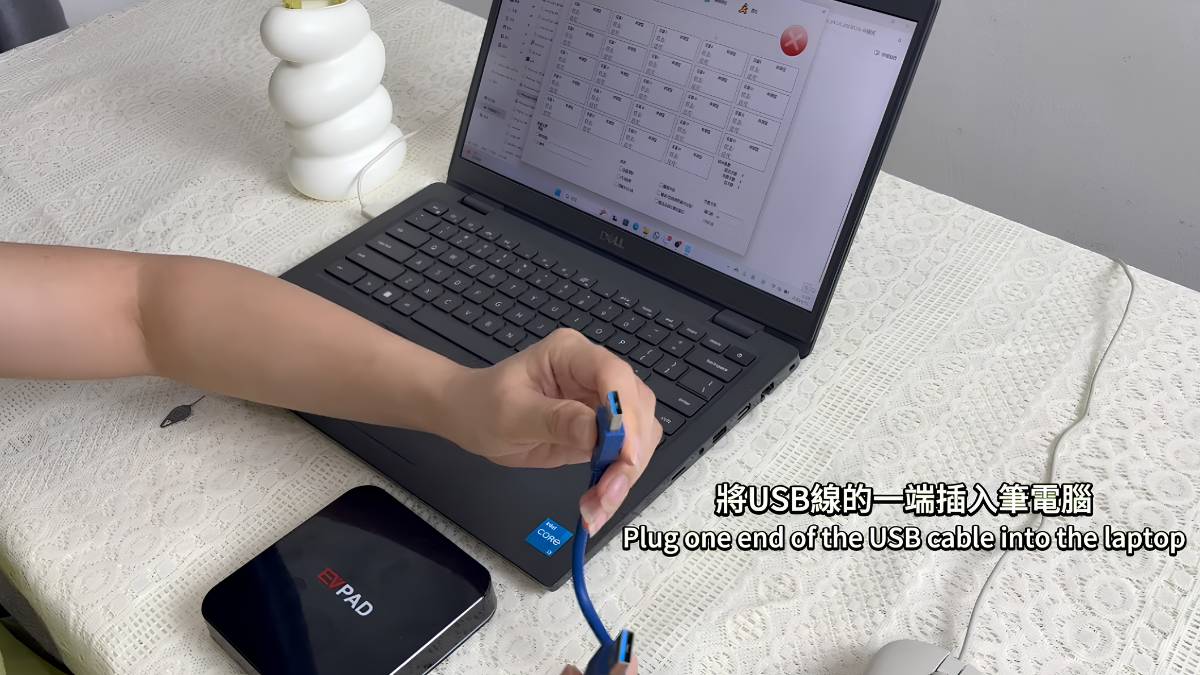
Connecting the EVPAD TV box to a computer with a USB cable for flashing

Follow the steps below carefully to complete the flashing process.

Step 1: Download and Unzip the Tool and Firmware

First, download the PhoenixUSBPro flashing tool and the correct EVPAD firmware package to your computer.

Once the files are downloaded, unzip them and open PhoenixUSBPro. Inside the software, click Firmware Package and select the firmware file that matches your exact EVPAD model.

Step 2: Connect the Computer and the EVPAD Box

Plug one end of the USB cable into your computer.

On the EVPAD box, find the small reset hole on the side. Use a SIM card pin or similar thin tool to gently press and hold it.

While holding the reset hole, connect the other end of the USB cable to the EVPAD USB data port.

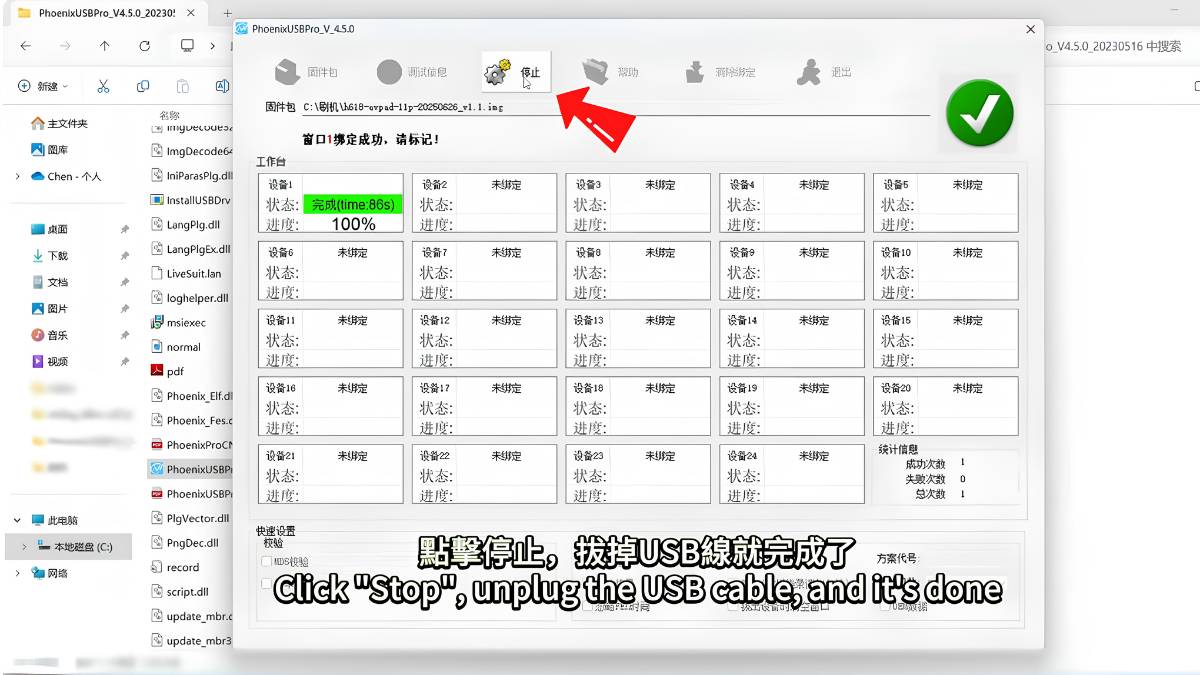
If the connection is successful, your computer should detect the device in flashing mode. In PhoenixUSBPro, the X icon in the upper-left corner should change to a check mark, which means the device is connected correctly.

Step 3: Start Flashing

After confirming that the correct firmware package is selected, click Start or the corresponding button in the software.

A progress bar will appear while the firmware is being written. Wait until it reaches 100%.

When the process is complete, the software may show OK or close automatically. You can then click Stop.

Finally, disconnect the cable and restart the EVPAD box. The system should boot using the newly installed firmware.

The entire process usually takes around 5 to 15 minutes, so be patient and do not interrupt it.

For first-time users, a video tutorial can also help make each step easier to follow.

EVPAD TV box recovered successfully after firmware flashing

👉 Click here to watch the EVPAD flashing tutorial video.

Precautions During Flashing

Flashing can solve serious system issues, but it should be done carefully. Keep the following points in mind before starting:

Make sure you are using the correct firmware for your exact EVPAD model. A mismatch may cause the process to fail.

Keep the power stable throughout the entire process. Do not allow the computer or the EVPAD box to lose power while flashing is in progress.

All data on the device will be erased. This includes system settings, downloaded content, and personal files, so be sure to back up anything important beforehand.

If the first attempt does not work, try again using another USB cable, a different computer, or by repeating the steps more carefully.

If the problem still cannot be solved, contact EVPAD support or the seller for further assistance.

Can Older EVPAD Models Still Be Flashed?

Some older EVPAD models, such as early EVPAD Pro versions or second-generation devices, may use outdated hardware and may not support flashing properly.

If you are using an older model and system problems continue after flashing, upgrading to a newer device such as the EVPAD 11P or 11S may be a better option. Newer models usually offer better performance, stronger compatibility, and a smoother overall experience.

Frequently Asked Questions

Q: What should I do if an error appears during flashing?
A: First, check whether the firmware file matches your device model. Download the firmware again and try the process once more. Make sure you are using the latest version of PhoenixUSBPro. If the issue continues, try another USB cable or a different computer, then contact EVPAD support.

Q: Will flashing delete my channels and settings?
A: Yes. Flashing will erase all data on the device, including channel lists, system settings, and personal files. Please back up anything important before you begin.

Q: What if the device still cannot boot after flashing?
A: If flashing finishes successfully but the EVPAD still will not start, the issue may be hardware-related. In that case, contact the seller or after-sales support for repair or replacement.

Q: How long does the first boot take after flashing?
A: The first startup after flashing may take a little longer than usual because the system is initializing. In most cases, it only takes a few minutes.

Conclusion

This EVPAD flashing tutorial covers the full process, from understanding what flashing is to preparing the tools, following the steps, and handling common issues. It is a useful solution when your EVPAD will not boot, gets stuck on the logo screen, or shows an error message.

If your device is an older model or still does not work after flashing, upgrading to a newer EVPAD model may be the more practical choice for better performance and long-term reliability.

返回博客

提交評論

請注意,評論需要經過審核通過後才能發布