
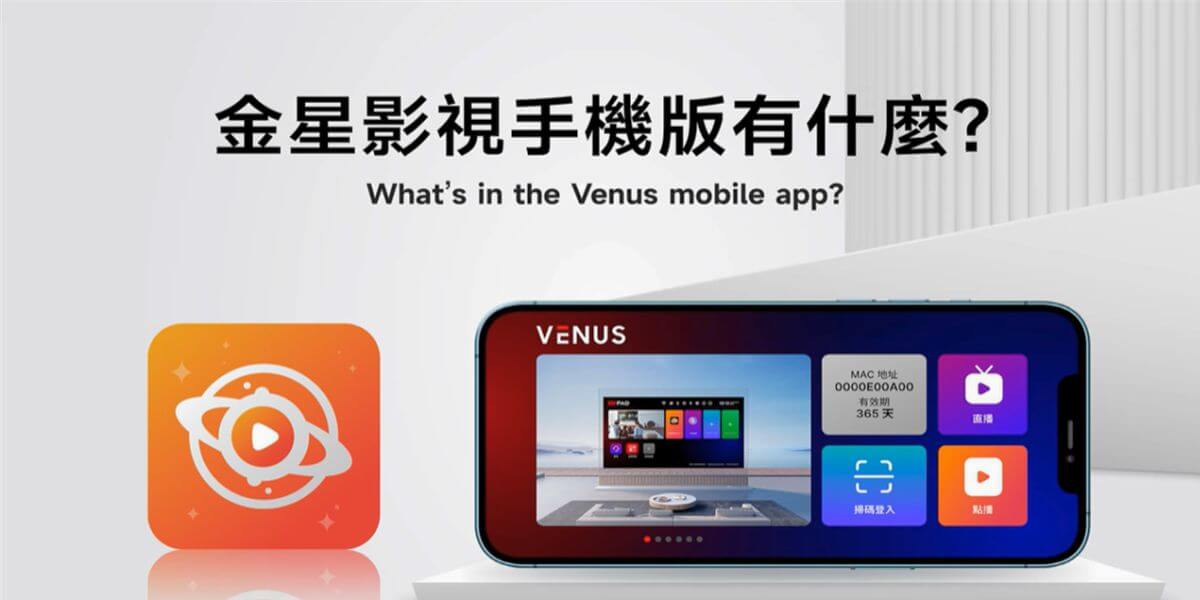
Quick summary: EVPAD 12P supports mobile viewing through the EVPAD Mobile App, also shown as EVMobile in the setup process. Users can open Venus on EVPAD 12P, enter the mobile section, scan a QR code to download the EVPAD Mobile App on an Android phone or Android tablet, then scan the binding QR code to link the device. Based on the current setup flow, iPad is not supported, and one mobile device is bound at a time.
Many users search for EVPAD Mobile App, EVPAD watch on phone, or EVPAD 12P phone setup because they want to know whether EVPAD 12P can be used on a mobile device. The answer is yes, but the setup is not just a normal account login. It uses the Venus mobile section and the EVPAD Mobile App / EVMobile QR code binding process.
This updated guide explains the real mobile setup process: where to find the mobile section, how to download the EVPAD Mobile App, how to bind your Android phone with a QR code, what to do if installation is blocked, and what limitations you should know before using EVPAD 12P on a phone or tablet.
Can You Watch EVPAD 12P with the EVPAD Mobile App?
Yes. EVPAD 12P includes a mobile viewing feature that allows supported Android phones and Android tablets to connect through the EVPAD Mobile App. In the setup screen, the app file may appear as EVMobile, so this guide uses both names: EVPAD Mobile App as the user-friendly search term, and EVMobile as the app name shown during installation.
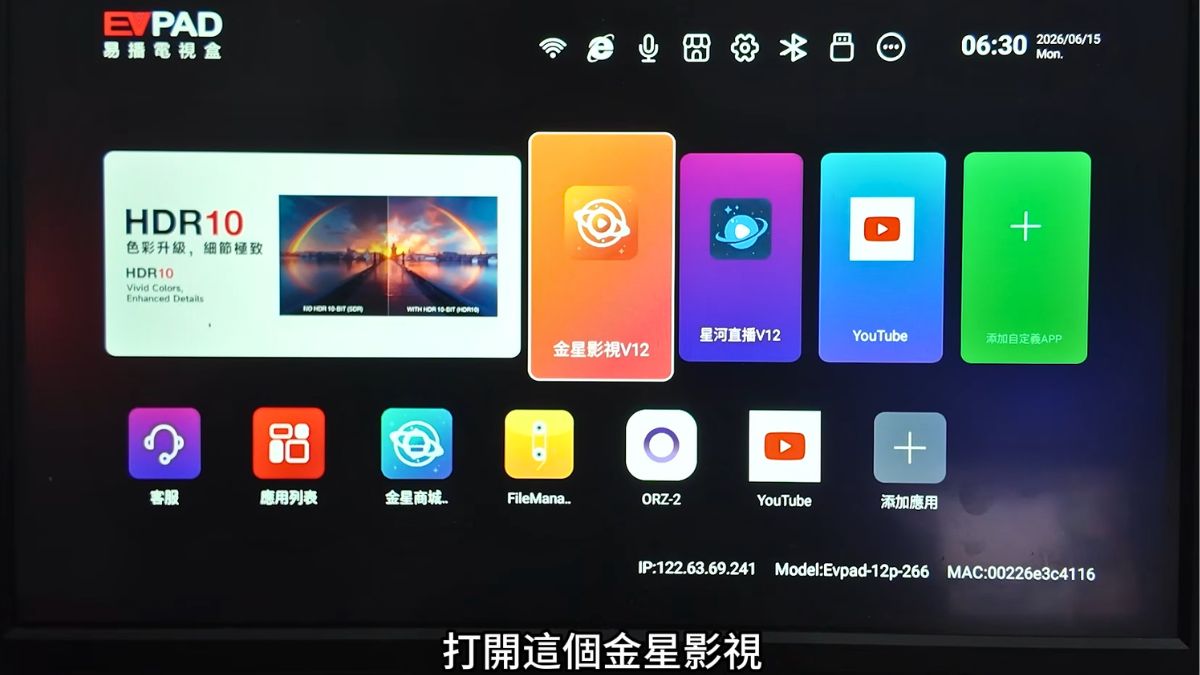
The setup starts from the Venus / 金星影視 app on the EVPAD 12P box:
- Open Venus / 金星影視 on the EVPAD 12P.
- Go to the mobile section inside Venus.
- Scan the download QR code to download the EVPAD Mobile App / EVMobile on your Android device.
- Install the app on your phone or tablet.
- Open the EVPAD Mobile App and scan the binding QR code shown on the TV.
- After binding, use the mobile device for supported viewing features.
This feature is useful when you want to watch on a supported Android mobile device without using the TV screen. However, it is not the same as a universal login that works on every phone, tablet or operating system.
What You Need Before Setting Up the EVPAD Mobile App
Before scanning the QR code, prepare the device and network. This reduces EVPAD Mobile App installation errors and binding problems.
| Requirement | What to Prepare | Why It Matters |
|---|---|---|
| EVPAD model | Use EVPAD 12P or another EVPAD 12 model that supports this mobile feature. | Older models may not have the same EVPAD Mobile App setup process. |
| Mobile device | Use an Android phone or Android tablet. | The tutorial flow is designed for Android mobile installation. |
| Venus / 金星影視 | Open Venus on the EVPAD 12P and enter the mobile section. | This is where the download and binding QR codes are shown. |
| QR code scanner | Use your phone camera or browser to scan the QR code. | The QR code leads to the EVPAD Mobile App / EVMobile APK download and binding flow. |
| Android permissions | Allow installation permission if Android blocks the APK installation. | Some Android devices block APK installation by default for security reasons. |
| Stable network | Use stable Wi-Fi or mobile network during download and binding. | Weak network can cause download, login or binding errors. |
For general model resources and setup help, you can also visit the EVPAD Download Center.
How to Set Up the EVPAD Mobile App on Android Phone or Tablet
Step 1: Open Venus / 金星影視 on EVPAD 12P
Turn on EVPAD 12P and open the Venus / 金星影視 app from the home screen. In the tutorial flow, the EVPAD Mobile App feature is accessed inside Venus.
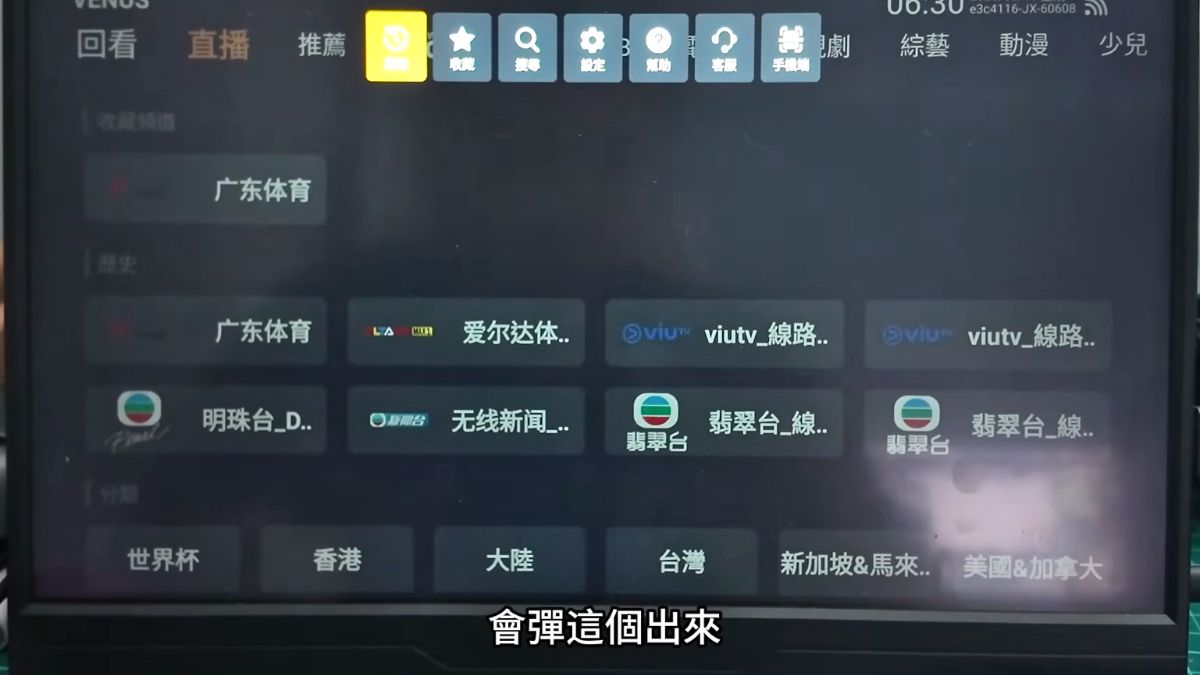
Step 2: Enter the Mobile Section
Inside Venus, use the remote control to move to the right-side menu and select the mobile section. This opens the EVPAD Mobile App setup screen.
Step 3: Scan the EVPAD Mobile App Download QR Code
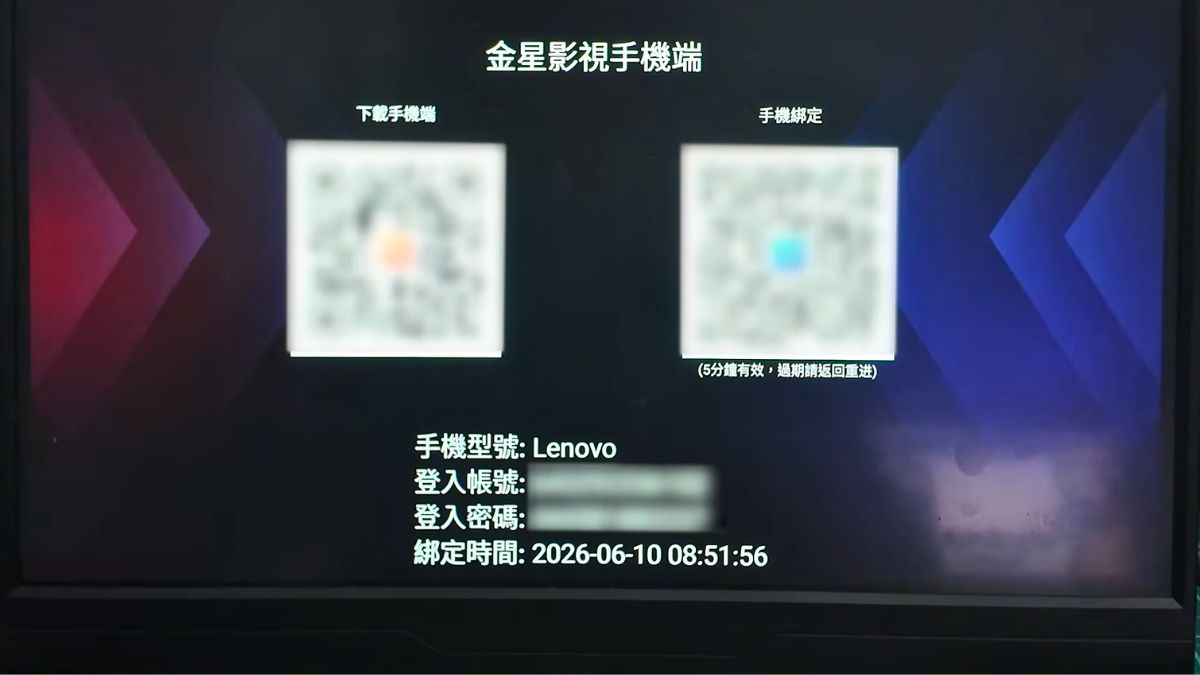
The TV screen shows two QR codes. The left QR code is used to download the EVPAD Mobile App / EVMobile APK to your Android phone or Android tablet. Scan it with your phone camera or browser, then start the download.
Step 4: Install EVPAD Mobile App / EVMobile on Android
After the APK is downloaded, install the EVPAD Mobile App on your Android device. Some Android phones may show a security message or block APK installation by default. If this happens, review your phone’s security settings and allow installation only if you trust the source.
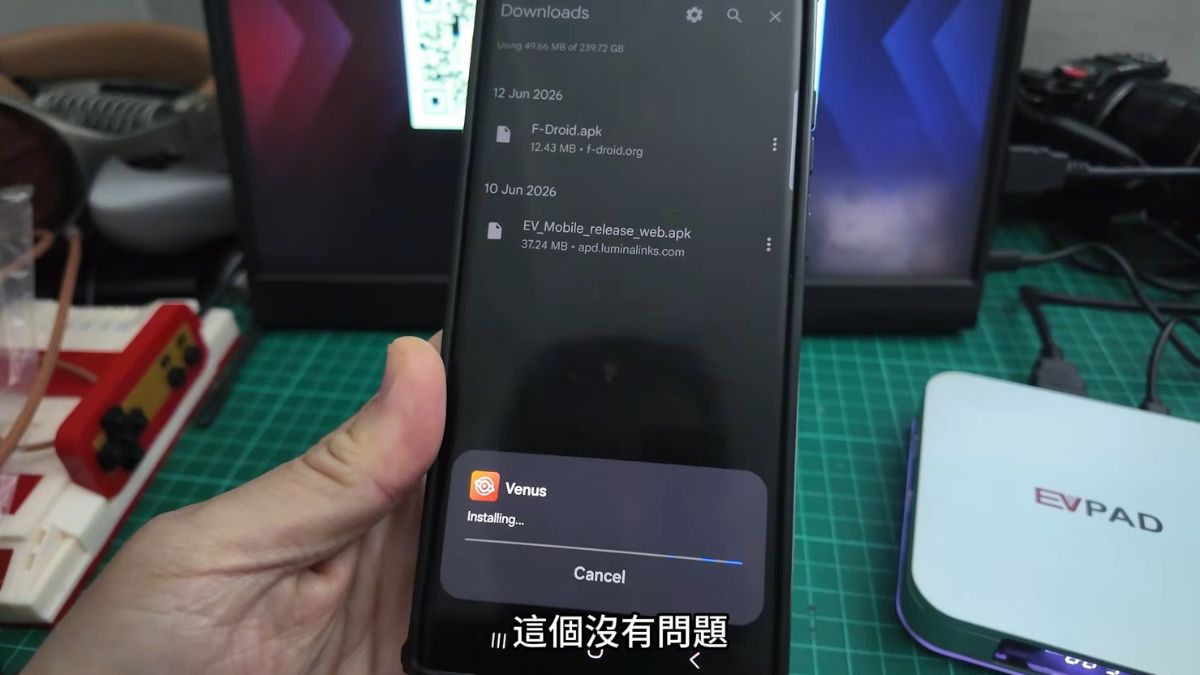
Step 5: Scan the EVPAD Mobile App Binding QR Code
After installing the EVPAD Mobile App, open it and scan the binding QR code shown on the EVPAD screen. The binding QR code may only be valid for a short time. If it expires, refresh the code on the TV and scan again.
Step 6: Start Using the EVPAD Mobile App
Once binding is complete, your Android device can use the supported mobile viewing function. Keep the EVPAD device and mobile app updated for a smoother experience.
How EVPAD Mobile App Binding Works
The EVPAD Mobile App uses device binding. This is important because it affects how many phones can use the mobile function at the same time.
This is why the phone setup should be described as “EVPAD Mobile App setup and binding for Android,” not as a general “watch anywhere on any device” feature.
Real Use Cases for the EVPAD Mobile App
The EVPAD Mobile App is useful when the TV is not the most convenient screen. Here are common scenarios where users may want to use the mobile feature with EVPAD 12P:
- Watching in another room: Use a supported Android phone or tablet when someone else is using the TV.
- Watching on a tablet: Android tablets can be useful if you want a larger portable screen.
- Checking sports or live programs: Open the EVPAD Mobile App when you want to follow content away from the TV screen.
- Family flexibility: Use the mobile feature as an extra option for supported Android devices.
- Travel or temporary use: Test the app and binding before you actually need it.
Practical note: Availability and performance may depend on your device, app version, network and current setup status. Test the feature before relying on it for important programs.
EVPAD 12P Features That Help Mobile and TV Viewing
EVPAD 12P is still mainly a smart TV box for the living room. The EVPAD Mobile App feature is an extra convenience for supported Android mobile devices. For daily TV use, the hardware and network setup are still important.
- Android 12 system: Provides a familiar app-based environment for TV box use.
- 4GB RAM + 64GB storage: Helps with app use and daily home entertainment.
- Wi-Fi 6 and Gigabit Ethernet: Useful for stable streaming and app loading.
- Voice remote: Makes it easier to search and navigate on the TV screen.
- EVPAD Mobile App feature: Supports Android phone or Android tablet setup through QR code binding.
To check the current product package, specifications and offers, visit the EVPAD 12P product page.
Common EVPAD Mobile App Setup Problems
If the problem continues, check the EVPAD FAQ or contact EVPAD support with your model, order number, phone model, screenshots and a short description of the issue.
EVPAD Mobile App FAQ
What is the EVPAD Mobile App?
The EVPAD Mobile App is the mobile viewing app used in the EVPAD 12P setup process. In the installation file, it may appear as EVMobile. Users download it by scanning the QR code in the Venus mobile section.
Can I watch EVPAD 12P on an Android phone?
Yes. EVPAD 12P supports mobile viewing through the EVPAD Mobile App on supported Android phones. Open Venus on the EVPAD box, scan the download QR code, install the app, then scan the binding QR code.
Can I use the EVPAD Mobile App on an Android tablet?
Yes. The current setup process supports Android phone and Android tablet use. A tablet can be useful if you want a larger portable screen.
Can I use the EVPAD Mobile App on iPhone or iPad?
The current tutorial indicates that iPad is not supported, and the setup process is mainly for Android devices. iPhone support may vary, so confirm current support before relying on it.
How many phones can be bound at the same time?
One mobile device is bound at a time. If you bind a new phone, the old phone may no longer work with the mobile feature.
What if the EVPAD Mobile App cannot be installed?
Check whether the APK download is complete, whether your Android phone blocks installation, and whether storage is available. Some Android phones may require changing security settings or using a compatible installer app.
Does the EVPAD Mobile App binding QR code expire?
Yes. The binding QR code may only be valid for a few minutes. If it expires, refresh the QR code on the EVPAD screen and scan again.
Final Thoughts
EVPAD 12P can be used with supported Android phones and Android tablets through the EVPAD Mobile App / EVMobile setup process. The key steps are simple: open Venus, enter the mobile section, scan the QR code to download the app, install it, and scan the binding QR code.
The most important point is accuracy: this is an Android-focused EVPAD Mobile App feature with QR code binding, not a universal “any device, anytime” login feature. Once you understand the setup and limitations, the EVPAD Mobile App can be a useful extra feature for EVPAD 12P users.
Need help with EVPAD 12P mobile app setup?
Review product details, open official setup resources, or contact support if your phone cannot install or bind the EVPAD Mobile App.
View EVPAD 12P Open Download Center View FAQ Contact Support