
Last updated: July 2026. This guide has been lightly refreshed with updated setup notes, safer app management tips, and official EVPAD support links.
Looking for how to install and manage the Secret Garden app on EVPAD 12? In this guide, you’ll learn the general setup flow, how private access works, and what to know to keep your device safe, organized, and family-friendly.
For users who are considering a newer EVPAD model, you can also check the EVPAD 12P product page, the EVPAD Download Center, and the EVPAD TV Box Collection for official product and support information.
What Is the “Secret Garden” App?
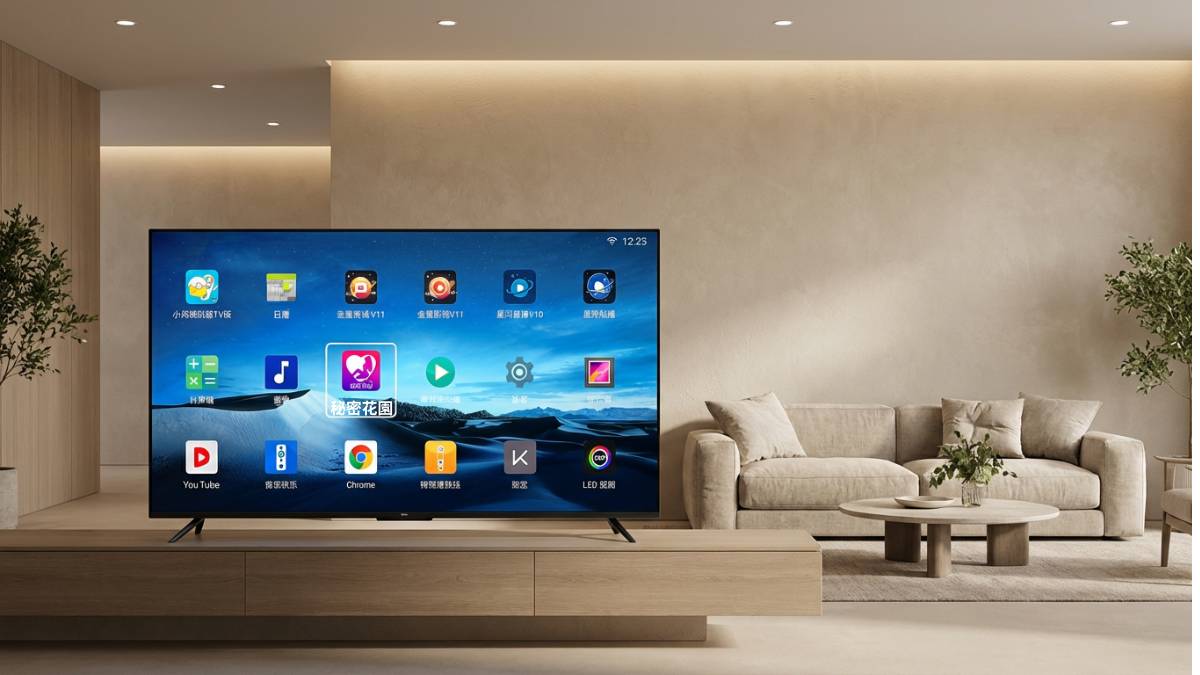
“Secret Garden” is a third-party video app available on EVPAD 12 for adult users who choose to install it manually. It is designed for private use and access control, with the app remaining separate from the main interface until it is added by the user. Once installed, it requires private access verification before opening. EVPAD does not pre-install or actively promote this app, and all installation choices are left to the user. Used responsibly, it can offer a private viewing option while keeping the device suitable for everyday family use.
How to Install the “Secret Garden” App on EVPAD 12
The steps below explain the general process for installing and managing the “Secret Garden” app through a browser on EVPAD 12. This guide is intended only for users who meet the age requirement and understand the purpose of the app.
1. Open a Web Browser
From the EVPAD 12 home screen, open a browser such as Chrome or ORZ Browser. You will usually find browser icons on the main screen, and you can use the remote control to launch the browser.
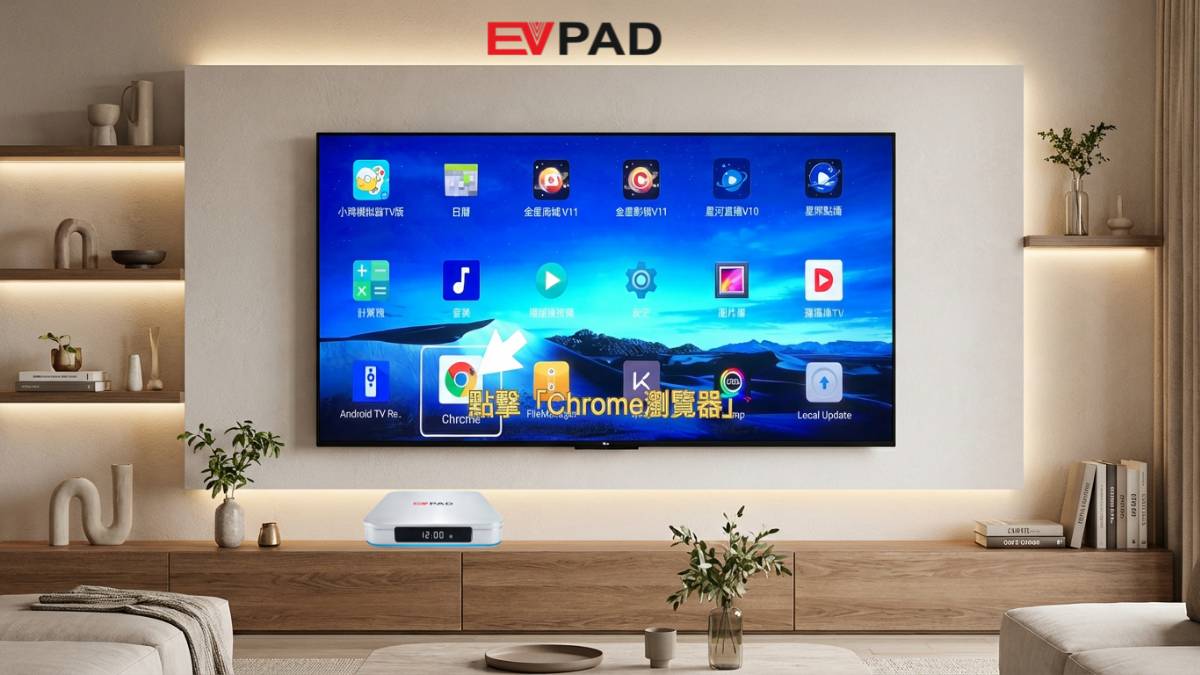
Image suggestion: EVPAD 12 home screen showing Chrome and ORZ Browser icons
2. Visit the App Setup Page
In the browser, enter the app setup address provided by your EVPAD support resources and confirm the page. After entering the address, wait a few seconds for the page to load or redirect automatically. If you are unsure which setup page applies to your device, check the EVPAD Download Center first.
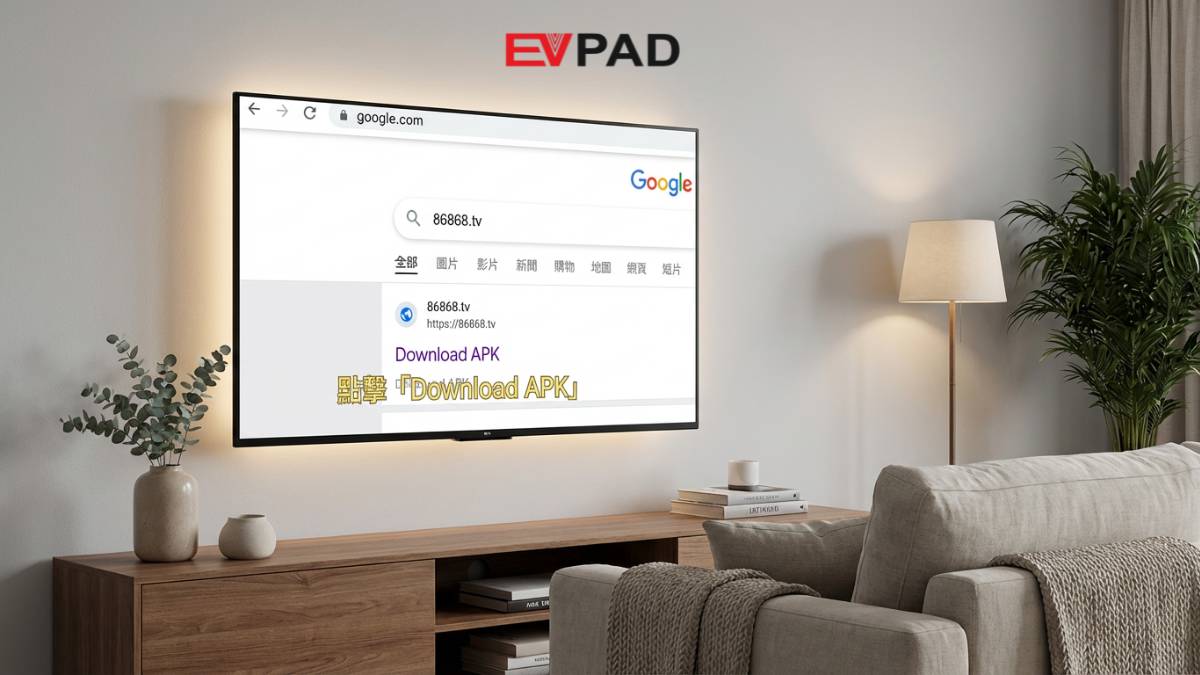
Image suggestion: Browser page showing the app setup address
3. Download and Install the App
On the setup page, you may see a download button for the app package. Use the remote to select OK or Confirm to begin the download. Once the file finishes downloading, follow the on-screen instructions to install it.
After installation, the app will appear in the EVPAD 12 app list or installed apps section.
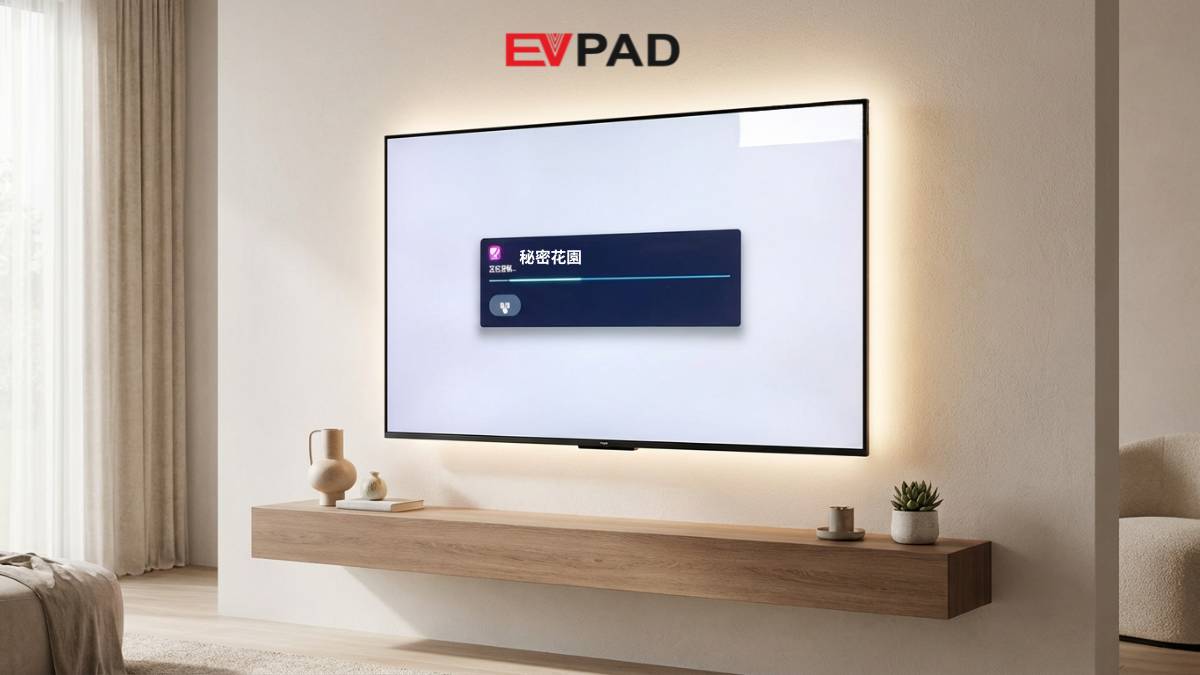
Image suggestion: Download page with app package button highlighted
4. Launch the App and Enter the Access Code
When you open the app for the first time, the system may ask for an access code or password. Enter the correct code provided for your device or support guide to continue into the app.
If the password does not work, check the FAQ section below for common solutions.
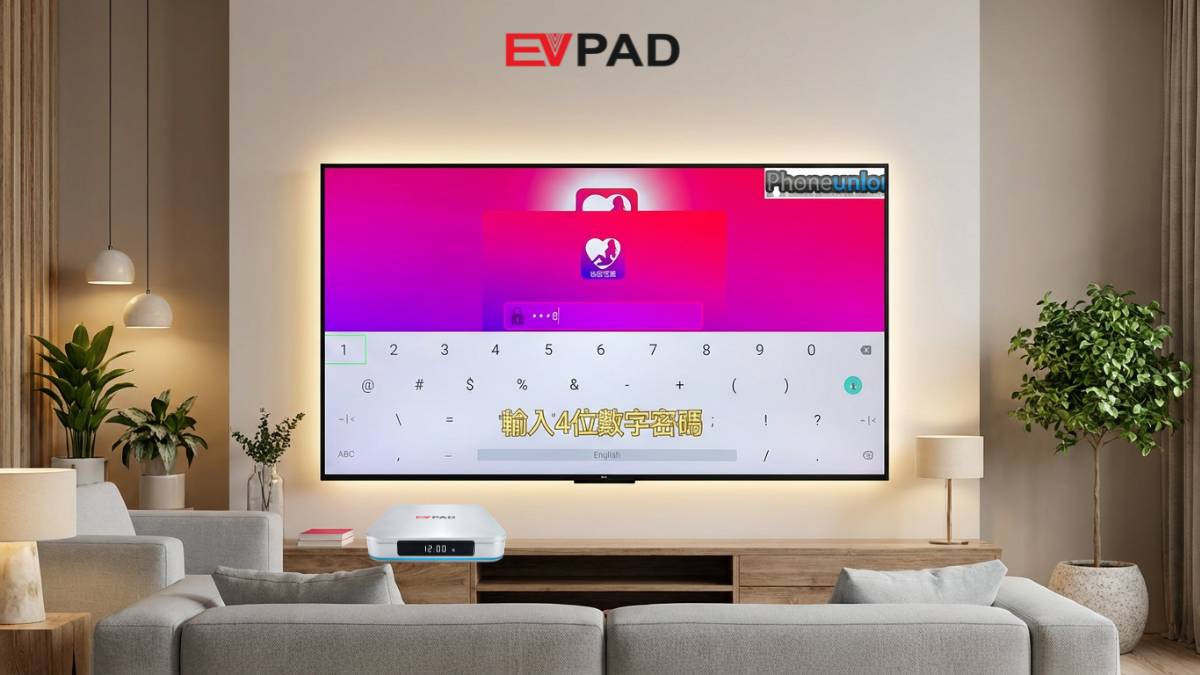
Image suggestion: Password input screen on EVPAD 12
Usage Notes
To keep the experience private and safe, here are a few important points to remember.
Use it on a personal device whenever possible.
If the box is shared with family members, avoid placing the app shortcut on the home screen.
You can manage or remove it at any time.
The app can be enabled, hidden, or uninstalled from the system settings whenever needed.
Use trusted setup resources.
Use official EVPAD support pages and trusted setup sources to avoid unverified app files and possible security risks.
Keep your device updated.
Make sure your EVPAD 12 system and apps remain current to help maintain performance and security.
Used responsibly, EVPAD 12 can remain a family-friendly smart TV box while still offering users a private entertainment option.
Frequently Asked Questions
Why can’t I find the “Secret Garden” app icon?
The app is not pre-installed, so it may not appear on the home screen. Open the installed apps list and look for “Secret Garden” there.
Why does the access code show an error?
If this happens, remove the app and install it again from the correct setup source. When entering the password, make sure the remote is in the correct input mode if required, then try again.
Will this app affect other people watching TV?
No. EVPAD 12 separates this type of app from normal TV content. It will not appear until the correct access verification is entered and will not interfere with other services.
How can I keep the interface clean and family-safe?
You can hide the app, avoid placing shortcuts on the home screen, and use system tools such as app management and parental controls to keep the interface organized.
Where can I find official EVPAD setup support?
You can check the EVPAD Download Center for setup resources, product guides, and support information. If you are choosing a newer model, visit the EVPAD 12P product page.
Conclusion
EVPAD TV BOX 12 offers a flexible way to manage private applications while keeping the device clean, organized, and family-friendly. By following the correct setup steps and using the app responsibly, users can enjoy a private viewing experience without affecting other household members.
If you are looking for a newer EVPAD model with stronger performance, Wi-Fi 6, 4GB RAM, 64GB storage, and AI voice remote support, you can compare available models in the EVPAD TV Box Collection.