
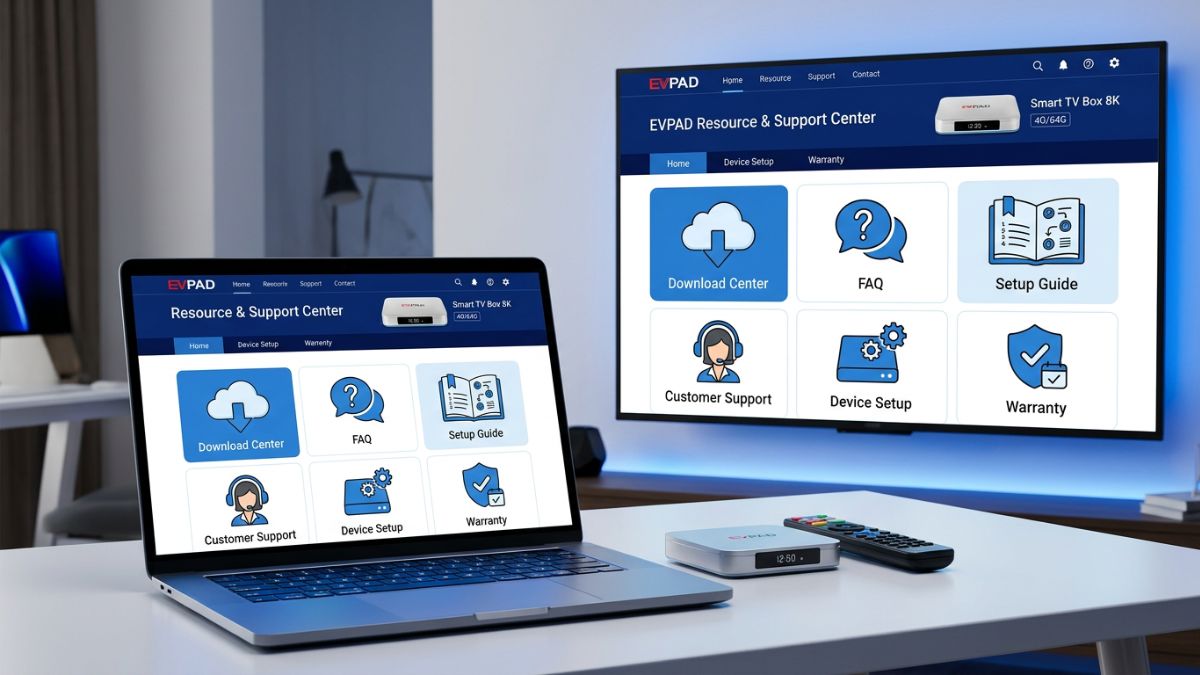
Quick answer: if your EVPAD still starts normally, use a system update only when it is offered by the device or confirmed for your exact model. Before updating, check the model and current version, keep power and internet stable, and avoid installing unverified files.
This guide covers the safest practical steps without assuming that every EVPAD model uses the same menu or update file.
System Update or Firmware Recovery?
| Update type | Use it when | What to know |
|---|---|---|
| System update | The EVPAD itself offers an update, or support confirms one | Keep power and internet stable until it finishes |
| Firmware flashing | The box cannot boot, freezes on the logo or needs system recovery | Higher risk; the firmware must match the exact model |
Before You Update
- Check the model label: for example, EVPAD 12P, 11P, 6P or 5P.
- Note the current system version if the box still starts.
- Use stable power and Wi-Fi or Ethernet.
- Make sure the device has enough free storage.
- Use only update guidance confirmed for your exact EVPAD model.
- Avoid unverified firmware or system update files from unknown sources.
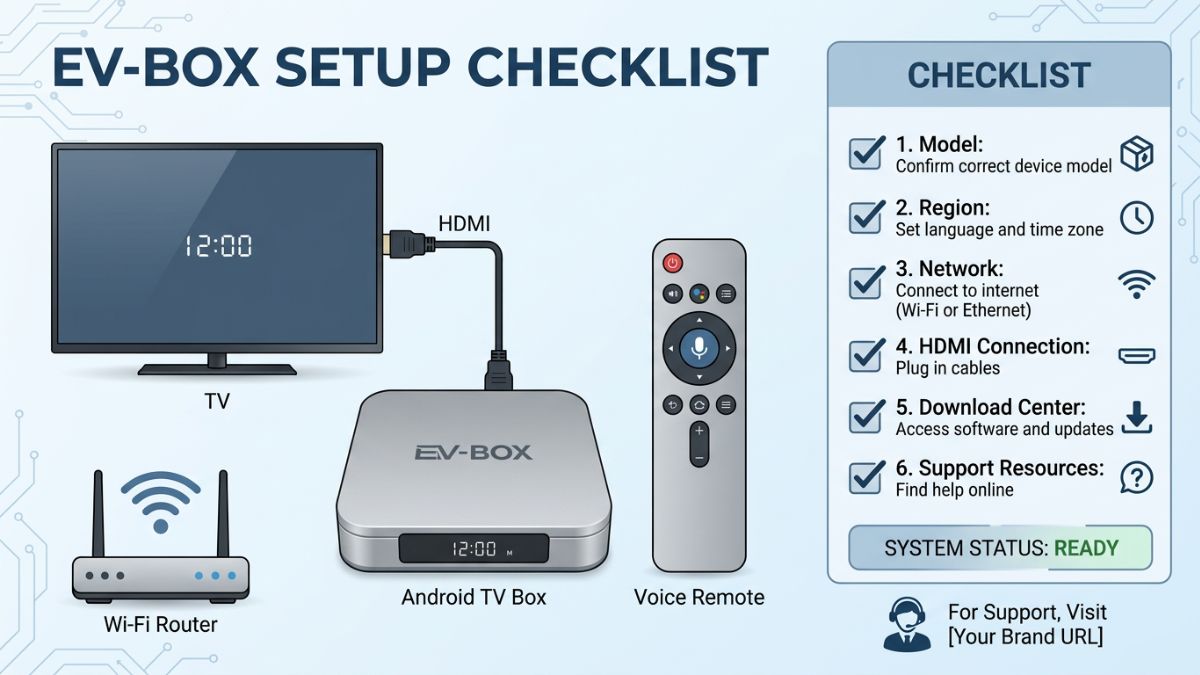
How to Handle a System Update
If your EVPAD shows an update inside its settings, read the version information before starting. The option may appear under System, About or Update, but the exact menu varies by model.
- Confirm the model and displayed update version.
- Connect stable power and internet.
- Start the update and do not unplug the box.
- Wait for the first restart to finish.
- After the restart, confirm the system starts normally and the network connection is working.
If no update option appears, do not install a package from another model. Contact EVPAD support with your model, current version, and the problem you are seeing before using any manual update file.
If the System Update Fails or the Box Becomes Unstable
If an update does not finish normally, the box restarts repeatedly, or the network stops working after an update, do not immediately install another package.
- Keep the power stable and restart the EVPAD once.
- Confirm the internet connection is working.
- Check the exact EVPAD model and the current system version if it is still visible.
- Make sure the device has enough free storage.
- Do not use a manual update file unless support confirms it matches the exact model and hardware version.
If the problem continues, follow the EVPAD Not Working troubleshooting guide or contact EVPAD support with your model and update details.
When Is Firmware Recovery Needed?
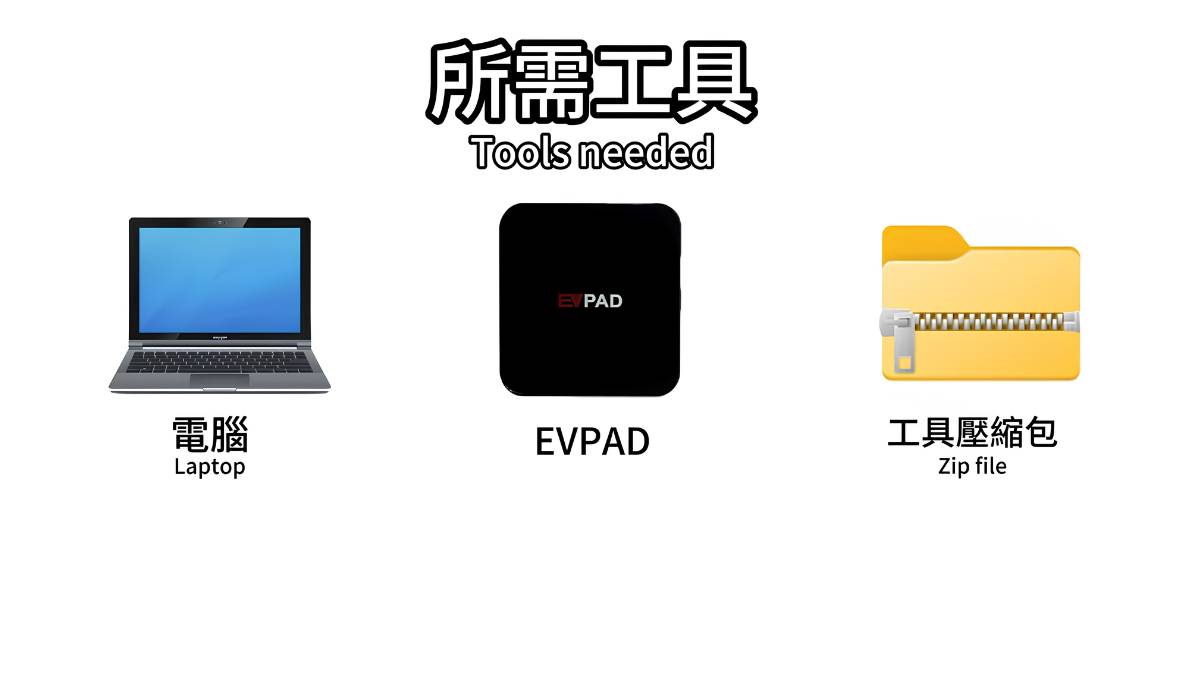
Firmware recovery is a higher-risk step that may be considered when the box will not start, stays on the logo, or cannot recover through normal troubleshooting. The recovery file and method must match the exact model and hardware version.
Do not start with firmware recovery for a routine system update or temporary network problem. If you cannot confirm the exact recovery file, stop and contact support. An incorrect package can prevent the box from starting.
For a genuine boot problem, contact the seller or EVPAD support first. If a model-specific recovery procedure is confirmed, follow only the instructions provided for that exact device.
Frequently Asked Questions
What is the safest way to update EVPAD?
Confirm the model and current system version, then use only a system update offered by the device or confirmed for that exact model. Use firmware recovery only for serious boot-recovery cases.
Can an EVPAD system update change my settings or data?
System-update behavior can vary by model and update package. Before starting, review the update information and record important settings when possible. Firmware recovery may erase device data.
Can I use the same firmware on every EVPAD model?
No. Firmware must match the exact model and hardware generation. Do not use a package simply because the model name looks similar.
What should I do if the update fails?
Stop installing different files. Check power, internet, storage, the exact model, and the displayed system version. If the box still starts, use basic troubleshooting. If it no longer boots, contact support before attempting firmware recovery.
Final Advice
Use a confirmed system update when the device offers it, keep power and network stable during the process, and reserve firmware recovery for serious boot problems. Avoid trying multiple unverified update files.