
Last updated: July 2026. This EVPAD troubleshooting guide has been refreshed with updated checks for power, HDMI, Wi-Fi, remote control, restart, storage, setup after reset, no signal, black screen, and stuck-logo issues.
Experiencing issues with your EVPAD TV Box can be frustrating. Wi-Fi connection problems, black screens, remote control issues, unexpected restarts, no signal, or a box stuck on the EVPAD logo can have several possible causes. This guide provides practical troubleshooting steps to help you check the network, remote, HDMI connection, power adapter, storage, system settings, or the TV box itself.
Quick Diagnosis Checklist
Before you assume the EVPAD TV box is damaged, run through a few basic checks first. Many common EVPAD not working issues are caused by loose cables, unstable Wi-Fi, remote control problems, limited storage, or a recent reset that was not completed properly.
- Check whether the power adapter is firmly connected.
- Confirm the HDMI cable is plugged into the correct TV input.
- Restart your router if the EVPAD box cannot connect to Wi-Fi.
- Check whether the whole TV box is frozen or only one screen or function is unresponsive.
- Check whether the remote control batteries need to be replaced.
- Confirm whether the issue started after a reset, system update, or settings change.
- Review the EVPAD FAQ page if the issue looks like a common setup question.
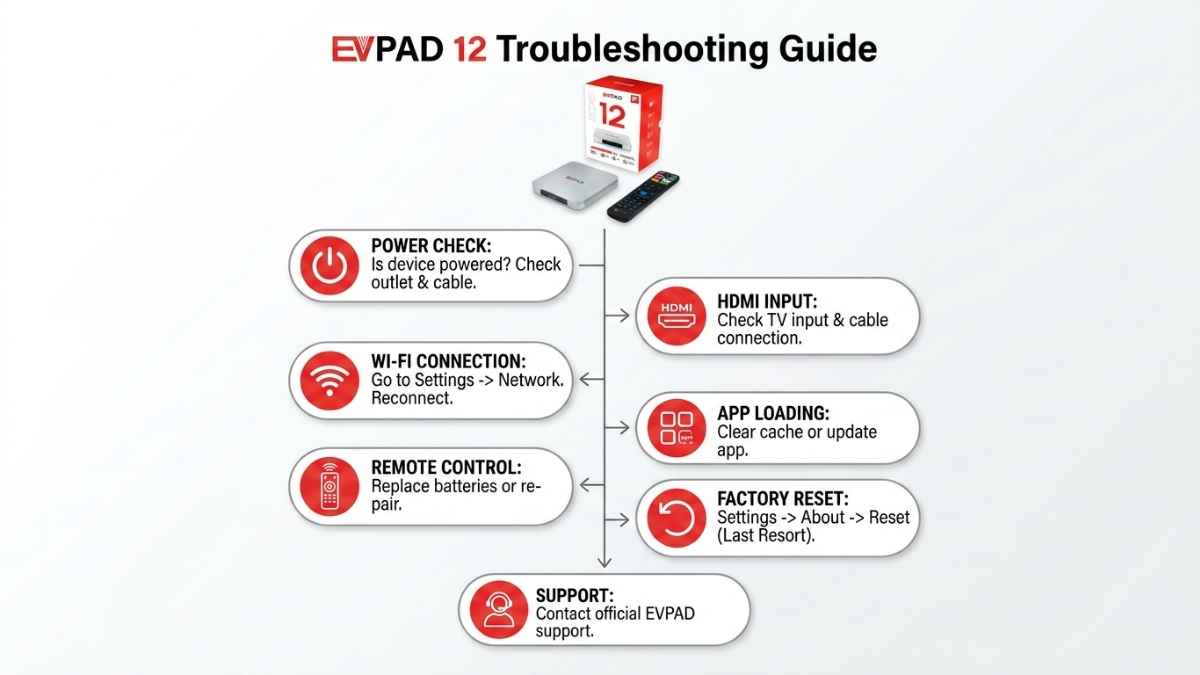
EVPAD Problem Today: Is It the Device, Network, or Connection?
If your EVPAD suddenly stopped working today, do not reset the box immediately. First check whether the entire device is affected or whether the problem is limited to the network, HDMI connection, remote control, or a single screen. Temporary router problems, weak Wi-Fi, loose cables, or a settings change can make the box appear to be malfunctioning.
If the whole EVPAD TV box has no signal, no power, no response, or stays on the logo screen, continue with the device troubleshooting steps below. If the device itself is responsive, check the network, HDMI input, system settings, and available storage before taking more advanced action.
Why Your EVPAD TV Box May Not Be Working
Older EVPAD devices, such as EVPAD 3, EVPAD 3S, EVPAD 5S, EVPAD 6P, EVPAD 10P, and earlier models, may still power on but become slower or less stable over time. Common reasons include:
- Outdated Android Version: Early Android systems may have fewer current system features and compatibility improvements.
- System Maintenance: Older models may receive fewer software maintenance updates over time.
- Hardware Limitations: Low memory, older processors, limited storage, and weaker decoding performance can cause freezes, slow response, or longer loading times.
- Storage and Settings: Limited free storage or incorrect system settings can affect stability and responsiveness.
- Network Instability: Weak Wi-Fi, router issues, or poor internet speed can make the device appear slow or unresponsive.
Bottom Line: Your device is not always broken. It may be affected by network conditions, storage, system settings, power, HDMI connection, or hardware age. Before replacing the device, check the internet connection, power adapter, HDMI cable, available storage, remote control, and the full TV box system.
EVPAD Screen or Function Not Responding vs Full TV Box Failure
It is important to separate a limited interface problem from a full device issue. If the box still responds to the remote and system menus, check the internet connection, restart the device, close unnecessary recent tasks if available, and confirm there is enough free storage.
If the whole device is frozen, cannot turn on, has no display, stays on the EVPAD logo, or does not respond to the remote control, the issue is more likely related to power, HDMI connection, system settings, firmware, storage, or hardware accessories. If your current model is very old and keeps showing repeated issues, you can also compare newer options in the EVPAD TV box collection.
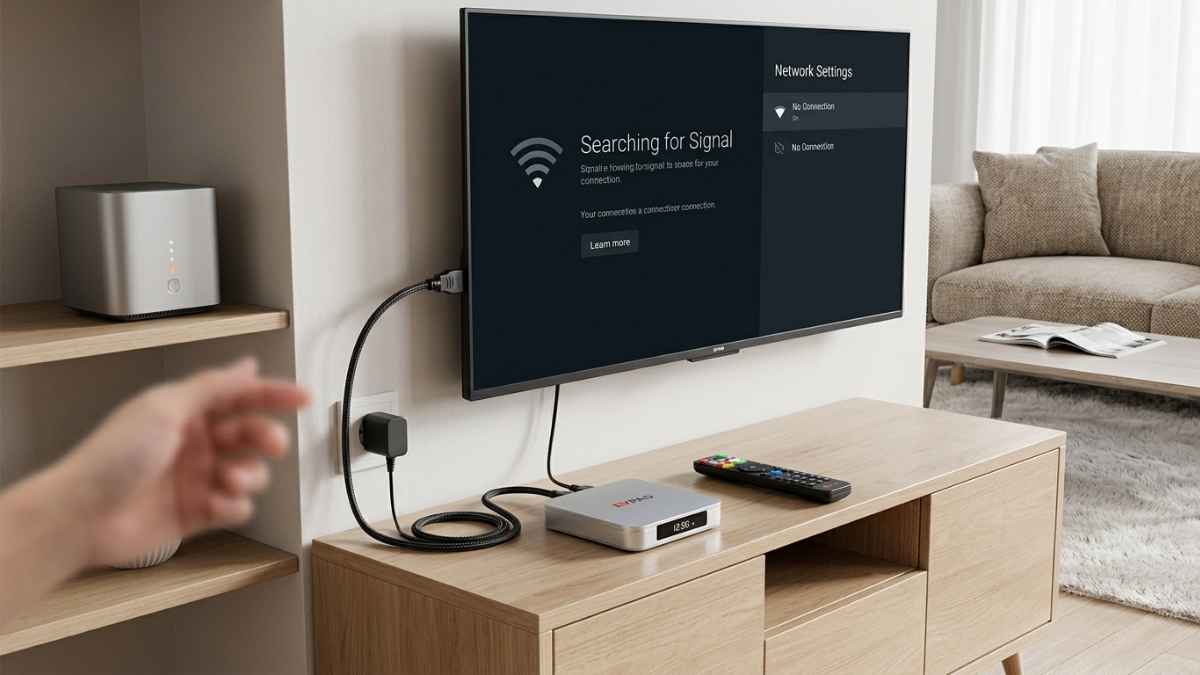
EVPAD Cannot Connect to Wi-Fi
If your EVPAD cannot connect to Wi-Fi, start with the router and network settings before changing the TV box settings. Many connection issues are caused by weak Wi-Fi signal, router instability, incorrect password, or a network band that the device cannot connect to properly.
- Restart your router and EVPAD TV box.
- Move the box closer to the router if the signal is weak.
- Re-enter the Wi-Fi password carefully.
- Try connecting to a different Wi-Fi network or mobile hotspot for testing.
- If your model supports wired connection, test with an Ethernet cable.
- Check whether the date and time settings are correct after a reset.
For users who want better network stability, newer models such as EVPAD 12P support Wi-Fi 6 and Gigabit LAN, which can be helpful for daily family use.
EVPAD Remote Not Working
If the EVPAD remote control is not working, first check whether the issue is caused by the remote, batteries, pairing, or the TV box itself.
- Replace the batteries with new ones.
- Make sure there is no obstacle between the remote and the box.
- Restart the EVPAD TV box and test again.
- Check whether the remote needs to be paired again.
- If only some buttons do not respond, record a short video and contact support.
If you need help checking a remote control problem, prepare your order number, device model, and a short video showing the issue.
Recommended EVPAD Upgrades
EVPAD 12th Generation: 12P / 12S
- Processor: High-performance CPU
- OS: Android 12
- Memory & Storage: 12P: 4GB RAM + 64GB, 12S: 2GB RAM + 32GB
- Video Output: Up to 8K Ultra HD
- Connectivity: Wi-Fi 6, Gigabit LAN, USB, HDMI, TF card, RJ45
- Remote: AI voice remote support
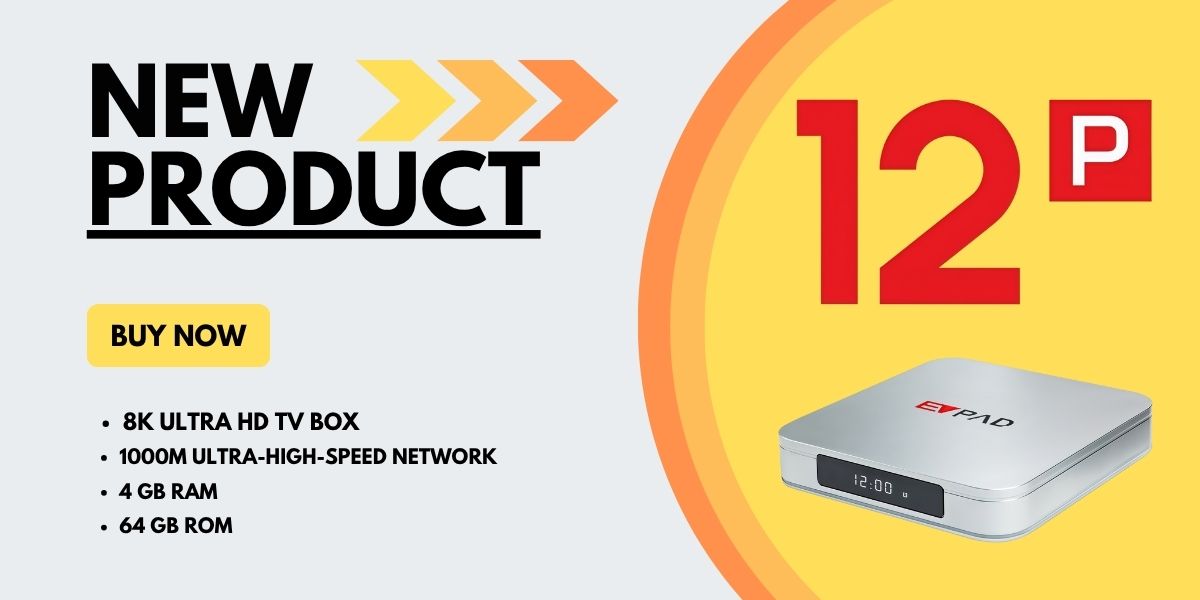
EVPAD 12P is suitable for users and families who want stronger performance, larger storage space, smoother operation, better network stability, and a better long-term daily use experience.
EVPAD 11th Generation: 11P / 11S
- Processor: Octa-core
- OS: Android 10
- Memory & Storage: 11P: 4GB RAM + 64GB, 11S: 2GB RAM + 32GB
- Video Output: Up to 4K
- Connectivity: Wi-Fi 6, LAN
- Bluetooth: Version 5.2
EVPAD 11th generation models can still be suitable for users upgrading from much older EVPAD boxes, but users who want better long-term performance may prefer EVPAD 12P.
What to Do When an On-Screen Error Appears
If an unfamiliar error message appears, avoid guessing the meaning or repeatedly changing system files. Error behavior can vary by model, firmware version, and the screen or function being used.
- Take a clear photo of the full error screen.
- Write down your exact EVPAD model.
- Restart the TV box once.
- Check the power, HDMI connection, and network.
- Confirm the date, time, and available storage.
- If the same message continues, contact EVPAD support with the photo and model information.
Slow Response or Network Lag: Check your internet speed, restart the router, test with a wired connection if possible, close unnecessary background tasks, and make sure the device has enough free storage.
Stuck on EVPAD Logo: If your EVPAD is stuck on the logo screen, unplug the power for a few minutes and restart the box. If it still stays on the logo, prepare a photo of the screen, the model name, and the label on the bottom of the TV box before contacting support.
Setup After a Reset or System Update
If the EVPAD behaves differently after a reset or system update, do not repeatedly reset the device. First confirm your exact model and check the basic system settings again.
- Reconnect to a stable Wi-Fi or Ethernet network.
- Check the date, time, language, and display settings.
- Confirm the HDMI output is working normally.
- Check whether the remote needs to be paired again.
- Make sure there is enough free storage.
- If the problem continues, contact support with the model name and issue details.
A reset can change several system settings at once, so complete these basic checks before assuming the device has a hardware fault.
What to Check After Reset or Update
After a reset or update, some settings may need to be configured again. This can include Wi-Fi login, display settings, language preferences, time zone, available storage, and remote pairing. If the box seems different after a reset, do not immediately assume it is broken.
- Reconnect the EVPAD box to a stable Wi-Fi network.
- Check whether the date, time, and region settings are correct.
- Close unnecessary background tasks and check whether the system responds normally.
- Check whether the remote control needs to be paired again.
- Inspect the power adapter if the box powers off unexpectedly.
- Take a photo of any on-screen message before contacting support.
Basic Support Information
If troubleshooting fails, contact your EVPAD customer support team. Provide the model name, photos or videos of the problem, and a detailed description of the steps you have already tried. This helps support identify whether the issue is related to the network, accessories, firmware, storage, power, HDMI connection, or hardware.
When to Contact EVPAD Support
If basic troubleshooting does not solve the issue, contact EVPAD support before using recovery files, firmware packages, or advanced repair steps. Model-specific instructions can differ, especially on older hardware.
If the EVPAD TV box still does not work after checking power, HDMI, Wi-Fi, storage, reset settings, and remote control, it may be time to contact EVPAD support. When contacting support, include your model name, order information if available, photos of the issue, and a short description of what you already tried.
Common Family-Use Troubleshooting Tips
If the EVPAD box is mainly used by parents or older family members, keep the troubleshooting process simple. Label the correct HDMI input on the TV, keep the remote control in one place, and write down the Wi-Fi password near the setup area.
For family use, it also helps to avoid unnecessary changes to system settings after the box is working normally. A stable setup is often more important than frequent adjustments, especially when the device is used daily in the living room.
Conclusion
Regular maintenance, stable internet, correct HDMI input, enough free storage, a working remote control, and suitable system settings are important for smooth EVPAD TV box performance. If your issue is caused by a simple connection, Wi-Fi, storage, or reset setting problem, the steps above may help you solve it quickly.
If your device is an older generation model and continues to freeze, show repeated on-screen errors, stay on the EVPAD logo, or fail after reset, it may be worth comparing newer EVPAD models before deciding whether to repair or upgrade.
FAQ
Why is my EVPAD TV box not working?
Your EVPAD TV box may not be working because of a loose power connection, wrong HDMI input, unstable Wi-Fi, low free storage, remote control problem, model compatibility issue, or settings change after a reset or update. Start with power, HDMI, Wi-Fi, storage, and remote checks before trying advanced fixes.
What should I do if the EVPAD interface is slow or not responding?
Check whether the internet connection is stable, restart the TV box, close unnecessary background tasks, and confirm that there is enough free storage. If the whole device is frozen, continue with the power, HDMI, and system checks above.
Why is my EVPAD stuck at the logo screen?
If your EVPAD is stuck at the logo screen, unplug the power for a few minutes and restart the device. If the problem continues, take a photo of the screen and the label on the bottom of the box, then contact support with your model information.
What should I check after resetting my EVPAD?
Reconnect Wi-Fi or Ethernet, confirm the date and time, check the HDMI display, review language and system settings, make sure there is enough free storage, and pair the remote again if needed.
What should I do if my EVPAD remote is not working?
Replace the batteries, restart the box, check the distance between the remote and the device, and confirm whether the remote needs pairing. If it still does not work, send support your order number, device model, and a short video.
What should I do if an unfamiliar error message appears?
Take a photo of the full screen, write down the exact EVPAD model, restart the device once, and check power, HDMI, network, date, time, and storage. If the message continues, contact EVPAD support with the photo.
Should I try advanced recovery steps when I see an error?
Not immediately. Complete the basic power, HDMI, network, storage, restart, and model checks first. If the issue continues, contact EVPAD support before using firmware or model-specific recovery files.
Where should I get help with advanced recovery or firmware?
Contact EVPAD support or the seller first. Advanced recovery files and firmware should match the exact EVPAD model and hardware version.
Should I reset my EVPAD TV box?
A reset should usually be used only after basic checks have failed. Before resetting, confirm that the power adapter, HDMI connection, Wi-Fi, and remote control are working properly. After a reset, you may need to reconnect Wi-Fi and adjust settings again.
When should I contact EVPAD support?
You should contact EVPAD support if the box still does not work after checking power, HDMI, Wi-Fi, storage, remote control, and reset settings. Include your model name, issue details, photos or videos, and what you have already tried.
Contact & Purchase
- WhatsApp: +852-51883539
- Email: sales@evpadtv.com
We provide assistance in choosing the right EVPAD TV box and resolving common technical issues.