
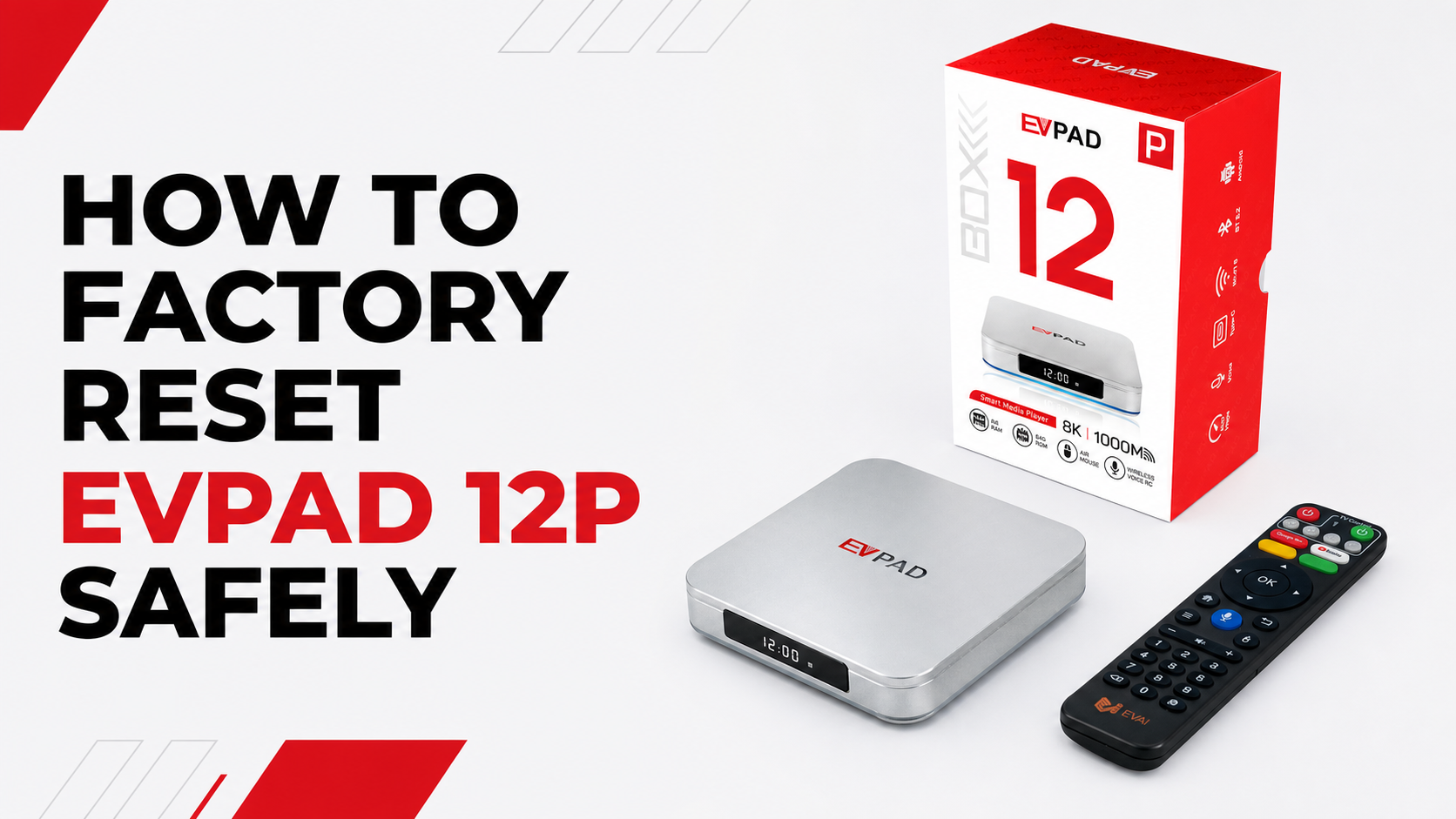
Quick answer: A factory reset should be used only after basic troubleshooting has failed. On an EVPAD 12P that can still open the Settings menu, look for Settings > Device Preferences > Reset, review the warning, and confirm the reset shown on the screen. The process removes local accounts, installed apps, saved settings, and data stored on the device.
A factory reset does not replace the firmware, repair damaged hardware, or guarantee that a third-party service will start working again. Before continuing, make sure that resetting the entire device is appropriate for the problem you are experiencing.
When Should You Factory Reset an EVPAD?
A factory reset may be appropriate when the EVPAD starts normally and you can access Settings, but the entire system remains unstable after restarting and completing basic checks.
Consider a reset only when:
- The device repeatedly freezes across different system menus.
- Several basic device settings no longer work correctly.
- A restart, power check, HDMI check, and network check did not solve the problem.
- EVPAD support has asked you to reset the device as part of troubleshooting.
- You need to remove your personal accounts and locally stored data before transferring the device.
When Should You Not Factory Reset It?
Do not start with a factory reset when the problem may have a simpler cause.
- No picture: Check the power adapter, HDMI cable, and selected TV input first.
- Wi-Fi problem: Restart the router, test another network, or try Ethernet where available.
- Remote not responding: Replace the batteries and check the remote pairing.
- One app has a problem: Resetting the whole device is usually unnecessary.
- Device is stuck on the startup logo: This on-screen method cannot be used if Settings will not open.
- Model is unknown: Check the label on the bottom of the device before following any reset instructions.
If the EVPAD cannot reach the home screen, do not try random button combinations, reset-hole instructions, or firmware files found online. Recovery procedures are model-specific and can create additional problems when used on the wrong device.
What to Prepare Before the Reset
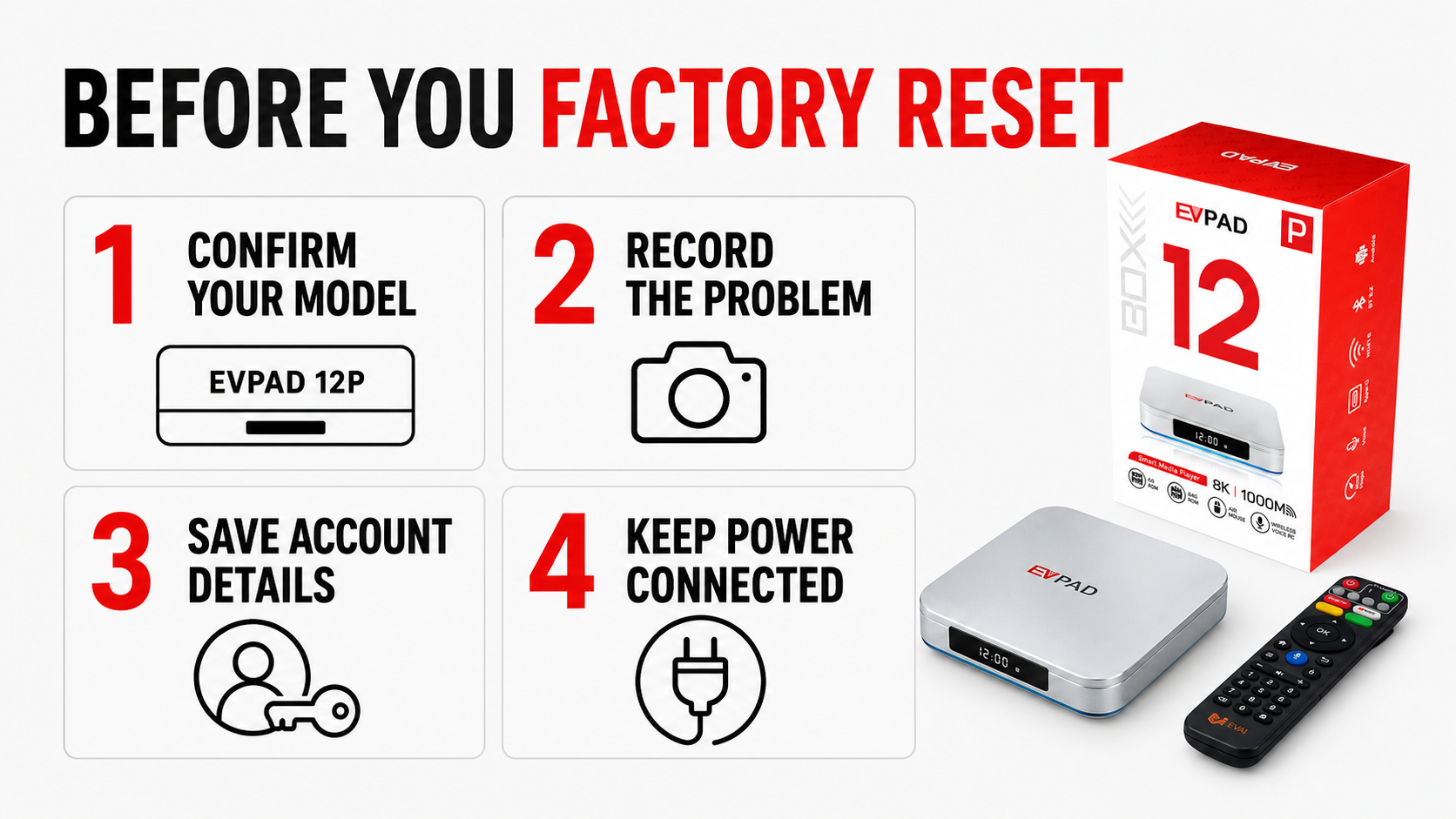
Complete this checklist before selecting the final reset confirmation:
- Confirm the model. Check the label on the bottom of the TV box. This article is limited to EVPAD 12P.
- Record the problem. Take a photo or short video of any error message before erasing the device.
- Save personal files. Move any personal files you are authorized to keep from internal storage.
- Check account details. Make sure you know the login information for accounts currently used on the device.
- Disconnect external storage safely. Remove USB drives or memory cards after safely ejecting them.
- Use stable power. Keep the correct power adapter connected throughout the reset.
- Contact support when necessary. If the device is being diagnosed for warranty or return service, ask support before erasing it.
How to Factory Reset EVPAD 12P
Step 1: Restart the Device First
Before erasing anything, restart the EVPAD once and test it again. A temporary system slowdown or connection problem may disappear after a normal restart.
Step 2: Open Settings
From the EVPAD 12P home screen, open the Settings menu using the remote control.
Step 3: Find the Reset Menu
Look for Device Preferences, then select Reset. Menu wording can change between system versions. If your EVPAD 12P does not show this path, do not select an unrelated option.
Step 4: Review the Warning
The device should display a warning explaining that accounts, installed apps, saved settings, and locally stored data will be removed. Read the entire message before continuing.
Step 5: Confirm the Factory Reset
Select the final reset confirmation displayed on your screen. Depending on the system version, the wording may appear as Reset, Factory data reset, or Erase everything.
Step 6: Keep the Power Connected
The EVPAD will restart and begin restoring its factory configuration. Leave the device connected to stable power and do not press remote buttons repeatedly while the process is running.
When the language or initial setup screen appears, the factory reset has finished and you can begin the basic setup again.
Basic Setup After the Reset
Complete the system settings in this order:
- Language and region: Choose the correct display language, region, time zone, and date settings.
- Network: Connect to a stable Wi-Fi network or Ethernet connection.
- Display: Confirm that the output resolution and display settings are compatible with your television.
- Remote control: Check the navigation buttons and pair the remote again if required.
- System status: Review the model, storage, network, sound, and display information.
- System update: Install an update only when it is offered by the device or confirmed for your exact model.
This guide intentionally ends after the basic system setup. It does not provide APK files, third-party app packages, or app reinstallation resources.
What If the Problem Continues?
If the same problem remains after the reset, repeating the reset is unlikely to help. Check the following:
- Confirm that the EVPAD is using the correct power adapter.
- Try another HDMI cable and another HDMI input on the television.
- Test both Wi-Fi and Ethernet if your model supports them.
- Record any error message or unusual startup screen.
- Check whether the problem affects the device itself or only one external service.
Contact EVPAD support with the exact model, order information if available, photos or video of the problem, and a list of the checks already completed. This information helps determine whether the issue involves hardware, power, network settings, or the operating system.
EVPAD Factory Reset FAQ
Does a factory reset delete everything on EVPAD?
It removes local accounts, installed apps, system preferences, and data stored in the device's internal storage. Back up personal files and confirm your account details before continuing.
Is restarting the EVPAD the same as a factory reset?
No. A restart turns the device off and on without intentionally erasing its data. A factory reset removes local data and restores the system settings to their initial state.
Does a factory reset update the EVPAD firmware?
No. A factory reset restores the existing system configuration. It does not replace the firmware with a newer version.
Can a factory reset fix an EVPAD with no HDMI signal?
Usually, power, HDMI cable, TV input, or display compatibility should be checked first. If the device cannot show the Settings menu, this on-screen reset procedure cannot be used.
Can I use the same reset steps for older EVPAD models?
Do not assume that older models use the same menu or recovery procedure. Confirm the exact model and obtain model-specific instructions before resetting it.
What should I do if the EVPAD cannot open Settings?
Do not use unverified recovery-button or firmware instructions. Contact support with a photo of the model label and the screen where the device stops.
Final Reminder
A factory reset is useful when a system-wide problem remains after basic troubleshooting, but it should not be the first solution. Confirm the model, protect your personal data, keep the power stable, and stop if the menu does not match this guide.
For more help, review the EVPAD FAQ, confirm your model on the EVPAD 12P product page, or contact EVPAD support before attempting another reset.