
The EVPAD voice remote is designed to make daily navigation more convenient for home entertainment users. Whether you are using an EVPAD 12P, replacing an older remote, or troubleshooting a pairing issue, this guide explains the main functions, basic setup steps, air mouse controls, battery checks, and common solutions.
If you are setting up a new device, review the EVPAD 12P product page for current model details before getting started.
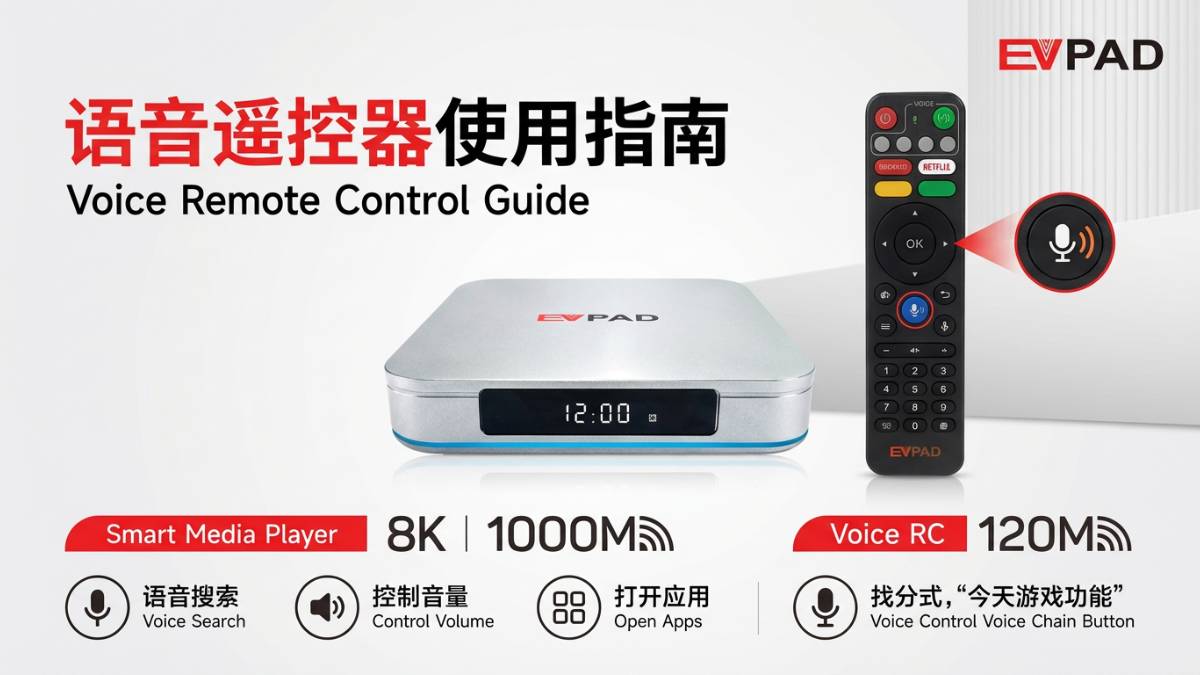
Which EVPAD Models Use the Smart Voice Remote?
The current EVPAD smart voice remote is commonly used with EVPAD 12P, EVPAD 12S, EVPAD 11P, and EVPAD 11S models. Before ordering a replacement remote or troubleshooting a pairing issue, confirm your device model and remote version.
If you need a replacement, review the EVPAD smart voice remote product page before ordering.
Core Functions of the EVPAD Voice Remote
The EVPAD remote is more than a traditional controller. It combines several practical features designed to simplify daily operation.
1. Voice Control
The built-in voice function can make navigation easier. After the remote is paired correctly, users can test basic voice commands and confirm that the microphone and Bluetooth connection respond normally.
2. Learning Function for TV Controls
Some EVPAD remote versions support a learning function that can copy selected signals from a TV remote. This may allow users to manage common TV controls without switching between multiple remotes.
3. Infrared and Bluetooth Functions
Basic remote-control functions may use infrared communication, while voice features and some smart functions rely on Bluetooth pairing. For best results, keep the remote within a normal indoor range and avoid blocking the signal path during setup.
4. Air Mouse Function
The air mouse feature allows users to move an on-screen cursor with hand movements. This can be useful when navigating menus, selecting options, or using interfaces that are easier to control with a pointer.
- Useful for menu navigation
- Convenient for pointer-based interface control
- Helpful for users who prefer pointer-style controls
- Practical for everyday family use
How to Use the Learning Function
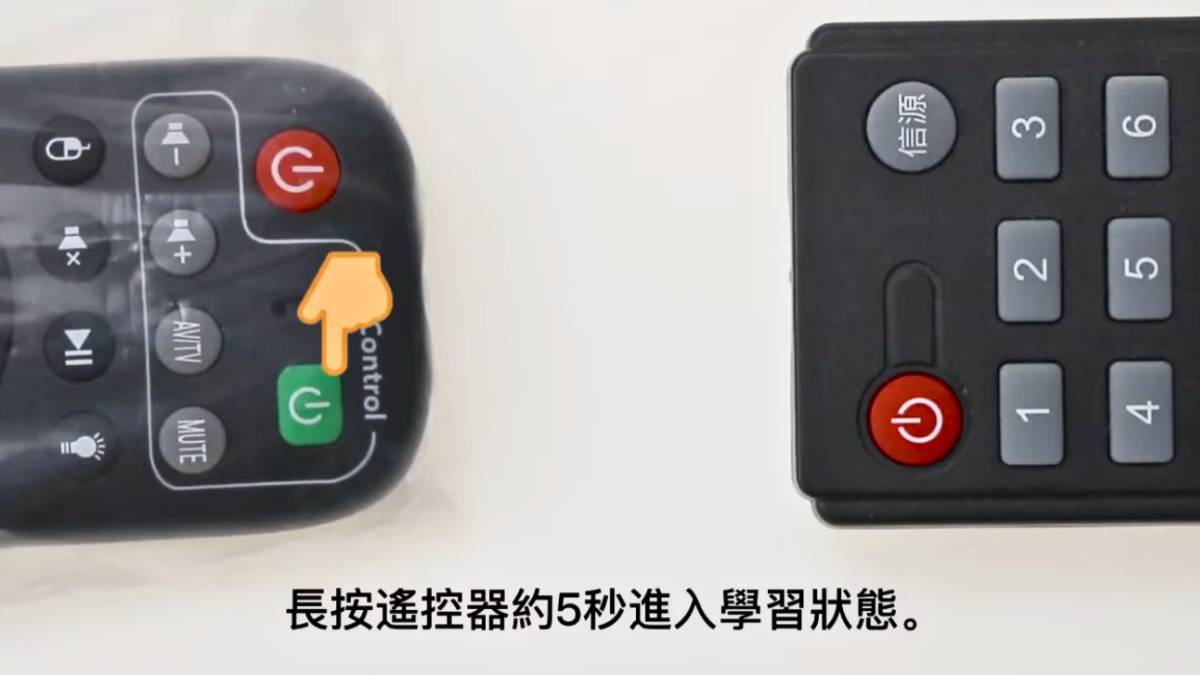
The learning function can help reduce the need to use multiple remotes. The exact button names may vary depending on your remote version, but the general process is:
- Prepare both remotes: Place the EVPAD remote and your TV remote nearby.
- Align the remotes: Keep the infrared ends facing each other at a short distance.
- Enter learning mode: Follow the learning-button instructions provided with your remote version.
- Select the EVPAD button: Choose the button you want to program.
- Transmit the TV remote signal: Press the matching button on your original TV remote.
- Confirm the indicator light: Check the remote indicator to confirm whether the signal was saved.
- Exit learning mode: Complete the exit step shown for your remote version.
If the learning function does not work the first time, repeat the process with both remotes aligned closely and check the indicator light carefully.
Advantages of Voice Control
Voice control can make daily TV use more convenient, especially for family members who prefer a simpler navigation process.
- Faster Search: Reduce the need to type long search terms manually.
- Family-Friendly Use: Helpful for parents and older family members.
- Hands-Free Navigation: Test voice functions after pairing the remote.
- Simpler Daily Operation: Use basic commands for common navigation tasks.
Infrared and Bluetooth Tips for Daily Use
The EVPAD remote may use different connection methods depending on the function. Basic buttons can work through infrared communication, while voice features may require Bluetooth pairing.
Helpful Tips
- Remove Obstacles: Keep the path between the remote and TV box clear during testing.
- Test Close to the Device: Move closer to the EVPAD box if the response is inconsistent.
- Check Pairing: Confirm Bluetooth pairing if the voice button does not respond.
- Restart When Needed: Restart the TV box before repeating the pairing process.
Battery Check Before Troubleshooting
Many remote-control issues are caused by battery problems rather than hardware failure. Always perform a quick battery check before moving to more advanced troubleshooting.
- Replace old batteries with fresh batteries
- Confirm the batteries are installed in the correct direction
- Check whether the battery contacts are clean
- Test the remote close to the EVPAD box
- Remove the batteries briefly, reinstall them, and test again
Common Problems and Solutions
Remote Not Responding
- Check the battery power
- Confirm the batteries are installed correctly
- Remove obstacles that may block the infrared signal
- Restart the EVPAD device
- Test the remote close to the TV box
- Remove the Bluetooth pairing and pair the remote again if needed
Voice Function Not Working
- Confirm the remote is paired correctly
- Check the internet connection
- Test whether the basic remote buttons still respond
- Restart the EVPAD box
- Repeat the Bluetooth pairing process
Air Mouse Not Working
- Confirm the remote is paired correctly
- Test the remote close to the TV box
- Restart the EVPAD device
- Check whether the issue affects only the air mouse or the entire remote
Learning Function Failed
- Align both remotes closely
- Check the indicator-light status
- Confirm the correct learning button for your remote version
- Repeat the process slowly
How to Pair the EVPAD Bluetooth Remote
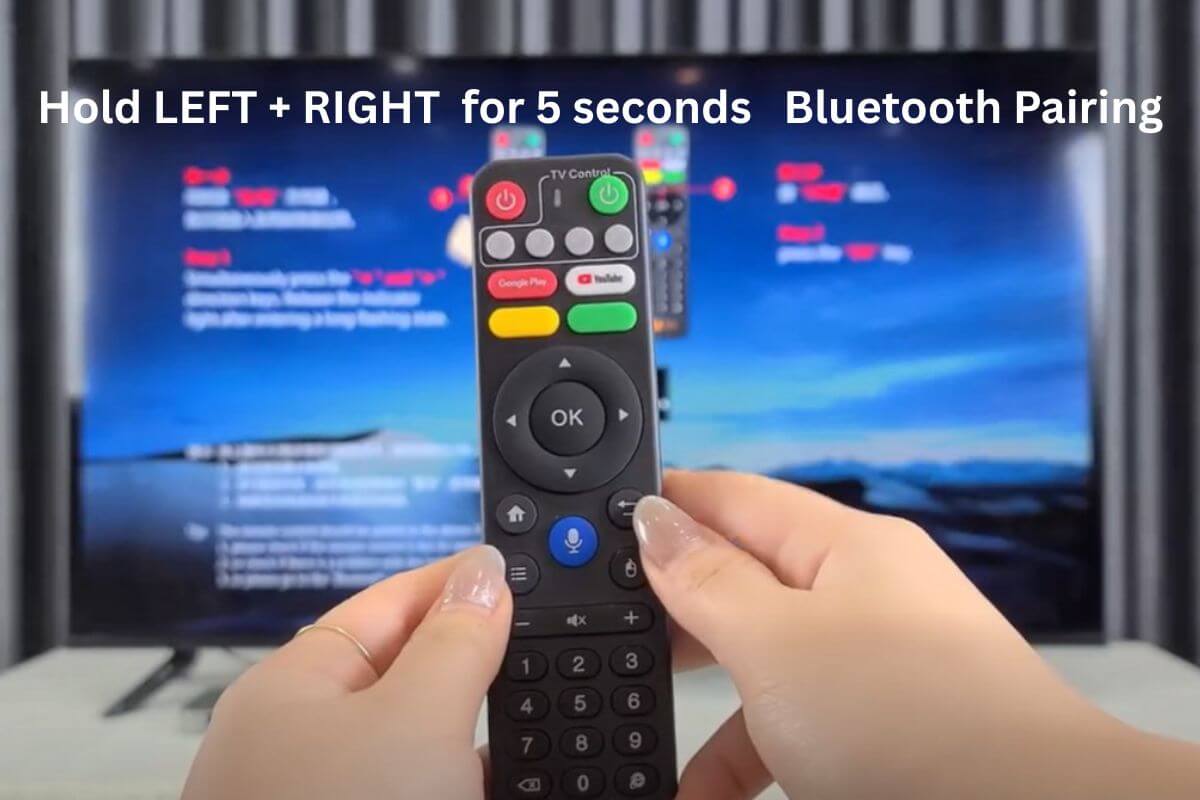
Pairing steps may vary slightly depending on the EVPAD model and remote version. Start by installing fresh batteries, opening the Bluetooth settings on your EVPAD box, and following the on-screen pairing steps for your remote.
- Install fresh batteries in the remote.
- Open the Bluetooth settings on your EVPAD box.
- Follow the pairing instructions shown for your EVPAD model.
- Select the available remote-control device when it appears.
- Confirm the connection.
- Test the direction buttons, OK button, voice function, and air mouse.
If pairing does not complete successfully, restart the EVPAD box and repeat the process. For model-specific instructions, use the official support resources below.
How to Maintain Your EVPAD Remote
Proper maintenance can help extend the lifespan of your remote control:
- Replace batteries when needed to maintain a stable response.
- Keep the remote clean using a soft, dry cloth.
- Avoid drops and impacts to protect the internal components.
- Keep liquids away from the battery compartment and buttons.
When Should You Replace the Remote?
Consider replacing the remote if:
- The remote still does not respond after installing fresh batteries
- Bluetooth pairing repeatedly fails
- The buttons are damaged or physically worn
- The air mouse or voice function continues to fail after basic checks
- The remote has been damaged by drops or liquid exposure
Before ordering a replacement, check your EVPAD model and review the EVPAD smart voice remote product page.
Where to Get EVPAD Remote Support
If you still need help after checking the batteries, restarting the device, and repeating the pairing steps, use the support options below:
- EVPAD FAQ page for common remote and setup questions
- Contact EVPAD support if the remote still does not work after basic checks
Frequently Asked Questions
Which EVPAD models are compatible with the smart voice remote?
The current EVPAD smart voice remote is commonly used with EVPAD 12P, 12S, 11P, and 11S models. Check your model and the replacement remote product page before ordering.
Are batteries included with the EVPAD voice remote?
Replacement remotes are typically sold without batteries. Install fresh batteries before pairing or troubleshooting.
Why is my EVPAD remote not responding?
Start by checking the batteries, restarting the EVPAD box, and confirming the Bluetooth pairing status. If the issue continues, remove the existing pairing and pair the remote again.
Why is the voice button not working?
Confirm the remote is paired correctly and check the internet connection. Test the basic remote buttons first, then restart the device if needed.
Where can I get EVPAD remote setup help?
Review the EVPAD FAQ page or contact customer support if the remote still does not work after basic checks.
Conclusion
The EVPAD voice remote can make daily navigation easier through voice control, air mouse functions, learning features, and practical shortcut controls. If the remote does not respond, start with fresh batteries, restart the device, and check the Bluetooth pairing status.
For additional help, review the EVPAD FAQ page or contact customer support before ordering a replacement remote.