
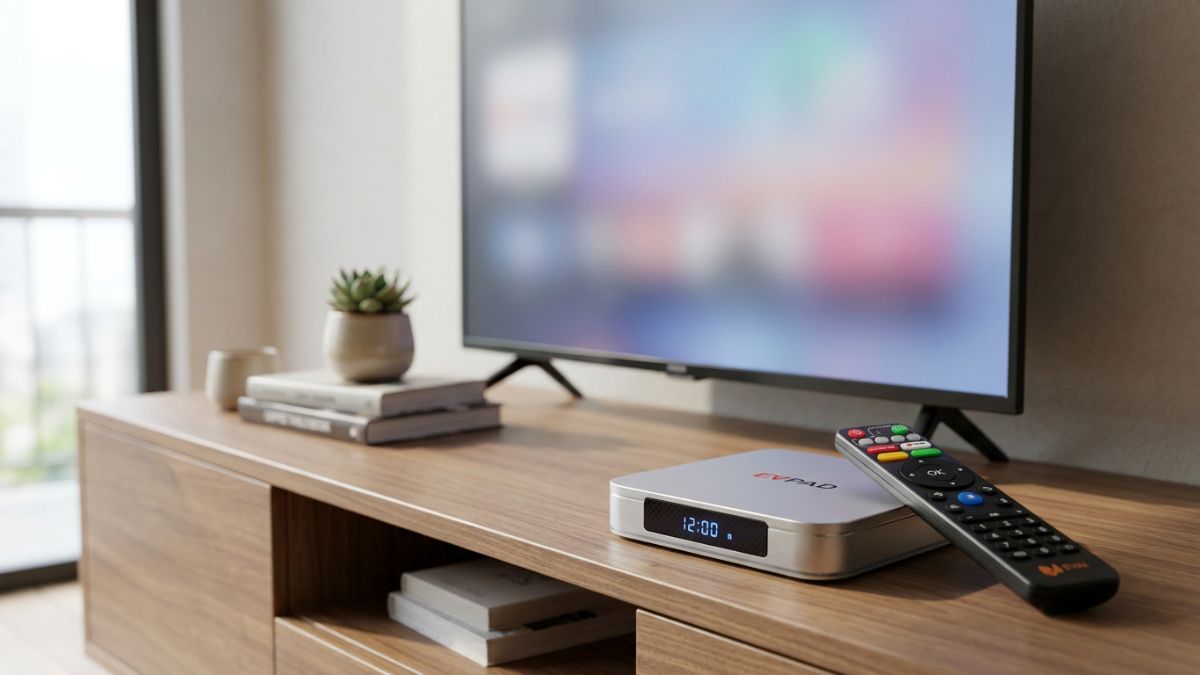
Last updated: August 2026. This troubleshooting guide is intended for older EVPAD models including EVPAD Pro, 3S, 5P/5S, 6P/6S, 10P/10S and 11P/11S. Menu names and available settings may vary slightly between generations.
Older EVPAD devices can remain useful for everyday use, but after years of operation you may occasionally experience slower performance, unstable network connections, limited storage or system-related issues.
This guide focuses on basic troubleshooting that you can safely check before considering a reset or contacting support. It does not provide third-party application downloads, APK files or unofficial firmware resources.
Which EVPAD Models Does This Guide Cover?
The troubleshooting steps below are mainly intended for previous EVPAD generations, including:
- EVPAD Pro
- EVPAD 3S
- EVPAD 5P / 5S
- EVPAD 6P / 6S
- EVPAD 10P / 10S
- EVPAD 11P / 11S
Because system layouts can differ between generations, some menu names or available options may not look exactly the same on every device.
Start With These Basic Checks
Before changing system settings, check a few basic items first:
- Confirm the exact EVPAD model you are using.
- Check whether the device is connected to stable Wi-Fi or Ethernet.
- Make sure there is enough available storage space.
- Restart the device if it has been running continuously for a long time.
- Check whether the issue affects the whole system or only one function.
- Avoid installing unknown firmware or files from unverified websites.
These simple checks can help narrow down whether the problem is related to the network, storage, system condition or device age.
1. EVPAD Network Connection Is Unstable
If your EVPAD frequently loses its connection or online functions respond slowly, start by checking your home network.
Basic network troubleshooting
- Restart your router and EVPAD device.
- Reconnect to your Wi-Fi network.
- Move the device closer to the router if the Wi-Fi signal is weak.
- If your model supports Ethernet, test a wired connection to compare stability.
- Check whether other devices on the same network are experiencing similar problems.
If multiple devices are slow at the same time, the issue is more likely related to the home network or internet connection rather than the EVPAD device itself.
2. EVPAD Is Running Slowly
Older devices may gradually feel slower, especially after long periods of continuous use or when available storage becomes limited.
Try these steps:
- Restart the EVPAD device.
- Close functions you are no longer using.
- Check available storage space.
- Remove unnecessary files or unused items where appropriate.
- Avoid keeping the device powered on continuously for very long periods.
If performance improves after restarting but becomes slow again later, limited storage or the age of the device may be contributing factors.
3. Check Available Storage Space
Insufficient storage can cause several problems, including slower response, incomplete system processes or general instability.
Open the device settings and check the storage section if available. If storage is nearly full:
- Remove files you no longer need.
- Clear unnecessary temporary data when the system provides that option.
- Restart the device after freeing up space.
Keeping some free storage available generally helps older Android-based devices operate more smoothly.
4. EVPAD Freezes or Stops Responding
If the screen freezes or the system temporarily stops responding, avoid repeatedly pressing buttons.
First try:
- Wait briefly to see whether the system responds.
- If possible, return to the home screen.
- Restart the EVPAD device.
- After restart, check the network and available storage.
If the same problem happens repeatedly, note when it occurs and whether it affects the entire system or only a particular function. This information can be useful when contacting support.
5. Restart the EVPAD Before Using More Advanced Fixes
A normal restart is one of the safest troubleshooting steps and should usually be attempted before changing advanced system settings.
Restarting can help clear temporary system problems caused by long operating periods, network interruptions or background processes.
After restarting:
- Allow the device to fully load.
- Reconnect to the network if necessary.
- Test the function that was previously causing the problem.
6. Be Careful With Firmware and System Updates
Some owners of older EVPAD devices may search online for firmware or system update files when a device becomes unstable. This should be approached carefully.
Using an incorrect firmware package may create compatibility problems or make recovery more difficult.
Before performing any firmware-related action, confirm:
- The exact EVPAD model and generation.
- The current system condition.
- Whether the device can still start normally.
- Whether the problem may actually be caused by network or storage issues.
If you are unsure which system update applies to your device, contact support instead of using files from unknown websites.
7. When Should You Consider a Factory Reset?
A factory reset should normally be treated as a final troubleshooting step rather than the first solution.
Before resetting your EVPAD:
- Restart the device first.
- Check the network connection.
- Check available storage.
- Confirm the exact model.
- Record important settings that you may need later.
A factory reset removes local settings and requires the device to be set up again. If you are unsure whether a reset is necessary, contact support first.
8. What Information Should You Provide to EVPAD Support?
If basic troubleshooting does not solve the problem, providing clear information can make support faster and more accurate.
Prepare:
- Your EVPAD model.
- Approximate purchase date.
- Order number if available.
- A short description of the problem.
- When the issue started.
- Photos or screenshots of any error message.
- A short video if the problem is difficult to explain.
You can also review our EVPAD FAQ for answers about shipping, warranty, setup and customer support.
When Is It Worth Upgrading an Older EVPAD?
You do not necessarily need to replace an older EVPAD device if it still works reliably. However, upgrading may become more practical when hardware limitations begin to affect daily use.
You may consider a newer model if:
- The device frequently becomes slow or unstable.
- Storage limitations regularly affect performance.
- Network performance is no longer reliable.
- The device requires frequent troubleshooting.
- You prefer newer hardware and a simpler everyday experience.
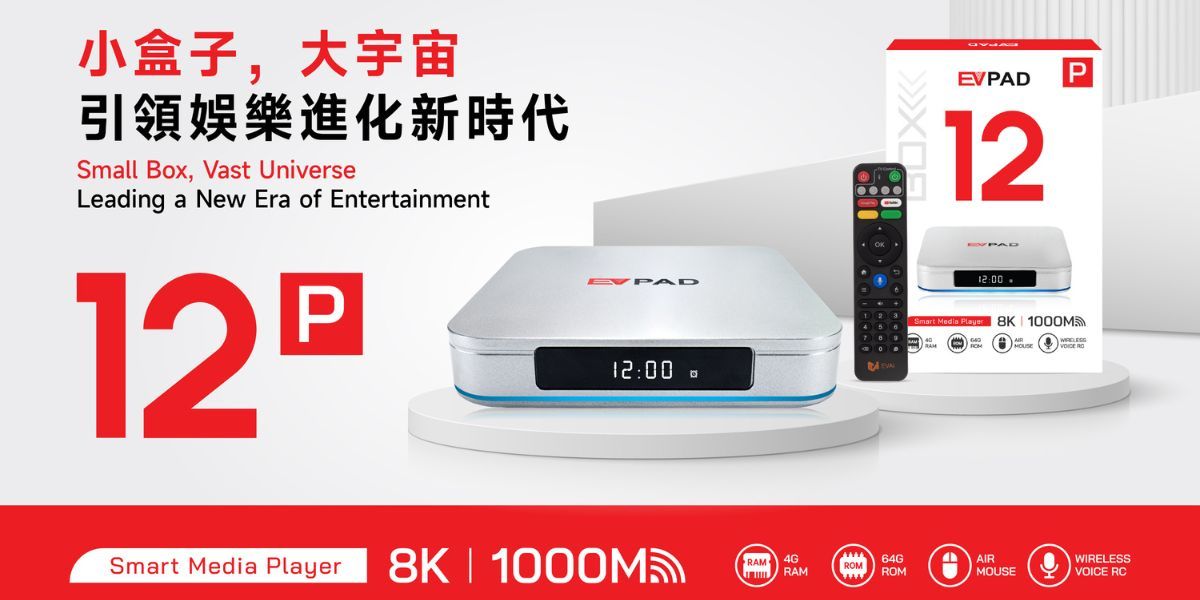
For users considering a newer generation, the EVPAD 12P offers newer hardware and is currently one of the main models available from our store.
You can also browse the EVPAD TV Box Collection to compare available models.
Frequently Asked Questions
Why is my older EVPAD running slowly?
Common causes can include long continuous operating time, limited available storage, network instability or the age of the device. Start with a restart, then check storage and network status.
What should I do if my EVPAD keeps disconnecting from Wi-Fi?
Restart both the router and EVPAD, reconnect to Wi-Fi and check the signal strength. If your model supports Ethernet, testing a wired connection can help determine whether the issue is Wi-Fi related.
Should I factory reset an EVPAD that is not working properly?
Not immediately. A factory reset should normally be a final step. First restart the device, check the network, review storage space and confirm the exact problem.
Can I use firmware files found on other websites?
Using unknown or incorrect firmware can cause compatibility or recovery problems. Confirm your exact model and use reliable support guidance before making system-level changes.
How do I know which EVPAD model I have?
Check the model information shown on the device, packaging or system information screen. Knowing the exact generation is important because settings and troubleshooting options can differ between models.
What should I send to support if my EVPAD has a problem?
Provide the model, purchase information if available, a clear description of the issue and photos, screenshots or videos showing the problem. This helps support identify the issue more efficiently.
Do I need to replace an older EVPAD immediately?
No. If your current device remains stable and meets your needs, replacement may not be necessary. Upgrading becomes more useful when performance, storage or stability problems begin to affect everyday use.
Conclusion
Many common problems on older EVPAD models can be narrowed down by checking the network, storage space, system condition and restarting the device before trying more advanced actions.
For EVPAD Pro, 3S, 5P/5S, 6P/6S, 10P/10S and 11P/11S users, the safest approach is to identify the exact model, troubleshoot basic hardware and system conditions first, and contact support before performing uncertain firmware or factory-reset procedures.
If you are considering an upgrade, you can view the EVPAD 12P or browse our current EVPAD TV Box models.