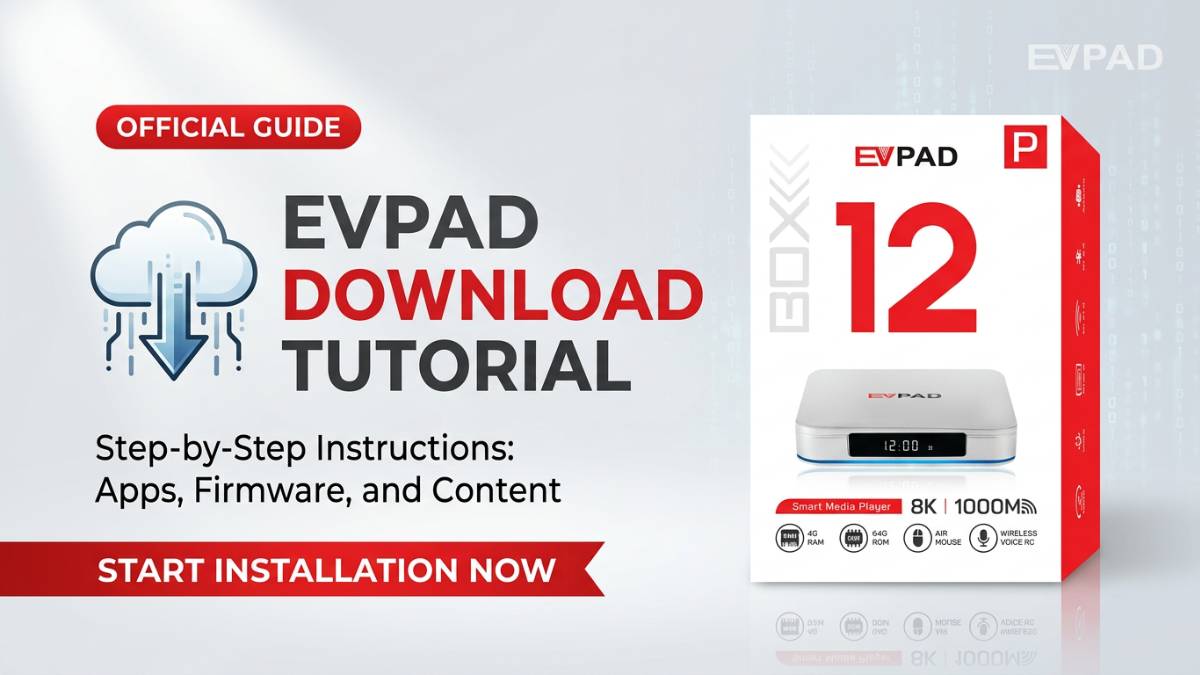
Last updated: July 2026. This guide is mainly written for older EVPAD models, including EVPAD Pro, 3S, 5P/5S, 6P/6S, 10P/10S, and 11P/11S. It explains APK installation, built-in app store setup, common installation problems, firmware and update notes, and safe download reminders for beginners.
If you are using an older EVPAD device, installing apps for the first time may feel confusing. Different EVPAD generations may use slightly different setup methods, so it is important to follow the correct steps for your specific model.
This guide focuses on EVPAD APK installation for older models, including EVPAD Pro, EVPAD 3S, EVPAD 5P/5S, EVPAD 6P/6S, EVPAD 10P/10S, and EVPAD 11P/11S. It also covers app store setup, common installation errors, update notes, and when to use official support resources.
Important note: If you are looking for general official setup resources, please visit the EVPAD Download Center. If your question is specifically about 6868JX or 6868HX setup not working, please use the dedicated 6868JX setup troubleshooting guide. This page is mainly for older EVPAD model APK installation and app setup troubleshooting.
What Is APK Installation on EVPAD?
EVPAD devices are based on Android systems, which means some apps can be installed through APK files or app store resources. Depending on your EVPAD generation, you may install apps through a browser, a built-in app store, a setup page, or a support resource.
APK installation means manually installing an Android app package. This can be useful on older EVPAD models, but it also means users should pay attention to the file source, model compatibility, app version, storage space, and installation permissions.
For beginners, the safest approach is to start from trusted setup resources and avoid random third-party APK websites. Unknown APK files may be outdated, incompatible, modified, or unsafe.
Which EVPAD Models Are Covered in This Guide?
This guide is mainly suitable for older EVPAD models and previous-generation users who need app setup help. The models covered include:
- EVPAD Pro
- EVPAD 3S
- EVPAD 5P / EVPAD 5S
- EVPAD 6P / EVPAD 6S
- EVPAD 10P / EVPAD 10S
- EVPAD 11P / EVPAD 11S
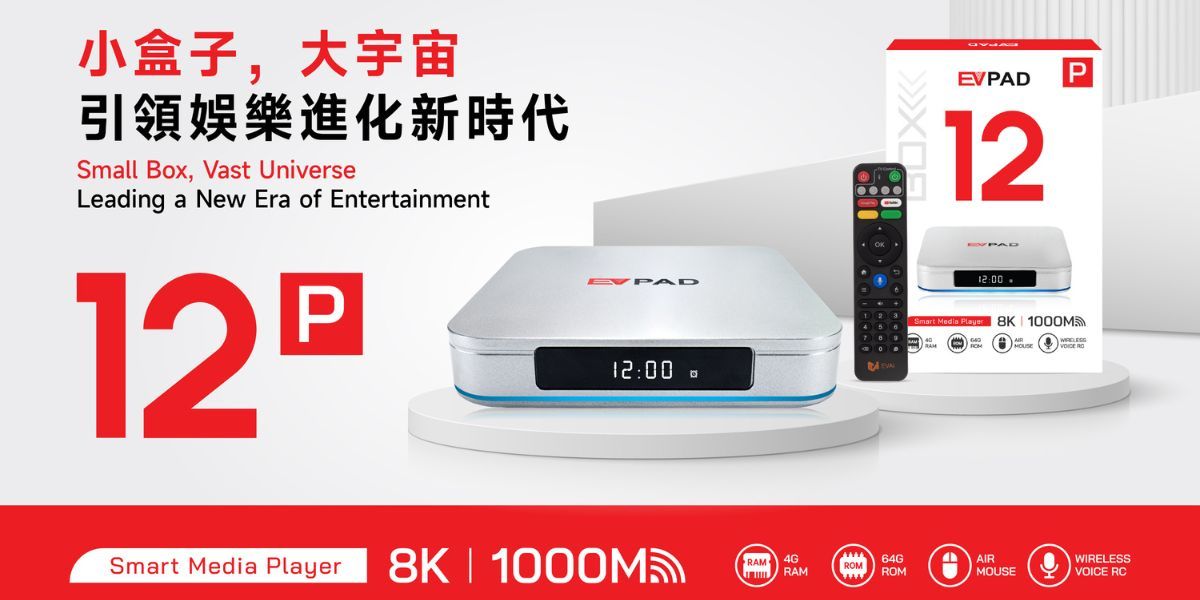
If you are using a newer model such as EVPAD 12P, the setup experience may be different. Newer users should check the product page, Download Center, or support resources before following older-model installation steps.
Before You Install: Basic Checklist
Before installing any app or APK on EVPAD, check the following points first:
- Confirm your EVPAD model name and generation.
- Make sure the device is connected to stable Wi-Fi or Ethernet.
- Check that the device has enough storage space.
- Use the correct app version for your model.
- Avoid unknown APK download websites.
- Restart the device if it has been running for a long time.
- Use the EVPAD Download Center or support resources when available.
Many installation problems happen because users install the wrong version, use an outdated file, or download from an unreliable source.
EVPAD Pro, 3S, and 5P/5S APK Installation
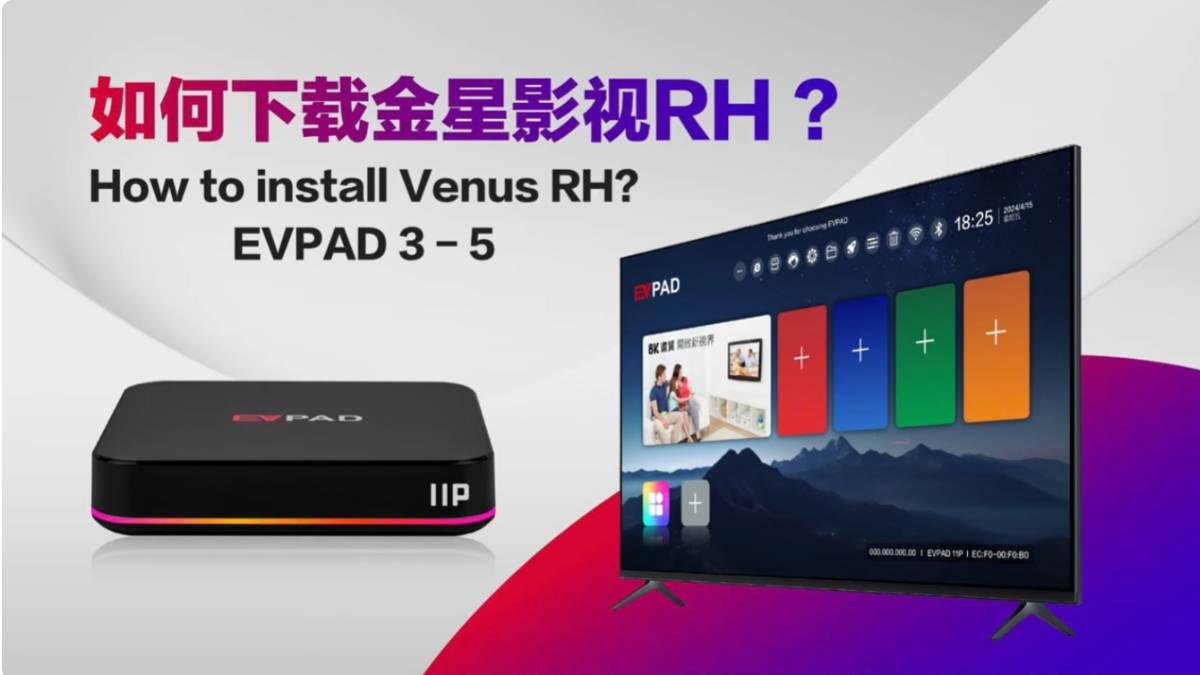
For earlier EVPAD models such as EVPAD Pro, EVPAD 3S, and EVPAD 5P/5S, app installation is usually done through the browser or a built-in app store, depending on the system version and available resources.
Method 1: Install via Browser
- Open the Browser on your EVPAD device.
- Enter the setup or download address provided by your trusted setup source.
- If navigation is difficult, switch the remote control to mouse mode if available.
- Select the app or setup resource that matches your EVPAD model.
- Click Download and wait for the file to finish downloading.
- If a system warning appears, review the message carefully before continuing.
- Choose OK or Install to start installation.
- Wait until the installation is complete.
- Return to the home screen and check whether the app icon appears.
Method 2: Install via Built-In App Store
If your device includes a built-in app store, this is usually easier for beginners.
- Open the built-in app store on the EVPAD device.
- Search for the app or category you need.
- Select the correct app version for your model.
- Press OK on the remote control.
- Wait for the installation to complete.
- Click Finish or return to the home screen.

EVPAD 6P and 6S App Installation
EVPAD 6P and EVPAD 6S are transition models between older and newer EVPAD generations. In many cases, they follow a similar installation logic to earlier EVPAD devices, but the system experience may be more optimized.
For EVPAD 6P and 6S, users can usually try the following:
- Open the browser and visit the trusted setup page.
- Choose the app version suitable for the 6th-generation model.
- Use the built-in app store if it is available on the device.
- Restart the device after installation if the app icon does not appear.
- Check the full app list if the app is not shown on the home screen.
If your EVPAD 6P or 6S shows errors during installation, check network connection, storage space, app version, and system update status before trying again.
EVPAD 10P/10S and 11P/11S App Installation
For newer older-generation models such as EVPAD 10P, EVPAD 10S, EVPAD 11P, and EVPAD 11S, installation is usually more structured. Users should choose the app version based on the correct device generation.
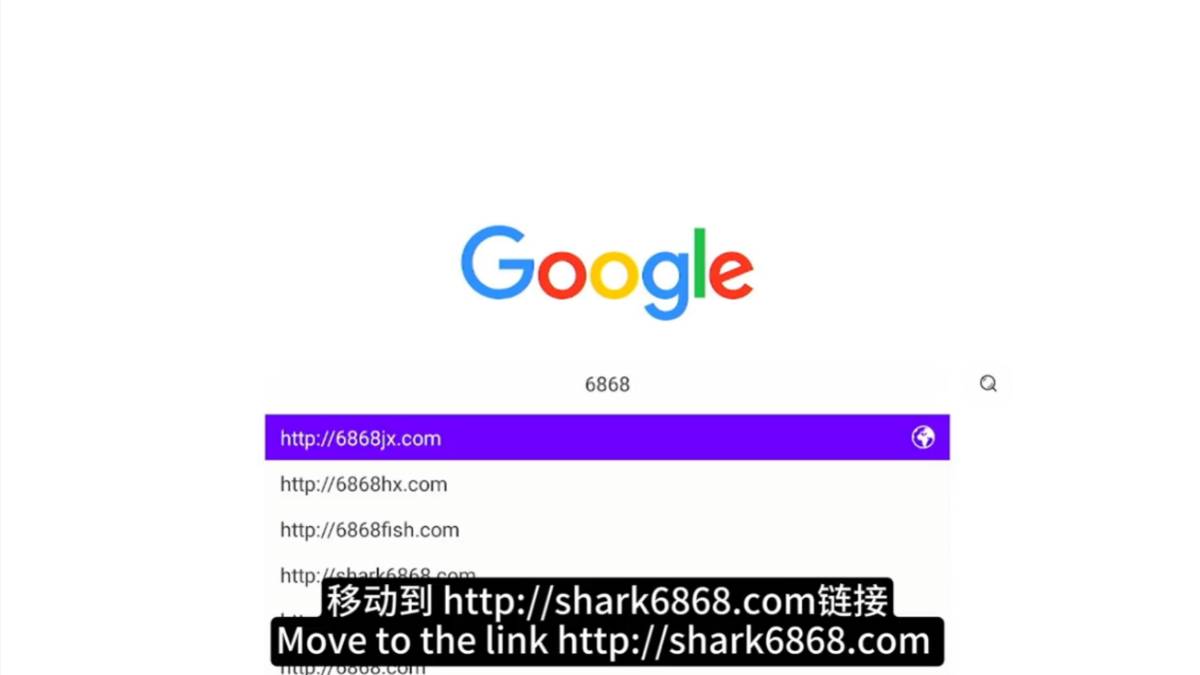
Method 1: Install via Browser
- Open the Browser on your EVPAD device.
- Go to the setup page provided by your trusted resource.
- Select the app version that matches your model.
- For EVPAD 11P or 11S, choose resources designed for the 11th generation.
- For EVPAD 10P or 10S, choose resources designed for the 10th generation.
- Click the app you want to install and follow the on-screen process.
- Wait until the system confirms that the app has been installed.
- Return to the home screen and check the app list.
Method 2: Install via App Store
- Open the device app store.
- Find the app or category you need.
- Select the correct option.
- Press OK.
- Wait for the installation to finish automatically.
This method is usually easier for beginners because it reduces manual download steps and helps avoid choosing the wrong APK file.

How to Add an Installed App to the EVPAD Home Screen
Some EVPAD models allow users to add installed apps directly to the home screen. This makes daily use easier, especially for parents, older family members, or users who do not want to search through menus every time.
- Return to the EVPAD home screen.
- Select Add Custom App or a similar option if available.
- Choose the installed app you want to display.
- Confirm your selection.
- Check whether the app appears on the home screen.
If the app does not appear, restart the device and check the full app list again.
Firmware, Update, and Older Model Notes
Some users search for terms such as EVPAD 3S firmware download, EVPAD 5P update, EVPAD 6P update, or EVPAD 11P setup. These searches usually mean the user is trying to fix an old model, update the system, or reinstall apps after reset.
Firmware and system updates should be handled carefully. Installing the wrong firmware or update package can cause compatibility issues or make the device harder to recover. If your EVPAD model requires a firmware update, it is safer to confirm the model, generation, and support instructions first.
Before trying firmware or update-related actions, check:
- Your exact EVPAD model name.
- Your system version if it is visible in settings.
- Whether the issue is caused by app installation, network connection, or system update.
- Whether the device still starts normally.
- Whether support can provide model-specific guidance.
If you are not sure which update applies to your model, contact support instead of installing random firmware files from unknown websites.
Common EVPAD APK Installation Problems and Fixes
1. EVPAD app is not installing
- Check whether the internet connection is stable.
- Restart the EVPAD box and try again.
- Confirm that the app version matches your EVPAD model.
- Check whether there is enough storage space.
- Try the built-in app store if it is available.
- Avoid unknown APK files from random websites.
2. App does not appear after installation
- Return to the home screen.
- Open the full app list.
- Restart the device.
- Check whether the installation actually completed.
- Add the app manually to the home screen if your model supports it.
3. Installation process is interrupted
- Try again after restarting the device.
- Check Wi-Fi or Ethernet connection.
- Make sure the file is not incomplete.
- Use the correct model version.
- Free up storage space if the device is full.
4. App opens but does not work correctly
- Check your network connection.
- Restart the EVPAD device.
- Clear the app cache if the option is available.
- Confirm whether the app version matches your model.
- Check whether the app service is temporarily updating.
- Contact support if the issue continues.
5. Browser download is not working
- Check whether the download page is typed correctly.
- Try mouse mode for easier navigation.
- Restart the browser or the EVPAD device.
- Use the built-in app store if available.
- Use the EVPAD Download Center or support resources when possible.
Safe Download Tips for EVPAD APK Files
Because many users search for EVPAD APK download or EVPAD APK free download, it is important to understand the risk of unknown sources. Not every APK file online is safe or compatible with every EVPAD model.
Before downloading any APK file, remember these points:
- Do not install files from websites you do not trust.
- Do not assume that one APK version works for every EVPAD model.
- Do not install files that ask for unusual permissions.
- Do not install outdated files if your device uses a newer system version.
- Use official support resources and trusted setup pages whenever possible.
If you only need general official setup help, start with the EVPAD Download Center. If your issue is related to a specific setup address or 6868JX/6868HX not working, use the separate 6868JX setup guide instead of mixing instructions from different pages.
When Should You Upgrade to a Newer EVPAD Model?
Older EVPAD models can still be useful, but some users may experience slower setup, app compatibility issues, limited update support, or more manual installation steps. If your device is still stable, you may not need to replace it immediately. But if installation problems happen often, upgrading may be more practical.
You may consider upgrading if:
- Your older EVPAD model is slow or unstable.
- Apps often fail to install or open.
- You need a simpler setup experience for family members.
- You want newer hardware and smoother daily use.
- You prefer a more modern EVPAD system.
If you want a newer model with stronger hardware and easier long-term use, you can check the EVPAD 12P. You can also browse the EVPAD TV box collection to compare available models.
FAQ About EVPAD APK Installation
How do I install the EVPAD app store?
The installation method depends on your EVPAD model. Some models include a built-in app store, while others may require browser installation through a trusted setup resource. Confirm your EVPAD generation first, then follow the correct method for your model.
Where should I download EVPAD apps?
The safer starting point is the EVPAD Download Center or trusted support resources. Avoid random third-party APK websites because files may be outdated, modified, incompatible, or unsafe.
What is the difference between EVPAD app download and APK installation?
EVPAD app download usually means getting app resources through a recommended setup route such as the Download Center, built-in app store, or trusted support resource. APK installation means manually installing an Android app file. Manual APK installation should be done carefully because model compatibility and file source matter.
Can older EVPAD models use the same APK installation steps?
Not always. Older EVPAD models may use different setup paths, app versions, or system resources. EVPAD Pro, 3S, 5P/5S, 6P/6S, 10P/10S, and 11P/11S may require different installation choices.
Why does my EVPAD APK fail to install?
Common reasons include unstable network connection, wrong app version, insufficient storage, incomplete file download, unsupported model, or installation permission issues. Restart the device, check the app version, and try again through a trusted setup source.
Is EVPAD APK free download safe?
Not every free APK download is safe. Some files may be outdated, modified, or incompatible with your EVPAD model. It is better to use trusted support resources and avoid unknown APK websites.
What should I do if EVPAD 3S firmware download or update fails?
Do not install random firmware files. Confirm your exact EVPAD model and system condition first. If the device cannot update or start normally, contact support and provide your model, issue details, and photos or videos of the error.
What should I do if EVPAD 5P or 6P update is not working?
Check the network, restart the device, confirm the correct model version, and make sure the device has enough storage. If the issue appears related to firmware or system update, contact support before installing any unknown files.
What should I do if EVPAD 10P or 11P setup fails?
Confirm that you selected the correct app version for your generation. Then check Wi-Fi or Ethernet, storage space, installation permissions, and whether the built-in app store is available. If setup still fails, contact EVPAD support.
Should I factory reset my EVPAD if APK installation fails?
A factory reset should be the last step. Before resetting, check your network, storage, app version, installation source, and device model. If you are not sure, contact support first to avoid unnecessary data loss or repeated setup problems.
Where can I get help if I cannot complete EVPAD app setup?
If you cannot complete setup, contact EVPAD support and provide your EVPAD model, purchase date, order number if available, photos or screenshots of the error, and a short description of what happened. You can also check the EVPAD Download Center and troubleshooting resources before contacting support.
Conclusion
Installing apps on EVPAD becomes much easier when you follow the correct process for your device generation. Earlier models such as EVPAD Pro, 3S, and 5P/5S may require more manual steps, while models such as 10P/10S and 11P/11S usually offer a more structured setup experience.
This page is best used as an older EVPAD model APK installation and troubleshooting guide. For general official resources, use the EVPAD Download Center. For specific 6868JX or 6868HX setup issues, use the dedicated setup guide. For users who want a faster, simpler, and more modern system, upgrading to EVPAD 12P can be a practical choice.