
Quick summary: If you are setting up an EVPAD 12P, start with the official EVPAD Download Center, confirm your exact model, use Google Play for mainstream apps where available, and avoid random APK websites. This updated guide explains app installation, setup checks, safe sideloading, app updates, troubleshooting, and family-friendly app organization.
If you are setting up an EVPAD 12P for the first time, apps are one of the most important parts of the experience. A clean app setup can make the device easier to use, faster to navigate, and more suitable for daily family entertainment.
This EVPAD apps guide is written for EVPAD 12P users who want a clear and practical tutorial. It explains how to prepare before installation, where to find official EVPAD app setup resources, how to use Google Play, how to sideload APK files carefully, how to organize apps, and how to fix common app problems.
Instead of installing everything at once, the best approach is to build a clean and stable app setup. Use official support resources first, keep only the apps you need, and avoid APK files from unknown websites.
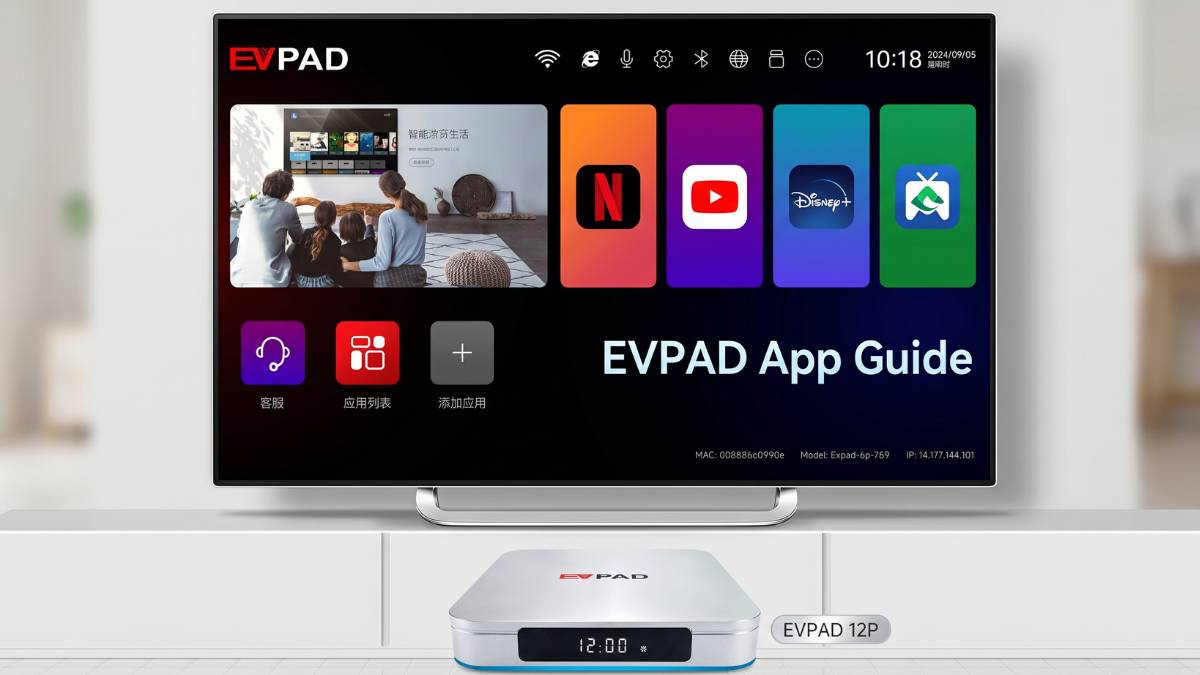
Before You Install Apps on EVPAD 12P
Before you start any EVPAD app download or installation, confirm the basics. Many app problems happen because users choose the wrong model guide, use an unstable network, or install too many apps too quickly.
| Check Item | What to Confirm | Why It Matters |
|---|---|---|
| Device model | Confirm that your device is EVPAD 12P before following this guide. | Different EVPAD generations may use different setup paths and app resources. |
| Internet connection | Use stable Wi-Fi or wired Ethernet before downloading apps. | Weak connections may cause incomplete downloads or installation errors. |
| Storage space | Check that the device has enough free storage before installing more apps. | Low storage can make apps install slowly, crash, or fail to update. |
| App source | Use Google Play, official EVPAD support resources, or the app developer’s trusted source. | Unknown APK websites can create stability and security risks. |
| Family use | Decide which apps are actually needed by the household. | A simple home screen is easier for parents and older users. |
Recommended first step: Open the EVPAD Download Center before installing EVPAD-specific apps. Confirm your model, review the app setup resources, and follow the guide that matches your device.
What Is the Best Way to Install Apps on EVPAD 12P?
EVPAD 12P is an Android-based TV box, so there are several ways to install apps. The best method depends on the type of app you want to install and the source you trust.
For most users, the safest and easiest setup is to use Google Play for mainstream apps and official EVPAD resources for EVPAD-related apps. APK sideloading should be treated as a backup method, not the default method.
Use the Official EVPAD Download Center First
The EVPAD Download Center is now the best support hub to start from. It helps users find app setup resources, installation guides, video tutorials, model guidance, and customer-support links for compatible EVPAD TV box models.
- Open the EVPAD Download Center.
- Confirm that your device is EVPAD 12P or another supported EVPAD model.
- Review the guide or tutorial that matches your model.
- Use a stable Wi-Fi or Ethernet connection before downloading apps.
- Follow the setup steps carefully and restart the device if installation does not complete correctly.
- Use the EVPAD FAQ or Contact Us page if the issue continues.
Avoid random download addresses: Do not install unknown APK files just because a website claims to offer an EVPAD app download. If older guides mention resource names or download routes, confirm your model first and use the current support guidance from the Download Center.
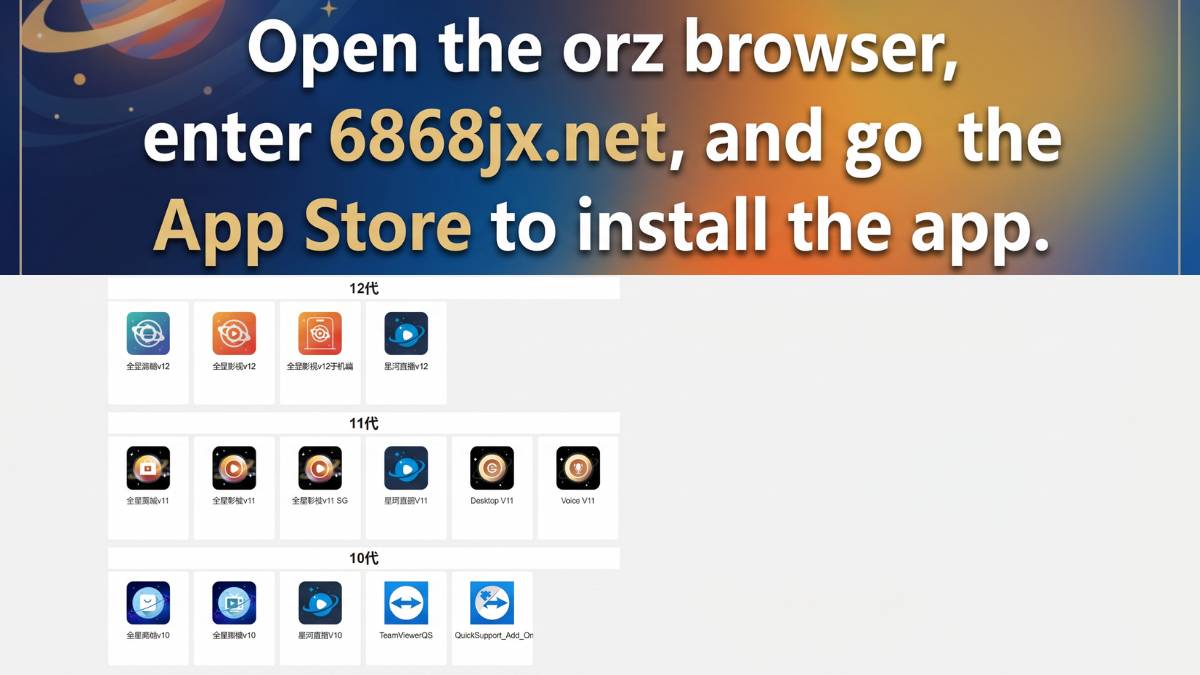
Recommended First Apps for EVPAD 12P
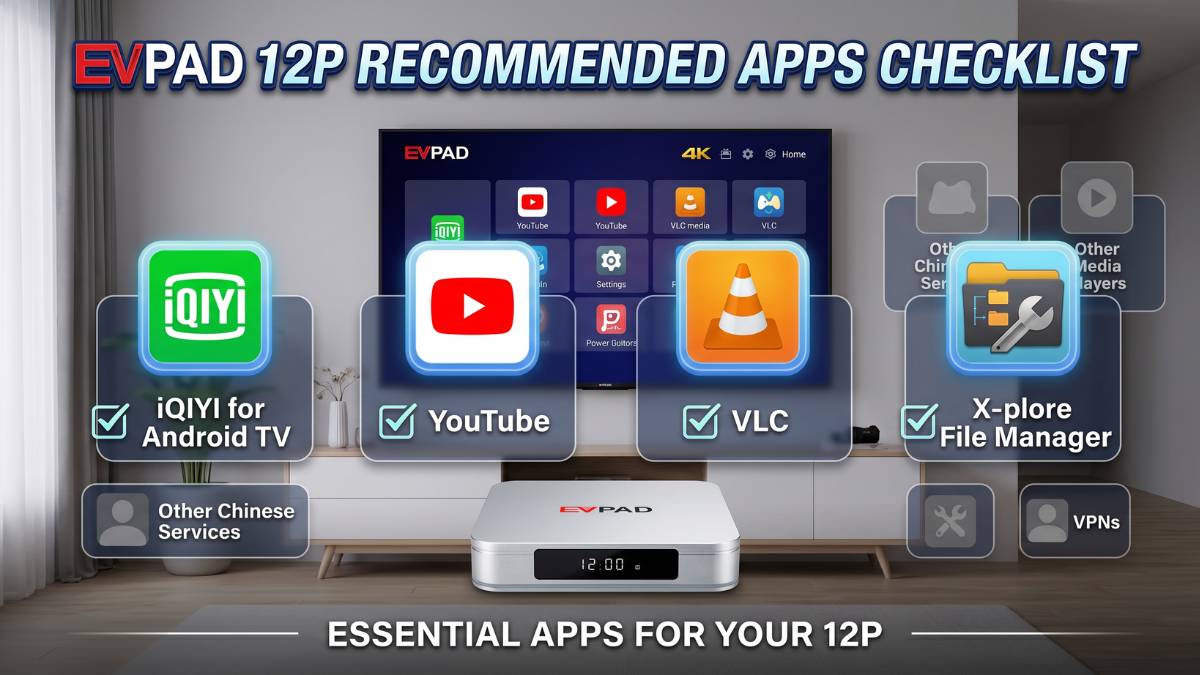
When setting up EVPAD 12P, start with a small group of useful apps instead of filling the device with too many applications. This keeps the system cleaner and makes it easier for family members to use.
| App / Tool Type | Main Purpose | Recommended Install Method | Setup Tip |
|---|---|---|---|
| Google Play Store | Main source for compatible mainstream Android TV apps | Preloaded or available on supported system versions | Sign in and enable app updates where appropriate |
| EVPAD-specific apps | EVPAD-related app functions and model tools | EVPAD Download Center | Confirm the model before installing |
| Video apps | Video, learning, music, and entertainment content | Google Play where available | Use apps that are legally available in your region |
| Media player apps | USB playback, local media, subtitles, and network files | Google Play or official developer source | Enable hardware decoding only if needed |
| File manager apps | USB file browsing and APK management | Google Play or trusted developer source | Grant file access only when needed |
| File transfer tools | Transfer files from a phone or computer to EVPAD | Google Play or trusted developer source | Use the same Wi-Fi network for both devices |
This basic app stack is enough for most users. You can always add more apps later after confirming that the system is stable.
How to Install Apps from Google Play on EVPAD 12P
For mainstream apps, Google Play is usually the easiest and safest option when it is available and compatible with your system version. Apps installed through Google Play are easier to update and manage for long-term use.
- Open Google Play Store on EVPAD 12P.
- Sign in with your Google account.
- Search for the app you want to install.
- Choose the Android TV version if available.
- Select Install.
- Open the app after installation and complete the basic setup.
- Move important apps to the front of the home screen for easier access.
For family use, install fewer apps and keep the home screen clean. Too many apps can make the device harder to navigate and may use storage unnecessarily.
How to Sideload APKs on EVPAD 12P Safely
APK sideloading means manually installing an app file outside the normal app store. This can be useful when an app is not available through Google Play, but it should be done carefully.
Use sideloading only when:
- The app is not available through Google Play in your region.
- The app developer provides an official APK file.
- You understand the source of the file.
- You are installing a temporary utility app that you actually need.
Safety reminder: Avoid unknown APK websites. Unknown files may cause installation errors, unstable performance, privacy risks, or device problems. Turn off unknown-app installation permission after installation is complete.
Method 1: Install APK by USB Drive
- Download the APK file from a trusted source on your computer.
- Copy the APK file to a USB drive.
- Insert the USB drive into EVPAD 12P.
- Open a file manager app.
- Find the APK file on the USB drive.
- Allow installation permission for the file manager if required.
- Install the APK and open it once to confirm it works.
Method 2: Install APK from Browser
- Open the browser on EVPAD 12P.
- Visit the official developer website for the app.
- Download the correct Android TV APK file.
- Open the downloaded file.
- Allow installation permission for the browser if required.
- Install the app and test it.
- Turn off unknown-app permission after the installation is complete.
Method 3: Transfer APK from Phone or Computer
- Install a file transfer app on both your phone or computer and EVPAD 12P.
- Make sure both devices are connected to the same Wi-Fi network.
- Send the APK file to EVPAD 12P.
- Open the received file with a file manager.
- Install the APK and test it.
How to Add Apps to the EVPAD 12P Home Screen
After installing apps, organize the home screen. This makes the device easier to use, especially for family members who are not familiar with Android TV boxes.
- Put the most-used apps in the first row.
- Keep EVPAD-specific apps together.
- Place media players in a separate area.
- Move file managers and utility apps away from the front row.
- Remove or hide apps that family members do not need.
If your EVPAD 12P supports adding custom apps to the home screen, use that feature to make daily navigation easier. A clean home screen reduces confusion and makes the box feel more like a normal family TV device.
How to Update Apps on EVPAD 12P
Keeping apps updated can improve performance, reduce bugs, and fix compatibility issues. Different app types may use different update methods.
Updating Google Play Apps
- Open Google Play Store.
- Go to the app management or My Apps section.
- Select the app you want to update.
- Select Update.
- Enable automatic updates if appropriate for your family setup.
Updating EVPAD-Specific Apps
For EVPAD-specific apps, return to the EVPAD Download Center and review the latest setup guidance for your model. Before updating, make sure the network is stable. After updating, open the app once to confirm that it works normally.
How to Fix Common EVPAD 12P App Problems
Most app problems on EVPAD 12P are caused by installation errors, network issues, missing permissions, outdated app versions, or insufficient storage. Many issues can be fixed without resetting the entire device.
Problem 1: App Will Not Install
- Check whether the app is compatible with Android TV.
- Make sure the APK file is not damaged.
- Check available storage space.
- Enable installation permission for the correct source app.
- Restart the device and try again.
Problem 2: App Installed but Does Not Show
If the app does not appear on the home screen, check the full app list or settings page. Some sideloaded apps do not automatically appear in the main launcher.
Problem 3: App Crashes or Freezes
- Close the app and reopen it.
- Restart EVPAD 12P.
- Clear the app cache.
- Update the app.
- Reinstall the app if the problem continues.
Problem 4: App Keeps Buffering
Buffering is usually related to network stability or video source quality. Try using wired Ethernet instead of Wi-Fi if your router is nearby. You can also lower video quality inside the app if your internet speed is unstable.
Problem 5: App Opens Slowly
Slow app loading can happen if too many apps are running or storage is nearly full. Remove unused apps, clear app cache, and restart the device regularly.
How to Clear App Cache on EVPAD 12P
Clearing cache is one of the safest first steps when an app becomes slow or unstable. Cache files are temporary files that help apps load faster, but too much cache can sometimes cause problems.
- Open Settings.
- Go to Apps.
- Select the app with problems.
- Choose Storage.
- Select Clear Cache.
- Open the app again and test it.
Be careful with Clear Data or Clear Storage. This may remove login information, app settings, and downloaded content. Use it only when clearing cache does not solve the problem.
How to Manage App Permissions
App permissions control what each app can access. Some apps may ask for file access, microphone access, or nearby-device access. Only allow permissions that make sense for the app.
- Allow microphone permission only for voice search or voice-control apps.
- Allow file access only for file managers and media players.
- Do not grant unnecessary permissions to unknown apps.
- Review permissions after sideloading APK files.
- Turn off unknown-app installation permission after use.
Best App Categories for EVPAD 12P
EVPAD 12P can support many types of apps, but not every app is necessary. For most families, it is better to choose apps from a few useful categories.
Family Setup Tips for EVPAD 12P Apps
If EVPAD 12P is used by the whole family, keep the app layout simple. Parents and older users usually prefer fewer steps and larger visual icons.
- Keep the most important apps in the first row.
- Use simple app names and recognizable icons.
- Remove apps that family members do not use.
- Set up app-level profiles where available.
- Use parental controls for children when needed.
- Save important login information securely.
When Should You Reinstall an App?
Reinstalling an app can help when normal troubleshooting does not work. However, it should not be your first step.
- The app crashes every time it opens.
- Clearing cache does not help.
- The app update fails.
- The app interface becomes abnormal.
- The app no longer loads content correctly.
Before reinstalling, check whether the app stores login data or personal settings. You may need to sign in again after reinstalling.
Should You Factory Reset EVPAD 12P for App Problems?
A factory reset should be the last step, not the first solution. It can remove apps, settings, accounts, and saved data from the device.
Before factory reset, try:
- Restarting the device.
- Updating the app.
- Clearing app cache.
- Reinstalling the app.
- Checking the network connection.
- Removing unused apps.
If the whole system becomes unstable or many apps stop working at the same time, contact support before resetting so the team can confirm the safest next step.
Why EVPAD 12P Is a Good Choice for App-Based Entertainment
EVPAD 12P is a practical option for users who want a modern EVPAD TV box with flexible app support and simple home setup. Its 4GB RAM, 64GB storage, Wi-Fi 6, voice remote, and Gigabit Ethernet support make it suitable for daily app use and family entertainment.
If you want to review current specifications, package information, plug options, and store offers, visit the EVPAD 12P product page.
FAQ About EVPAD App Download and Installation
Where should I start for EVPAD app download resources?
Start with the EVPAD Download Center. Confirm your model first, then follow the setup resource that matches your EVPAD TV box. This helps reduce the risk of using the wrong app package or outdated guidance.
Does EVPAD 12P support Google Play?
EVPAD 12P supports Google Play on compatible system versions, allowing users to install many mainstream Android TV apps where available.
What is the easiest way to install EVPAD apps?
The easiest way is to use official EVPAD setup resources for EVPAD-specific apps and Google Play for mainstream apps. If you are not sure which resource applies to your model, contact support before installing unknown files.
Can I install APK files on EVPAD 12P?
Yes, APK files can be installed on EVPAD 12P, but you should only install APKs from trusted or official developer sources. Turn off unknown-app permission after installation.
Why does my app not appear after installation?
Some apps do not automatically appear on the home screen. Check the full app list or settings page, then add the app manually if your system supports custom app shortcuts.
How do I fix an app that keeps crashing?
Try clearing cache, restarting the device, updating the app, or reinstalling the app. If many apps crash at once, check your storage and network connection.
Should I clear cache or clear data?
Clear cache first. Clearing data may remove app settings and login information, so it should only be used when necessary.
How many apps should I install on EVPAD 12P?
Install only the apps you actually use. Too many apps can clutter the home screen, use storage, and make the system harder for family members to manage.
Final Recommendation
The best EVPAD 12P app setup is simple: use Google Play for mainstream apps where available, use the official EVPAD Download Center for EVPAD-specific app setup resources, and use APK sideloading only when necessary and only from trusted sources.
Keep the home screen clean, update apps regularly, clear cache when needed, and avoid unknown APK websites. This gives you a more stable, safer, and more family-friendly experience.
Need EVPAD 12P setup help?
Use the official support resources below to review setup steps, model guidance, and customer support options.
Open Download CenterView EVPAD FAQShop EVPAD 12PContact Support