
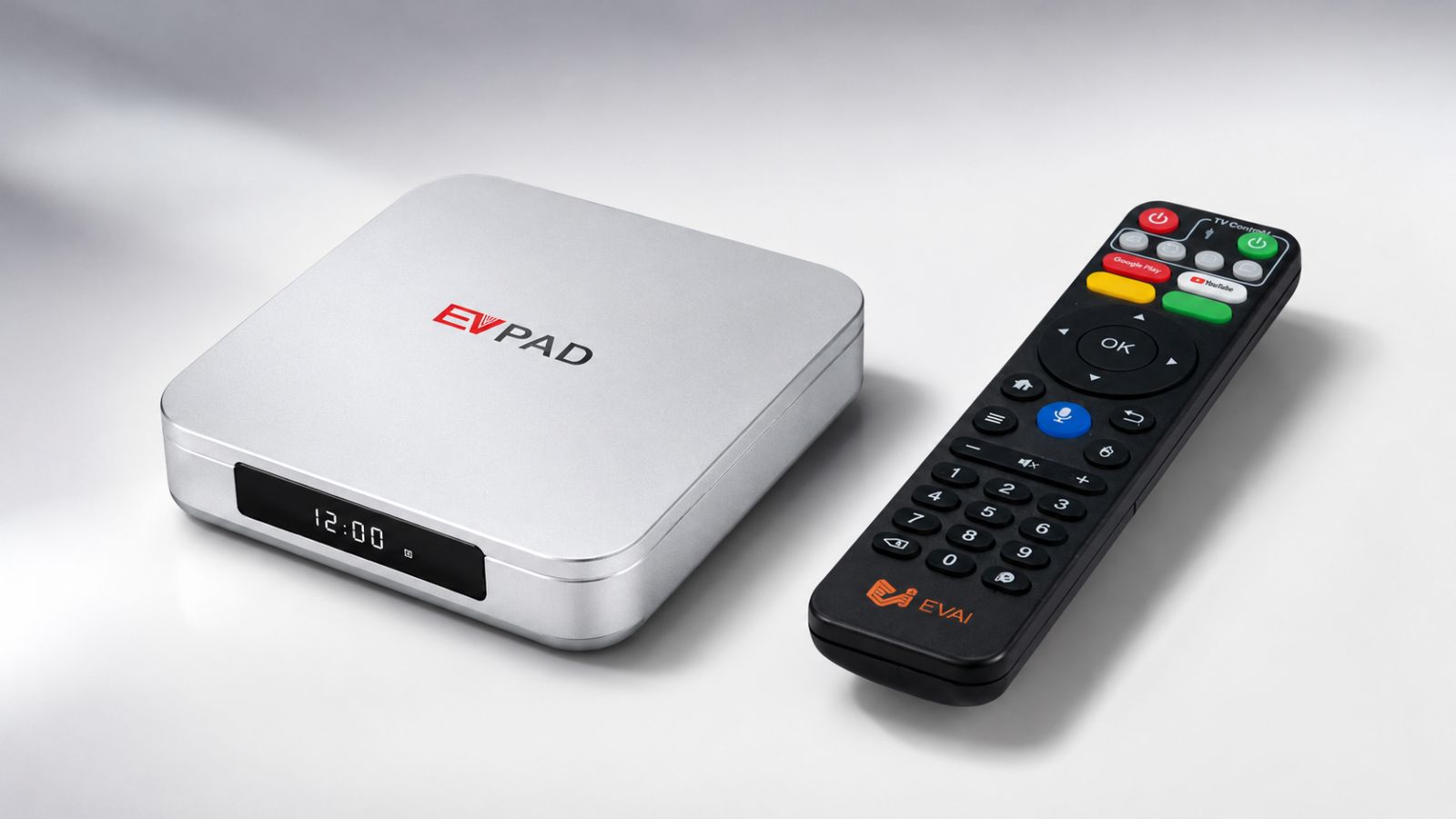
Quick summary: If your EVPAD is having trouble with Wi-Fi, HDMI display, remote control, slow performance or system response, start with a few basic checks before changing advanced settings or performing a factory reset.
This guide covers practical EVPAD troubleshooting for common device and setup issues. It focuses on network connection, display, remote control, storage, system performance and safe recovery steps.
The exact menu layout may vary between EVPAD generations, so always confirm your model before changing system settings.
Before You Start Troubleshooting
Before changing system settings, confirm a few basic details about your EVPAD device.
- Check the exact EVPAD model.
- Make sure the power adapter is connected securely.
- Confirm the HDMI cable is connected correctly.
- Check whether the TV is using the correct HDMI input.
- Confirm that Wi-Fi or Ethernet is available.
- Restart the EVPAD if it has been running continuously for a long time.
1. EVPAD Cannot Connect to Wi-Fi or the Network Is Unstable
If your EVPAD cannot connect to Wi-Fi, frequently disconnects or responds slowly when using online functions, first check whether the problem comes from the device or your home network.
Basic Wi-Fi checks
- Restart the EVPAD.
- Restart your router.
- Reconnect to the Wi-Fi network.
- Confirm the Wi-Fi password is correct.
- Move the EVPAD closer to the router if the signal is weak.
- Check whether phones or computers on the same network are also experiencing problems.
Try Ethernet if available
If your EVPAD model includes an Ethernet port, connect it directly to the router for testing. A wired connection can help determine whether the issue is caused by Wi-Fi signal quality.
If several devices on the same network are slow at the same time, the issue is more likely related to the router or internet connection rather than the EVPAD itself.
2. EVPAD Has No Picture or HDMI Signal
If the EVPAD powers on but the TV shows no picture, “No Signal,” a black screen or an unstable image, check the HDMI connection first.
After checking the connection, restart both the television and EVPAD and test again.
3. EVPAD Remote Control Is Not Responding
If the remote control does not respond, start with the simplest checks before assuming there is a hardware fault.
- Check or replace the batteries.
- Confirm the batteries are inserted in the correct direction.
- Move closer to the EVPAD.
- Restart the TV box.
- Remove objects blocking the remote signal path if applicable.
- If your remote uses Bluetooth pairing, check whether it needs to be paired again.
If only a few buttons are not responding while others work normally, take a photo or video of the issue before contacting support.
4. EVPAD Is Slow, Freezing or Not Responding
Slow performance can be caused by long operating time, limited storage, unstable network connection or an older device that has accumulated unnecessary data.
Try the following:
- Restart the EVPAD.
- Wait for the system to finish loading before opening several functions.
- Check available storage space.
- Remove unnecessary local files where appropriate.
- Confirm the internet connection is stable.
- Avoid repeatedly pressing remote buttons while the system is still responding.
If restarting temporarily fixes the problem but it returns frequently, check storage and system condition before considering more advanced steps.
5. Check Storage Space When Performance Drops
Low storage space can make Android-based TV boxes slower and may affect normal system processes.
Open the device settings and check the storage section if available. If storage is almost full:
- Remove files you no longer need.
- Clear unnecessary temporary data when the system provides that option.
- Restart the EVPAD after freeing up space.
Keeping some free storage available can help improve everyday system stability.
6. What to Do When the EVPAD Freezes Completely
If the screen freezes and the device no longer responds to normal remote commands:
- Wait briefly to see whether the system recovers.
- If possible, return to the home screen.
- Restart the EVPAD.
- After restarting, check the network and storage condition.
- Observe whether the same issue happens again.
If the device freezes repeatedly, record when it happens and whether it affects the entire system. This information will help customer support diagnose the issue.
7. Be Careful With System and Firmware Changes
When an EVPAD develops a system problem, avoid using unknown firmware or system files found on unverified websites.
Before making any system-level change, confirm:
- Your exact EVPAD model and generation.
- Whether the device can still start normally.
- Whether the problem may actually be caused by network, HDMI or storage conditions.
- Whether reliable support guidance is available for your model.
Using an incorrect system file may cause compatibility problems or make recovery more difficult.
8. When Should You Factory Reset an EVPAD?
A factory reset should usually be treated as a final troubleshooting step rather than the first solution.
Before resetting:
- Restart the EVPAD normally.
- Check the network connection.
- Check HDMI and display connections.
- Check available storage.
- Confirm your exact EVPAD model.
- Record important settings that you may need afterward.
9. When Should You Contact EVPAD Support?
Contact support if basic troubleshooting does not solve the problem, especially when the device repeatedly loses power, produces no display, freezes frequently or shows an error that you cannot identify.
Prepare the following information:
- EVPAD model.
- Approximate purchase date.
- Order number if available.
- A short description of the problem.
- When the issue started.
- Photos or screenshots of error messages.
- A short video if the issue is difficult to explain.
For common questions about shipping, warranty, setup and after-sales service, visit the EVPAD FAQ.
If you still need assistance, use the Contact EVPAD Support page.
Considering a Newer EVPAD Model?
You do not need to replace an EVPAD that still works reliably. However, upgrading can make sense when hardware limitations or repeated stability issues begin to affect everyday use.
You may consider upgrading if:
- The device frequently becomes slow or unstable.
- Storage limitations regularly affect performance.
- Network performance is no longer reliable.
- You need frequent troubleshooting.
- You prefer newer hardware and a smoother everyday experience.
For users considering a newer generation, you can view the EVPAD 12P or compare current models in the EVPAD TV Box Collection.
EVPAD Troubleshooting FAQ
Why is my EVPAD not connecting to Wi-Fi?
Restart both the EVPAD and router, reconnect to Wi-Fi and check the signal strength. If other devices have the same issue, the problem may be related to your home network.
What should I do if my TV says “No Signal”?
Confirm the correct HDMI input is selected, reconnect the HDMI cable, try another TV HDMI port and test another cable if available.
Why is my EVPAD running slowly?
Long operating time, low storage, network instability or device age can affect performance. Restart the device first, then check storage and network conditions.
What should I do if the remote control stops working?
Check the batteries, move closer to the device and restart the EVPAD. If your remote uses Bluetooth, confirm whether pairing needs to be restored.
Should I factory reset the EVPAD when something goes wrong?
Not immediately. First check the network, HDMI connection, storage and restart the device. A factory reset should normally be one of the final troubleshooting steps.
Can I use system files from another website?
Unknown or incorrect system files may cause compatibility problems. Confirm your exact EVPAD model and use reliable support guidance before performing system-level changes.
What information should I provide to customer support?
Provide your model, order information if available, a clear description of the issue, and photos, screenshots or videos showing the problem.
Conclusion
Most common EVPAD problems can be narrowed down by checking the network, HDMI connection, remote control, storage and system condition before trying more advanced troubleshooting.
Start with simple steps such as restarting the device and checking physical connections. If the issue continues, document the problem clearly and contact support before making uncertain system-level changes.
Need more help with your EVPAD?
Review common support questions or contact our customer service team for assistance with your device.
View EVPAD FAQ Contact Support View EVPAD 12P