
If you are setting up an EVPAD 12P for the first time, apps are one of the most important parts of the experience. A good app setup can make the device easier to use, faster to navigate, and more suitable for daily family entertainment.
This EVPAD apps guide is written for EVPAD 12P users who want a clear and practical tutorial. We will explain how to install apps, use Google Play, install official EVPAD apps, sideload APK files safely, organize apps on the home screen, update apps, fix common app errors, and make the device easier for family members to use.
Instead of installing everything at once, the best approach is to build a clean and stable app setup. Use official app sources first, keep only the apps you need, and avoid random APK files from unknown websites.
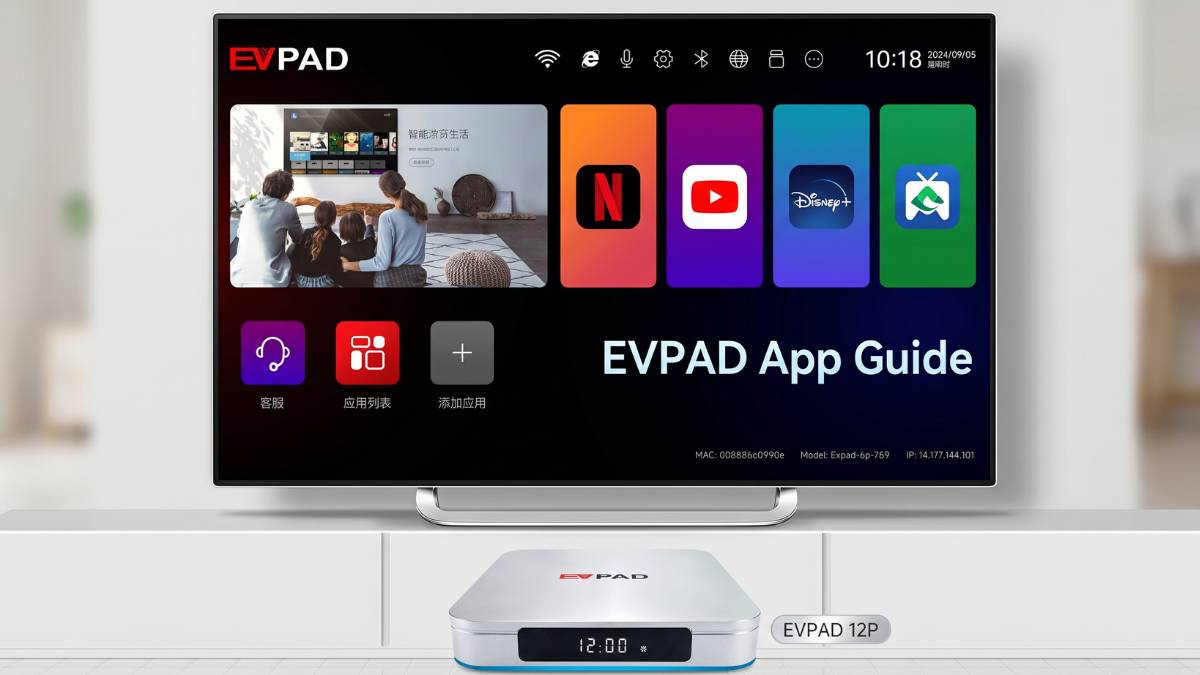
What Is the Best Way to Install Apps on EVPAD 12P?
EVPAD 12P is an Android-based TV box, so there are several ways to install apps. The best method depends on the type of app you want to install.
In general, there are three main app installation paths:
- Official EVPAD app installation for EVPAD-specific apps and tools
- Google Play installation for mainstream Android TV apps
- APK sideloading for apps that are not available through the normal app store
For most users, the safest and easiest setup is to use Google Play for mainstream apps and the official EVPAD route for EVPAD-related apps. APK sideloading should only be used when necessary and only from trusted sources.
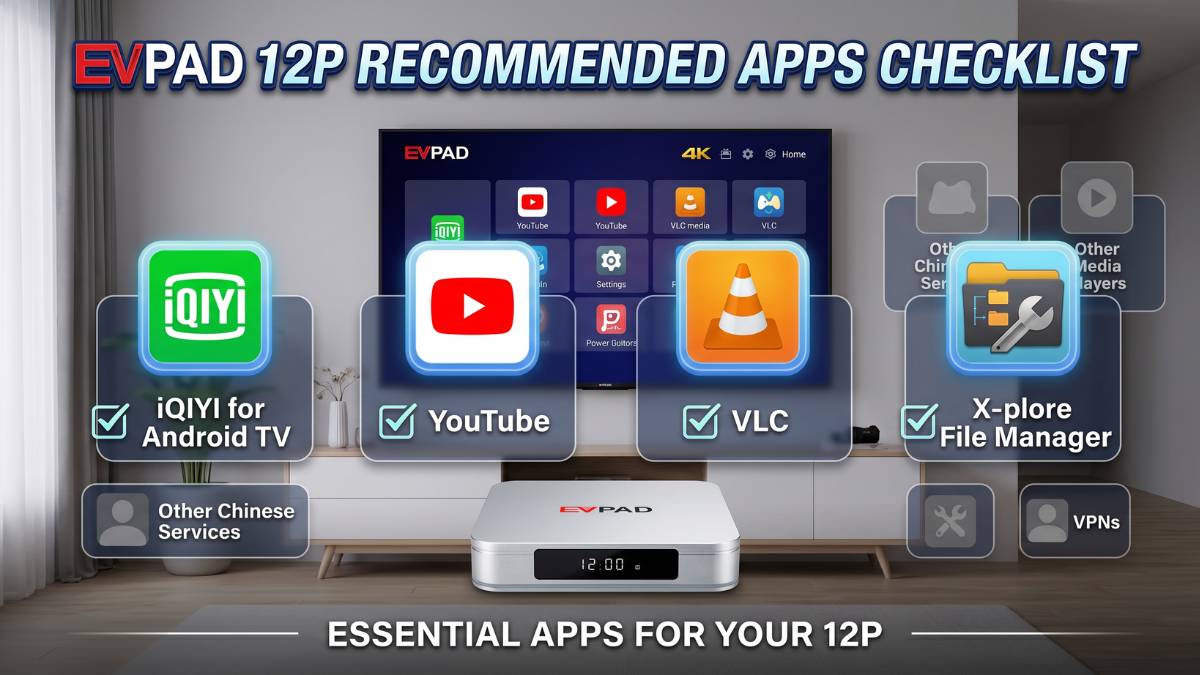
Recommended First Apps for EVPAD 12P
When setting up EVPAD 12P, it is better to start with a small group of useful apps instead of filling the device with too many applications. This keeps the system cleaner and makes it easier for parents or older family members to use.
| App / Tool | Main Purpose | Recommended Install Method | Setup Tip |
|---|---|---|---|
| Google Play Store | Main source for mainstream Android TV apps | Preloaded or available on supported EVPAD models | Sign in and enable app updates |
| Official EVPAD Apps | EVPAD-specific app functions and tools | Official EVPAD download route | Install only the apps you actually need |
| Venus Mobile App | Phone and tablet companion use | QR code or official EVPAD app guide | Test phone sync after setup |
| YouTube | Global video, creators, music, and learning content | Google Play | Pin it to the first app row |
| iQIYI / WeTV | Chinese and Asian drama content | Google Play where available | Set subtitle and playback quality preferences |
| VLC | USB playback, local media, subtitles, and network files | Google Play or official developer source | Enable hardware decoding if needed |
| Plex | Personal media library and family media organization | Google Play | Sign in before organizing media |
| File Manager | USB file browsing and APK management | Google Play | Grant file access only when needed |
| Send Files to TV | Transfer files from phone or computer to EVPAD | Google Play | Use a clear folder for received files |
This basic app stack is enough for most users. You can always add more apps later after confirming that the system is stable.
How to Install Official EVPAD Apps on EVPAD 12P
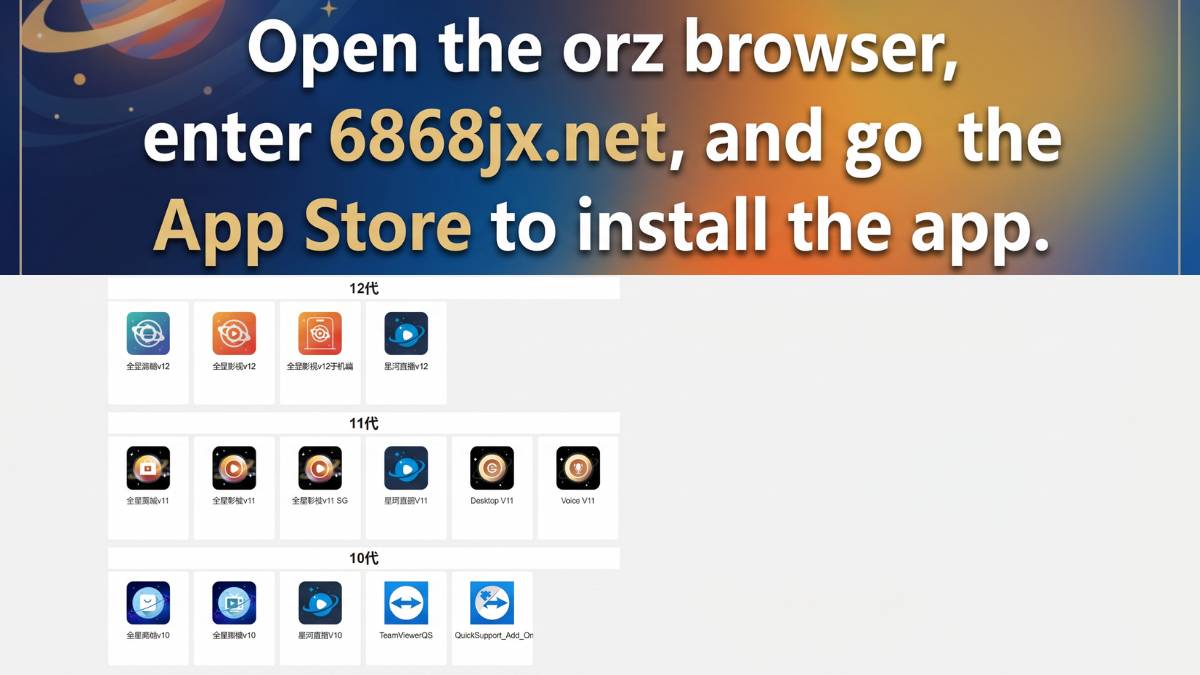
For EVPAD-specific apps, the official EVPAD download route is usually the best option. These apps are designed for EVPAD models and should be installed from the correct official source, not from random APK websites.
The general process is simple:
- Connect EVPAD 12P to a stable WiFi or wired LAN network.
- Open the built-in browser or the browser app provided on the device.
- Enter the official EVPAD app download route for your model.
- Wait for the page to load fully before clicking anything.
- Select the correct app package for EVPAD 12P.
- Install the app and wait until the installation is complete.
- Return to the home screen and confirm that the app appears correctly.
If the download page does not open, do not immediately assume the device is faulty. First check your network, restart the browser, or try again later. Some download pages may load slowly depending on your location or internet provider.
How to Install Apps from Google Play on EVPAD 12P
For mainstream apps, Google Play is usually the easiest and safest option. Apps installed through Google Play are easier to update, easier to manage, and generally more suitable for long-term use.
Follow these steps:
- Open Google Play Store on EVPAD 12P.
- Sign in with your Google account.
- Search for the app you want to install.
- Choose the Android TV version if available.
- Click Install.
- Open the app after installation and complete basic setup.
- Move important apps to the front of the home screen for easier access.
Google Play is especially useful for apps like YouTube, VLC, Plex, and other TV-friendly applications. For family use, it is better to install fewer apps and keep the home screen clean.
How to Sideload APKs on EVPAD 12P Safely
APK sideloading means manually installing an app file outside the normal app store. This can be useful when an app is not available through Google Play, but it should be done carefully.
Use sideloading only when:
- The app is not available in Google Play
- The developer provides an official APK file
- You need a temporary utility app
- You understand the source of the file
Avoid downloading APK files from random websites. Unknown files may cause installation errors, unstable performance, or security risks.
Method 1: Install APK by USB Drive
- Download the APK file from a trusted source on your computer.
- Copy the APK file to a USB drive.
- Insert the USB drive into EVPAD 12P.
- Open a file manager app.
- Find the APK file on the USB drive.
- Allow installation permission for the file manager if required.
- Install the APK and open it once to confirm it works.
Method 2: Install APK from Browser
- Open the browser on EVPAD 12P.
- Visit the official developer website for the app.
- Download the correct Android TV APK file.
- Open the downloaded file.
- Allow installation permission for the browser if required.
- Install the app and test it.
- Turn off unknown app permission after the installation is complete.
Method 3: Transfer APK from Phone or Computer
- Install a file transfer app on both your phone/computer and EVPAD 12P.
- Make sure both devices are connected to the same WiFi network.
- Send the APK file to EVPAD 12P.
- Open the received file with a file manager.
- Install the APK and test it.
How to Add Apps to the EVPAD 12P Home Screen
After installing apps, you should organize the home screen. This makes the device much easier to use, especially for family members who are not familiar with Android TV boxes.
Recommended home screen layout:
- Put the most-used apps in the first row
- Keep official EVPAD apps together
- Place media players in a separate area
- Move file managers and utility apps away from the front row
- Remove or hide apps that family members do not need
If your EVPAD 12P supports adding custom apps to the home screen, use that feature to make daily navigation easier. A clean home screen reduces confusion and makes the box feel more like a normal family TV device.
How to Update Apps on EVPAD 12P
Keeping apps updated can improve performance, reduce bugs, and fix compatibility issues. Different app types may use different update methods.
Updating Google Play Apps
- Open Google Play Store.
- Go to the app management or My Apps section.
- Select the app you want to update.
- Click Update.
- You can also enable automatic updates if available.
Updating Official EVPAD Apps
For official EVPAD apps, return to the official EVPAD download route and install the latest version if needed. In many cases, installing the latest version over the old one can update the app without removing your setup.
Before updating, make sure your network is stable. After updating, open the app once to confirm that it works normally.
How to Fix Common EVPAD 12P App Problems
Most app problems on EVPAD 12P are caused by installation errors, network issues, missing permissions, outdated app versions, or insufficient storage. The good news is that many problems can be fixed without resetting the entire device.
Problem 1: App Will Not Install
Try these fixes:
- Check whether the app is compatible with Android TV
- Make sure the APK file is not damaged
- Check storage space
- Enable installation permission for the correct source app
- Restart the device and try again
Problem 2: App Installed but Does Not Show
If the app does not appear on the home screen, check the full app list or settings page. Some sideloaded apps do not automatically appear in the main launcher.
You can also try adding the app manually to the home screen if the system supports custom app shortcuts.
Problem 3: App Crashes or Freezes
Try these steps:
- Close the app and reopen it
- Restart EVPAD 12P
- Clear the app cache
- Update the app
- Reinstall the app if the problem continues
Problem 4: App Keeps Buffering
Buffering is usually related to network stability or video source quality. Try using wired LAN instead of WiFi if your router is nearby. You can also lower video quality inside the app if your internet speed is unstable.
Problem 5: App Opens Slowly
Slow app loading can happen if too many apps are running or storage is nearly full. Remove unused apps, clear app cache, and restart the device regularly.
How to Clear App Cache on EVPAD 12P
Clearing cache is one of the safest first steps when an app becomes slow or unstable. Cache files are temporary files that help apps load faster, but too much cache can sometimes cause problems.
General steps:
- Open Settings.
- Go to Apps.
- Select the app with problems.
- Choose Storage.
- Select Clear Cache.
- Open the app again and test it.
Be careful with Clear Data or Clear Storage. This may remove login information, app settings, and downloaded content. Use it only when clearing cache does not solve the problem.
How to Manage App Permissions
App permissions control what each app can access. For example, some apps may ask for file access, microphone access, or nearby device access. You should only allow permissions that make sense for the app.
Recommended permission rules:
- Allow microphone permission only for voice search or voice control apps
- Allow file access only for file managers and media players
- Do not grant unnecessary permissions to unknown apps
- Review permissions after sideloading APK files
- Turn off unknown app installation permission after use
This helps keep the system cleaner and safer for long-term family use.
Best App Categories for EVPAD 12P
EVPAD 12P can support many types of apps, but not every app is necessary. For most families, it is better to choose apps from a few useful categories.
1. Official EVPAD Apps
These apps are designed for the EVPAD ecosystem and should be installed only from the official EVPAD app route.
2. Video and Streaming Apps
YouTube, iQIYI, WeTV, and other TV-friendly video apps can make the device more useful for daily entertainment. Availability may vary by region.
3. Media Player Apps
Apps like VLC are helpful if you want to play files from USB drives, local storage, or network folders.
4. File Manager Apps
A good file manager makes it easier to browse USB drives, move APK files, and manage downloads.
5. Transfer Apps
Transfer tools help you move files from a phone or computer to EVPAD 12P without using cables.
6. Utility and Maintenance Apps
Only install utility apps when needed. Too many utility apps can clutter the system and slow down daily use.
Family Setup Tips for EVPAD 12P Apps
If EVPAD 12P is used by the whole family, the app layout should be simple. Parents and older users usually prefer fewer steps and larger visual icons.
Recommended family setup:
- Keep the most important apps in the first row
- Use simple app names and recognizable icons
- Remove apps that family members do not use
- Set up app-level profiles where available
- Use parental controls for children when needed
- Write down important login information safely
A simple app layout can make EVPAD 12P much easier for parents and older family members to use every day.
Security Tips for EVPAD App Installation
To keep your EVPAD 12P setup safe and stable, follow these basic security tips:
- Use Google Play for mainstream apps whenever possible
- Use the official EVPAD download route for EVPAD-specific apps
- Avoid random APK websites
- Keep app installation permissions turned off when not needed
- Do not install too many unknown apps
- Review app permissions regularly
- Update apps when new versions are available
- Restart the device occasionally to keep performance stable
These habits help reduce errors and make the device more reliable for long-term use.
When Should You Reinstall an App?
Reinstalling an app can help when normal troubleshooting does not work. However, it should not be your first step.
Try reinstalling an app when:
- The app crashes every time it opens
- Clearing cache does not help
- The app update fails
- The app interface becomes abnormal
- The app no longer loads content correctly
Before reinstalling, check whether the app stores login data or personal settings. You may need to sign in again after reinstalling.
Should You Factory Reset EVPAD 12P for App Problems?
A factory reset should be the last step, not the first solution. It will remove apps, settings, accounts, and saved data from the device.
Before factory reset, try:
- Restarting the device
- Updating the app
- Clearing app cache
- Reinstalling the app
- Checking network connection
- Removing unused apps
Only consider factory reset if the whole system becomes unstable or many apps stop working at the same time.
Why EVPAD 12P Is a Good Choice for App-Based Entertainment
EVPAD 12P is a strong option for users who want a modern Android TV box with flexible app support. Its 4GB RAM, 64GB storage, Android 12 system, WiFi 6, Bluetooth 5.2, and Gigabit LAN make it suitable for daily app use and family entertainment.
Compared with older EVPAD models, EVPAD 12P gives users more space for apps and a smoother setup experience. If you want a newer EVPAD model for app-based entertainment, you can check the EVPAD 12P product page.
FAQ About EVPAD Apps Guide
Does EVPAD 12P support Google Play?
Yes. EVPAD 12P supports Google Play on compatible system versions, allowing users to install many mainstream Android TV apps.
What is the easiest way to install EVPAD apps?
The easiest way is to use the official EVPAD app download route for EVPAD-specific apps and Google Play for mainstream apps.
Can I install APK files on EVPAD 12P?
Yes, APK files can be installed on EVPAD 12P, but you should only install APKs from trusted sources and turn off unknown app permission after installation.
Why does my app not appear after installation?
Some apps do not automatically appear on the home screen. Check the full app list or settings page, then add the app manually if your system supports custom app shortcuts.
How do I fix an app that keeps crashing?
Try clearing cache, restarting the device, updating the app, or reinstalling the app. If many apps crash at once, check your storage and network connection.
Should I clear cache or clear data?
Clear cache first. Clearing data may remove app settings and login information, so it should only be used when necessary.
Is APK sideloading safe?
APK sideloading can be safe if you use official or trusted sources. It becomes risky when downloading files from unknown websites.
How many apps should I install on EVPAD 12P?
Install only the apps you actually use. Too many apps can clutter the home screen, use storage, and make the system harder to manage.
Final Recommendation
The best EVPAD 12P app setup is simple: use Google Play for mainstream apps, use the official EVPAD download route for EVPAD-specific apps, and use APK sideloading only when necessary.
Keep the home screen clean, update apps regularly, clear cache when needed, and avoid unknown APK websites. This gives you a more stable, safer, and more family-friendly experience.
If you want a modern EVPAD TV box with strong app support, smooth performance, and a better setup experience, shop EVPAD 12P here.