
If your EVPAD TV Box will not start, stays on the logo screen, or keeps showing an error message, first check the power, HDMI connection, and basic restart options. Firmware recovery may be considered only when the issue appears to be system-related and the correct model-specific recovery file and instructions have been confirmed by EVPAD support or the seller.
What Is Flashing?
Firmware recovery means reinstalling system software on the device. Unlike a factory reset, which mainly restores settings, a firmware recovery process can replace system files. Because the procedure and files may differ by model, it should only be attempted with the correct instructions and firmware for the exact EVPAD device.
If basic troubleshooting and a verified factory reset do not solve the problem, contact EVPAD support or the seller before attempting firmware recovery.
When Do You Need to Flash an EVPAD?
Firmware recovery may be discussed by support when the device is stuck on the EVPAD logo, shows an “Error!” message, or repeatedly fails to load the system. Other symptoms such as unusual screen output or a persistent power-light state can have several possible causes, so they should be diagnosed before any firmware procedure is attempted.
These symptoms do not always confirm a firmware problem. Power, HDMI, display settings, storage, or hardware faults can produce similar behavior, so confirm the cause before proceeding.
Important note: If your EVPAD is still under warranty or was purchased recently, it is best to contact the seller first. In many cases, the seller or official support team can provide the correct firmware and after-sales guidance. If needed, EVPAD hardware support can also be reached through WhatsApp: +852 5779 6914.
What to Confirm Before Firmware Recovery
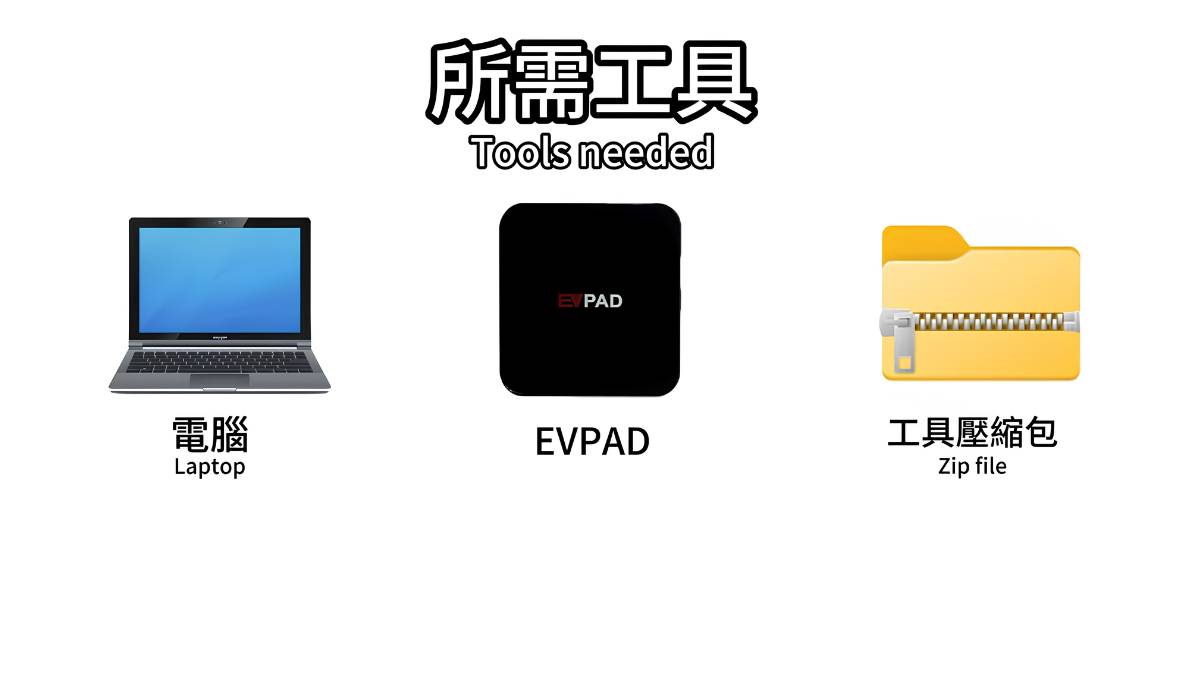
Before any firmware recovery is attempted, confirm the following:
Device Information
The exact EVPAD model name and hardware version
A photo of the product label if support requests it
A stable power source
Your order or warranty information if available
Recovery Files and Instructions
Use only the recovery tool and firmware file specifically provided or confirmed for your exact EVPAD model by EVPAD support or the seller. Do not use firmware copied from another model or an unverified third-party source.
Always make sure the firmware and recovery method match your exact device model and hardware version. Using an incorrect file may prevent the device from starting properly.
How to Proceed With Firmware Recovery
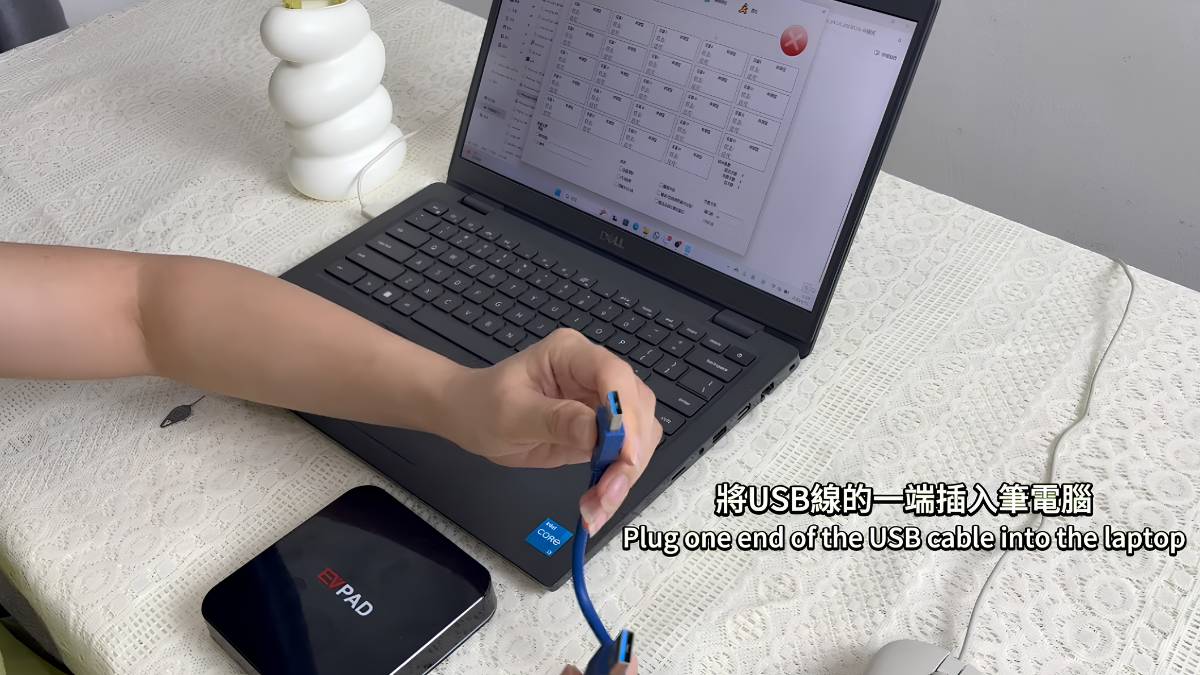
Because recovery procedures can vary by EVPAD model, follow only the model-specific steps supplied by EVPAD support or the seller.
Step 1: Confirm the Exact Model
Check the model name and hardware label on the device. If you are unsure which firmware applies, send this information to EVPAD support before downloading or using any recovery package.
Only use a recovery package after its compatibility with your exact model has been confirmed. Keep the support instructions available while performing the recovery.
Step 2: Follow the Official Model-Specific Connection Method
The cable type, connection port, and recovery-button method can differ by hardware revision. Follow the connection method supplied for your exact model.
Do not press hidden reset buttons or connect recovery cables unless the model-specific instructions explicitly tell you to do so.
If the support instructions require a recovery connection, follow the documented sequence exactly and keep the power stable.
If the recovery tool does not detect the device as described in the official instructions, stop and contact support rather than trying unrelated drivers, tools, or firmware packages.
Step 3: Complete the Recovery Only as Instructed
Before starting, confirm again that the firmware package and instructions match the exact device model.
Once a verified recovery process has started, do not disconnect the device or interrupt power unless the official instructions specifically say to do so.
Follow the completion message and shutdown or disconnect sequence shown in the model-specific instructions.
After the verified recovery process is complete, restart the EVPAD according to the supplied instructions and allow extra time for the first boot.
Recovery time can vary by model and procedure. Do not interrupt the process while system files are being written.
For first-time users, use only a video or guide that has been confirmed for the exact EVPAD model and recovery method.
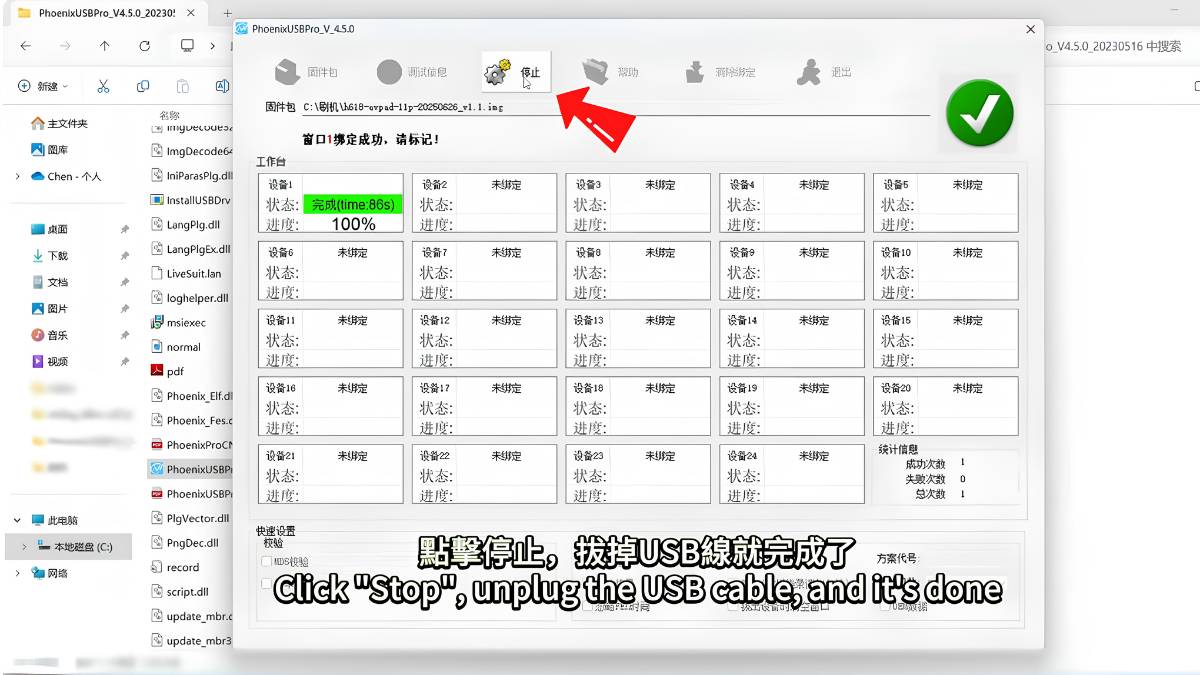
👉 Before following any recovery video, confirm that it applies to your exact EVPAD model and current hardware version.
Precautions During Flashing
Flashing can solve serious system issues, but it should be done carefully. Keep the following points in mind before starting:
Make sure you are using the correct firmware for your exact EVPAD model. A mismatch may cause the process to fail.
Keep the power stable throughout the entire process. Do not allow the computer or the EVPAD box to lose power while flashing is in progress.
All data on the device will be erased. This includes system settings, downloaded content, and personal files, so be sure to back up anything important beforehand.
If the recovery attempt does not work, stop and contact EVPAD support or the seller. Repeated attempts with different tools or unverified firmware can make diagnosis more difficult.
If the problem still cannot be solved, contact EVPAD support or the seller for further assistance.
Can Older EVPAD Models Still Be Flashed?
Older EVPAD models may use different hardware and recovery procedures. Do not assume that instructions or firmware for a newer model will work on an older device.
If an older model continues to have boot problems, contact the seller or EVPAD support to confirm whether repair, recovery, or replacement is the appropriate next step.
Frequently Asked Questions
Q: What should I do if an error appears during flashing?
A: Stop the recovery process and confirm that the firmware, tool, and instructions match the exact EVPAD model. If the error continues, contact EVPAD support or the seller before trying again.
Q: Will firmware recovery erase my settings and files?
A: A firmware recovery process may erase system settings and locally stored files. Back up important personal data first if the device is still accessible and the support instructions recommend doing so.
Q: What if the device still cannot boot after flashing?
A: If flashing finishes successfully but the EVPAD still will not start, the issue may be hardware-related. In that case, contact the seller or after-sales support for repair or replacement.
Q: How long does the first boot take after flashing?
A: The first startup after a firmware recovery may take longer than a normal boot while the system initializes. Follow the timing guidance supplied with the verified recovery instructions.
Conclusion
This EVPAD recovery guide explains how to approach boot failure, logo freeze, and error issues safely. Start with basic checks, confirm the exact model, and use firmware recovery only when the correct files and model-specific instructions have been verified.
If the device still does not boot after a verified recovery attempt, contact the seller or EVPAD support for further diagnosis, repair, or replacement options.